
Your Hyundai Kona’s USB port may stop charging your phone, fail to recognize a flash drive, or disconnect Apple CarPlay or Android Auto without warning. These symptoms can result from something as simple as a damaged cable or an incorrect port setting, although electrical faults and damaged connectors can produce similar problems.
The right fix depends on whether the port has lost power, cannot transfer data, or has stopped communicating with the infotainment system. A few simple checks can help you identify the likely cause before paying for a repair.
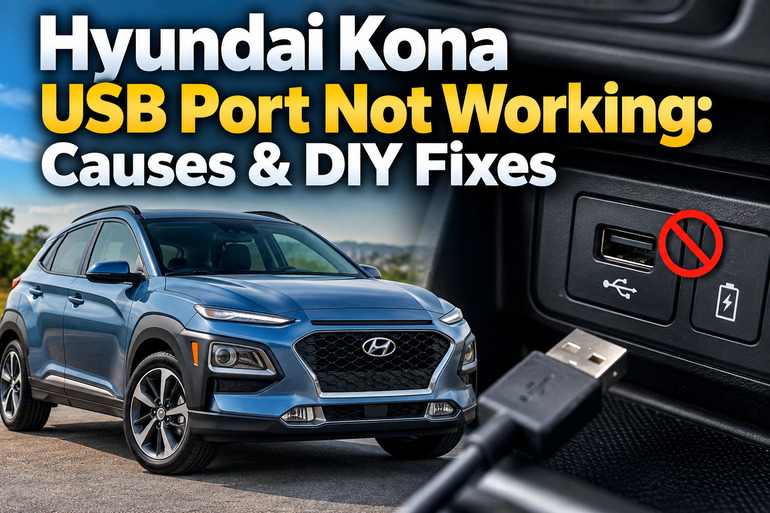
Why Your Hyundai Kona USB Port Is Not Working
The USB ports in your Hyundai Kona can serve different purposes. Some provide power for charging a phone, while others support data transfer for music playback, Apple CarPlay, or Android Auto. Depending on your model year and equipment, a port may support one function or several.
This distinction matters when diagnosing a fault. Your phone might charge normally while Apple CarPlay refuses to connect, indicating a possible data connection problem rather than a complete loss of power. On the other hand, a phone that doesn’t charge from the port may point to a faulty cable, a power supply issue, or damage to the connector.
You might also notice that the infotainment screen briefly recognizes a connected device before disconnecting, or that a USB flash drive works intermittently while driving over bumps. These symptoms can indicate a loose connection, a damaged cable, or a worn port.
Leaving the fault unresolved can prevent you from using wired smartphone features and playing music from a flash drive. Repeatedly forcing a connector into the port can also damage its internal contacts. Start with simple checks before investigating fuses or paying for electrical diagnosis.
Hyundai Kona USB Port Not Working: Likely Causes
Several faults can produce similar symptoms, so the first step is to establish exactly what has stopped working. Check whether the port can charge a phone, recognize a storage device, or establish a wired smartphone connection.
1. A Faulty USB Cable or Incompatible Device
A damaged USB cable is one of the first things to investigate when your Hyundai Kona stops recognizing a connected phone. A cable may still supply power while its data connections have failed, which can prevent the infotainment system from detecting the phone or launching smartphone projection.
The problem can also come from a cable that does not support the data functions your phone requires. Some inexpensive cables are intended primarily for charging. Others may have damaged connectors that fit loosely into the vehicle’s USB socket.
A faulty phone or flash drive can produce similar symptoms. If one device works correctly but another does not, the affected device or its cable becomes a stronger suspect. For flash drives, unsupported file types, incompatible storage formats, or corrupted files can also prevent playback.
2. The Wrong USB Port or Charging Mode
Your Kona may have separate USB connections for charging and infotainment functions. Connecting your phone to a charging-only port will not necessarily allow Apple CarPlay, Android Auto, or USB music playback to work.
Certain newer Kona versions also have a selectable USB port mode. Depending on the configuration, the port can be switched between charging and a mode that supports charging and data transfer.
If your phone charges but the infotainment screen does not recognize it, confirm that you’re using the correct port and that any available charging or data selection is set appropriately. The exact controls vary by model year and trim, so consult your owner’s manual rather than assuming every Kona uses the same arrangement.
3. Dirt, Debris, or a Damaged USB Connector
USB ports are exposed to dust, food particles, pocket lint, and other debris that can collect around the connector. If the plug cannot seat fully, the electrical contacts may not connect consistently.
A loose connection can cause the phone to charge intermittently or disconnect whenever the cable moves. You might also notice that the plug feels unusually loose or that the connection works only when the cable is held at a particular angle.
Physical damage is another possibility. Repeatedly inserting the wrong connector, pulling a cable sideways, or forcing a plug into the port can bend internal contacts or damage the socket. If you see corrosion, bent contacts, or a connector that moves inside the dashboard, cleaning alone is unlikely to solve the fault.
4. A Blown Fuse or Electrical Supply Problem
Your Hyundai Kona uses fuses to protect electrical circuits from excessive current. If the circuit supplying a USB charging port loses power because of a blown fuse, the port may stop charging connected devices.
A fuse problem becomes more plausible if several accessories lose power around the same time. However, a USB data fault does not automatically indicate a blown fuse because the data connection may depend on the infotainment system or a different circuit.
Fuse locations, labels, and circuit assignments vary by model year, market, and equipment. Your owner’s manual and the fuse panel label are the appropriate references for identifying the correct circuit. Never install a replacement fuse with a higher rating because this can damage the electrical system and create a fire hazard.
5. An Infotainment Software Fault or Failed USB Hardware
Sometimes the USB connector and cable are fine, but the infotainment system fails to detect connected devices correctly. A temporary software problem may interrupt communication between the vehicle and your phone, preventing wired smartphone projection or media playback.
You may notice other symptoms, such as a frozen display, delayed touchscreen responses, or smartphone connections that repeatedly drop. These additional symptoms make an infotainment system fault more plausible, although they do not confirm it.
A failed USB socket, damaged wiring behind the dashboard, or a fault in the infotainment unit can cause similar behavior. If the port remains unresponsive after testing a known working cable and compatible device, further electrical diagnosis may be necessary.
Hyundai Kona USB Port Not Working: DIY Fixes
You can investigate several common causes without dismantling the dashboard or performing complicated electrical work. Begin with the simplest tests and use the results to determine whether a more involved repair is necessary.
1. Test Another USB Cable and Device
Start by checking whether the fault follows the cable, phone, or flash drive rather than the vehicle.
Park your Hyundai Kona in a safe location and switch the vehicle on as required by your owner’s manual. Disconnect the current device, then try a different cable that supports data transfer if you’re testing Apple CarPlay, Android Auto, or media playback.
Next, test another compatible phone or USB storage device. If the replacement works correctly, the original cable or device is probably responsible. If neither device works, continue investigating the port or vehicle system.
For music playback, try a compatible flash drive containing supported audio files. Connect it directly to the vehicle rather than through a USB hub or extension cable. If a replacement cable and compatible device work correctly, you can avoid unnecessary repairs to the vehicle.
2. Select the Correct USB Port and Check Its Mode
Check the location and markings of the USB ports in your Kona. The correct port for charging may differ from the one intended for wired smartphone connections or music playback.
If your model has a USB charging or data selection button, inspect its indicator and select the mode that supports the function you need. Follow the instructions in your vehicle’s manual because the button arrangement and operating procedure can differ between model years.
Reconnect your phone after selecting the appropriate port or mode. Give the infotainment system a short time to detect the device, then follow any prompts displayed on the phone or vehicle screen.
If charging works but data features still fail, test another data-capable cable before assuming the infotainment unit is defective. If the port has no mode selector, do not attempt to enable one through unrelated settings.
3. Clean the USB Port Carefully
If the plug does not fit properly or the connection drops when the cable moves, inspect the USB socket for visible dirt or damage.
First, switch the vehicle off and disconnect the cable. Use a flashlight to check the opening without inserting metal tools or forcing anything against the internal contacts.
For loose surface dust, use a clean, dry, soft brush suitable for electronics. Do not pour liquid cleaner into the port, spray chemicals inside it, or use a tool that could bend the contacts. Avoid pushing packed debris deeper into the socket.
After cleaning, reconnect the cable and test the port again. The plug should fit securely without excessive force. If you notice corrosion, bent contacts, or movement of the socket itself, stop using that port and arrange a professional inspection.
4. Restart the Infotainment System
When the USB port supplies power but fails to recognize devices, a restart may help if a temporary software problem is preventing communication.
Begin with a normal shutdown. Place the vehicle in Park, switch it off according to the owner’s manual, and allow the infotainment system to power down completely before restarting the vehicle and reconnecting your device.
If the system remains unresponsive, check your model’s manual for the approved infotainment reset procedure. Some Hyundai systems have a dedicated reset button, while others use a specific combination of controls. The appropriate procedure depends on your vehicle’s model year and infotainment system.
A reset can resolve a temporary software fault, but it will not repair a broken USB socket or damaged wiring. Avoid pressing unfamiliar buttons or disconnecting electrical components in an attempt to reset the system. If the fault persists, check whether an applicable infotainment software update is available through Hyundai’s official update service or a dealer.
5. Check the Relevant USB Fuse
Consider checking the fuse if a USB charging port has no power, particularly when the owner’s manual identifies a dedicated fuse for that circuit.
You will need your Hyundai Kona owner’s manual, the fuse panel label, and the appropriate fuse puller. With the vehicle and electrical accessories switched off, use the manual to locate the suspected circuit. Check the removed fuse for a broken or melted internal element, following the manufacturer’s instructions.
If the fuse is blown and you are comfortable replacing it, use a replacement with exactly the same amperage rating and type. Never substitute a higher-rated fuse, wire, or foil. Incorrect fuse replacement can damage wiring and create a fire hazard.
If you cannot identify the correct fuse confidently, leave the task to a technician. A replacement fuse that blows again indicates an unresolved electrical fault. Do not keep installing new fuses or repeatedly energize the affected circuit.
6. Contact a Qualified Automotive Technician
Professional diagnosis is appropriate when the USB port remains dead after the basic checks, the connector is physically damaged, or the problem repeatedly returns. A technician can test the relevant power and ground connections, check wiring continuity, inspect the port and its connector, and determine whether the fault lies in the USB hardware or infotainment system.
You should also seek assistance if several electrical accessories stop working together, a replacement fuse blows again, or you notice a burning smell or unusual heat around the USB port. Stop using the affected connection if there are signs of overheating, and do not attempt to repair exposed wiring yourself.
Tell the technician whether the port can charge a phone, whether it recognizes a flash drive, and whether Apple CarPlay or Android Auto works. These details help narrow down the fault and reduce unnecessary part replacement.
Wrap-Up
A Hyundai Kona USB port that stops working may have a faulty cable, an incorrect port setting, a dirty connector, a blown fuse, or an infotainment system problem. The most useful starting point is to establish whether charging, data transfer, or both functions have failed.
Test a compatible device and cable, confirm that you’re using the correct port, and inspect the connector safely before moving on to electrical checks. Always follow the instructions for your specific model year, especially when working with fuses or resetting the infotainment system. If the fault persists or you find physical damage, professional diagnosis can help identify the failed component and prevent further damage.