
Your Kia Picanto’s radio is still playing, but tapping the screen does nothing. Or the display has gone completely black and the buttons beside it seem dead, too. Both faults leave you without a usable screen, but what still works can tell you where to start.
Before you pay for a replacement, check whether the problem follows your phone, affects one part of the glass, or shuts down the whole unit.
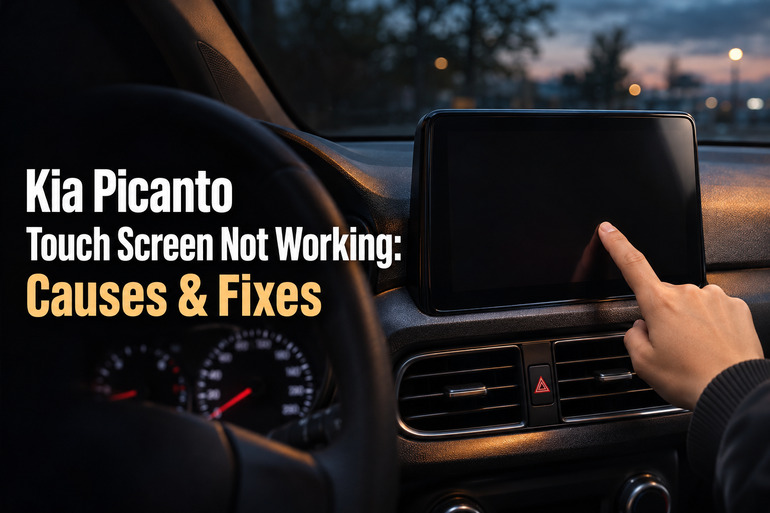
What a Blank or Unresponsive Picanto Screen Tells You
The unit in the center of your dashboard, often called the head unit, runs the radio and other media functions. Depending on your Picanto’s year and trim, it may also show maps, Apple CarPlay, Android Auto, and the rear camera image. The display makes the picture visible, while the touch sensor registers where you tap. That’s why you can see a clear image even when touch input has stopped working.
Start with what the car still lets you do. If you can change stations with a physical button and the screen shows the new station, the unit can still receive commands and update the picture. If the picture stays frozen and the buttons stop responding, the fault may affect the whole unit. A black screen with working audio gives you a different clue from a black screen with silence and no response to the power button.
Do your checks while safely parked. Some menu options are disabled while the car is moving, so test any grayed out option again once you’ve stopped. If the screen normally shows your rear camera and the image is missing, check behind the car and use your mirrors when backing up. If smoke comes from the dashboard, pull over safely, switch off the engine, get everyone out, and call emergency services.
Kia Picanto Touch Screen Not Working: Common Causes
Think back to what you were doing the first time the screen failed. A screen that goes dark only when you plug in your phone calls for a different check from one that never lights up at startup.
1. The Display Is Turned Off or Dimmed
Some Kia systems have a Display Off setting that blanks the picture while the unit can still play audio. On certain units, holding the power button switches off both the screen and the sound. If the problem began after someone changed a setting or held down that button, check how your unit wakes up before assuming it’s broken.
Brightness can cause confusion, too. Some units dim the screen based on the headlights or surrounding light. If you can still make out the menus in the shade, or the display becomes hard to read whenever the headlights come on, check the night brightness setting. A picture that flickers or cuts out regardless of the lighting needs further attention.
2. The Infotainment Software Has Frozen
The screen can get stuck on the Kia logo, a menu, or the last thing you were playing. An internal error can make the unit slow or stop it from responding. A useful clue is whether the picture stays stuck even when you press a physical button that normally opens another screen.
If a restart brings back the menus and touch controls, the unit was able to load and respond again. Test it the next few times you start the car. A freeze that returns at the same point, such as every time the Kia logo appears, gives a technician a specific fault to reproduce.
3. A Phone Connection Is Interrupting the Display
Kia’s troubleshooting guide lists a black screen during phone projection as a possible phone problem. The fault can show up as soon as CarPlay or Android Auto opens, even though the Kia menus looked fine a moment earlier. If the radio and settings screens work with the phone disconnected, start with the phone connection.
On a wired setup, a damaged or unsuitable USB cable can interrupt the data connection even if the phone still charges. With a wireless setup, pairing or connection trouble can stop projection from starting. If only one app freezes, try another app in the same session to see whether the problem affects the whole connection.
4. The Unit Has Lost Power
If the screen stays dark from the moment you turn on the ignition, there’s no radio sound, and the unit ignores its power button, a blown fuse is one possibility. The fuse protects the circuit by cutting power when too much current flows. Fuse labels and the circuits they serve vary, so use the diagram for your own Picanto.
A sound fuse still leaves other possibilities, including a poor electrical connection or a fault inside the head unit. Mention any recent stereo or dashboard work, especially if the unit began cutting out over bumps afterward. That timing can help a technician decide where to check the wiring and connectors.
5. The Touch Sensor or Display Is Damaged
A strip of glass that consistently misses your taps points to a possible touch sensor fault. The same goes for menus opening on their own or taps landing beside the spot you touched. Try two different Kia menus while parked. If different icons fail whenever they occupy the same part of the glass, the location of the fault is a useful clue.
Cracks or a recent impact make physical damage more plausible. The glass can also look intact while the touch sensor fails. If you can still change stations with the buttons but the picture has persistent lines or stays dark, the display panel or its backlight may need testing. Avoid pressing harder to force a response, since excess pressure can damage the screen.
Kia Picanto Touch Screen Not Working: DIY Fixes
Start with the check that matches what your Picanto is doing. Try one change at a time, then test the same screen or button so you can tell what helped.
1. Wake the Screen and Check Its Brightness
With the car safely parked and the ignition in the position specified by your manual, try the physical power button. If the radio is already playing and your unit has a Display Off feature, tap the screen once. Kia’s manual for one Display Audio system says a tap brings the picture back after you use that setting.
Once you can see the menus, open the display settings. If your unit offers separate day and night brightness levels, check both. If the screen becomes too dim when the headlights come on, raise the night setting while parked and see whether the image remains readable. The menu names depend on the unit fitted to your Picanto.
2. Clean the Screen and Test With a Bare Finger
Switch off the engine and wipe the screen lightly with a soft, dry cloth. Take off your gloves and test with a clean, dry fingertip. Kia says ordinary gloves can prevent some screens from registering touch. Keep liquid sprays and solvents away from the display, and avoid testing with a pen or other pointed object.
Tap a few controls in different parts of the screen. If everything works with a bare finger, you’ve found a simple explanation. If one area keeps missing taps across several menus, make a note of its location. A short video recorded while parked can help show the fault if it comes and goes.
3. Restart the Infotainment Unit
If the whole interface has frozen, turn the car off and allow the unit to shut down fully. On some Kia systems, opening the driver’s door after switching off the ignition ends the period during which the radio stays on. Turn the car back on and see whether the home screen loads and responds.
If it’s still stuck, check the infotainment guide for a marked reset button and the instructions for using it. Some Picanto units have a recessed button that you press with a suitable tool, such as a paper clip. Identify it from the guide before inserting anything into the dashboard. Follow the instructions for your unit, since the reset controls can vary.
After the restart, test the Kia menus with your phone disconnected. If touch works again, try the function that was open when the screen froze. If the freeze returns, note how far the system gets before it stops responding.
4. Reconnect Your Phone
If the problem appears only in CarPlay or Android Auto, disconnect the phone and check whether the Kia home screen works. For a wired connection, restart the phone and try a known working data cable plugged directly into the car’s media USB port. Bypass any adapter or hub while you test.
For a wireless connection, check that Bluetooth and Wi-Fi are enabled. If reconnecting fails, remove the saved pairing from the phone and car, then pair them again using the instructions for your unit.
If possible, test another compatible phone using the same connection method. If both phones fail while the Kia menus work normally, tell the technician whether you tested with a cable or wirelessly. For a wired connection, that detail helps narrow the check to the media port or the head unit’s phone connection.
5. Check the Correct Fuse if the Unit Is Completely Dead
Find the fuse chart in the owner’s manual and compare it with the label on the fuse panel cover. Look for the circuit listed for the audio or infotainment unit. If your manual allows an owner check, switch off the ignition and accessories and follow its fuse removal instructions. A visible break in the metal strip inside a blade fuse indicates that it has blown.
If your manual directs you to a workshop or calls for battery disconnection you’re unfamiliar with, have the fuse checked there. Any replacement must be the same type and amperage. If it blows again, stop using the system and have the circuit checked. A higher rated fuse can let the wiring overheat.
6. Check for a Software Update if the Screen Still Works
If the menus are usable but the unit keeps freezing, look for an update through Kia’s official service for your region. Find the software version in the system information menu and use the vehicle identification number or exact vehicle and unit details to check eligibility. Kia lists different software packages for different Picanto systems, so the model name alone may be too broad.
Follow the instructions for that package, including the specified USB drive or SD card and power requirements. Keep the system powered and leave the update media in place until the installation finishes. Afterward, confirm the version shown on the screen and test the function that was freezing.
If the unit keeps shutting off, gets stuck at the Kia logo, or won’t let you reach the update menu, ask a Kia dealer to check it. An update needs a reliable power supply and a unit that can complete the installation.
7. Contact a Kia Dealer or Auto Electronics Technician
Book a diagnosis if the unit stays dead, the same area of the screen keeps missing taps, or the fault returns after a restart. Tell the shop what still worked when the problem appeared, such as the radio, physical controls, or rear camera. Include any recent dashboard work or liquid spill. These details can help the technician decide whether to test the power supply, wiring, display, or touch sensor first.
If the car may still have warranty coverage, ask a Kia dealer to check before paying for repairs. If the fault is inside the unit, ask whether the failed part can be repaired separately or whether your particular unit needs replacement.
Wrapping Up
The most useful clue is what your Picanto can still do when the screen acts up. If the fault comes and goes, write down what was on the display, whether a phone was connected, and which controls still worked. A few details from the moment it happens are easier to use than a general description later.
If a simple check restores the screen, try the same function again the next time you start the car. If the problem returns, take your notes to the shop so the technician knows where to begin.