
Apple CarPlay makes it easy to access navigation, music, calls, and messages through your Kia EV6’s infotainment screen. However, the experience becomes frustrating when your iPhone suddenly refuses to connect, CarPlay keeps disconnecting, or the display stops responding.
Several issues can cause these problems, including faulty USB connections, incorrect phone settings, and infotainment software errors. Fortunately, many are relatively simple to identify and fix. Understanding how your EV6 connects to CarPlay is the first step toward restoring a reliable connection.
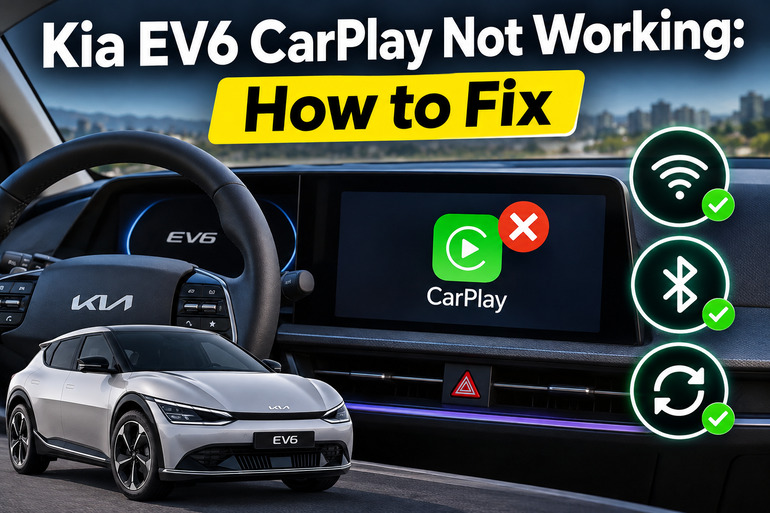
Why Apple CarPlay Stops Working in the Kia EV6
Apple CarPlay allows your iPhone to communicate with your EV6’s infotainment system, displaying compatible applications on the vehicle’s touchscreen. It also lets you control certain functions using Siri and the steering wheel buttons. For everything to work properly, your phone and the vehicle must establish and maintain a compatible connection.
An important detail is that 2022 through 2024 Kia EV6 models use wired Apple CarPlay, while the refreshed 2025 and 2026 U.S. models support wireless CarPlay. Earlier models require a suitable USB cable connected to the correct data port. Newer models can establish a wireless connection using Bluetooth and Wi-Fi.
When something interferes with that connection, you might notice that your iPhone charges without launching CarPlay, the vehicle displays a connection error, or the CarPlay screen disappears unexpectedly. Sometimes, the system recognizes your phone but fails to display its applications.
These symptoms don’t necessarily indicate a defective infotainment unit. A damaged cable, disabled setting, or temporary software error can produce similar behavior. However, repeated disconnections involving different phones and cables may point to a problem with the vehicle’s USB hardware or infotainment system.
Kia EV6 CarPlay Not Working: Common Causes
Several problems can prevent Apple CarPlay from functioning correctly in your Kia EV6. The most likely cause often depends on your vehicle’s model year, how you’re connecting your iPhone, and whether CarPlay fails completely or disconnects intermittently.
1. Incorrect USB Port or Connection Method
Using the wrong connection method is one of the first possibilities to consider, particularly if you’ve recently purchased your EV6 or changed phones. The vehicle’s model year determines whether you should be using a cable or wireless phone projection.
For example, 2022 through 2024 U.S. EV6 models have a USB-A data port and separate USB-C charging ports in the front console area. Plugging your iPhone into a charging-only port may supply power without establishing the data connection required for CarPlay. Consequently, your phone may display its charging symbol while the infotainment screen remains unchanged.
Another common misunderstanding involves Bluetooth. Although older EV6 models support Bluetooth calling and audio playback, that connection alone doesn’t activate Apple CarPlay. If you’re using a 2025 or newer model with wireless CarPlay, however, Bluetooth and Wi-Fi must be available for the pairing process.
2. Damaged USB Cable or Poor Physical Connection
USB cables experience regular bending, pulling, and twisting, especially when phones are frequently connected and removed. Over time, damage to the cable or its connectors can interrupt data transmission even when the cable still supplies charging power.
Some inexpensive cables are also intended primarily for charging and may lack reliable data support. Meanwhile, dust or lint inside your iPhone’s charging port can prevent the connector from seating correctly.
A connection that repeatedly drops when the phone or cable moves is a useful clue. However, similar symptoms can arise from a worn vehicle USB socket, so the cable shouldn’t automatically be considered responsible.
3. Disabled CarPlay, Siri, or Phone Permissions
CarPlay depends on certain iPhone settings and permissions to function. If Siri is disabled, CarPlay is restricted through Screen Time, or the vehicle hasn’t been authorized, your EV6 might fail to recognize the phone correctly.
These problems sometimes become noticeable after changing iPhone settings, restoring a device, or setting up a replacement phone. A previously working connection may also require fresh permission after changes to the phone’s configuration.
Kia’s infotainment system has its own phone projection settings. If Apple CarPlay is disabled there, connecting a compatible iPhone may accomplish nothing. This is particularly worth checking when the USB cable works with other devices.
4. Wireless Pairing Problems or Conflicting Devices
On EV6 models equipped with wireless CarPlay, the iPhone initially pairs with the vehicle through Bluetooth and uses Wi-Fi for the CarPlay connection. A problem with either wireless function can prevent the connection from starting or cause it to drop.
For instance, disabling Wi-Fi, removing a saved Bluetooth connection, or changing network settings may interfere with automatic reconnection. An outdated pairing record can also prevent the phone and infotainment system from recognizing each other correctly.
Multiple registered phones can complicate troubleshooting. If another compatible iPhone is already connected, your EV6 may be using that device rather than the one you’re trying to connect.
A useful clue is whether CarPlay starts working after the other phones are disconnected. If it does, the problem may involve device selection or saved connection information rather than damaged hardware.
5. Infotainment Software Errors or Faulty USB Hardware
Your EV6’s infotainment system relies on software to recognize connected devices and maintain communication with them. Temporary errors can interfere with this process, sometimes causing a frozen CarPlay screen, failed connection attempts, or repeated disconnections. Outdated software may also contribute to compatibility problems.
However, software isn’t the only possibility. On wired models, a defective USB data port or an intermittent internal connection can interrupt CarPlay even when the phone and cable are working correctly. If several compatible iPhones experience the same problem in your EV6 but work normally elsewhere, the vehicle’s hardware deserves closer examination.
Kia EV6 CarPlay Not Working: DIY Fixes
The most effective approach is to begin with simple connection checks before changing settings or considering repairs. Each of the following methods addresses a different potential cause, helping you identify the problem without unnecessary expense.
1. Connect Your iPhone Using the Correct Method
First, confirm which Apple CarPlay connection your EV6 supports. The procedure differs between earlier vehicles with wired CarPlay and newer models equipped with wireless phone projection.
For 2022 through 2024 EV6 models, locate the USB-A data port in the front console area. Connect your iPhone directly using a compatible cable that supports data transfer. If your iPhone has a Lightning connector, use a suitable USB-A to Lightning cable. For an iPhone with USB-C, use a USB-A to USB-C data cable.
Unlock your phone and accept any CarPlay permission requests. Next, check the infotainment home screen for the Apple CarPlay icon and select it if necessary. Kia’s documentation confirms that wired phone projection requires an appropriate USB connection and user authorization.
For 2025 and newer EV6 models with wireless CarPlay, activate Bluetooth and Wi-Fi on your iPhone. On compatible Kia infotainment systems, open Setup, select Device Connections, and choose Add New. Select the vehicle from your iPhone’s Bluetooth device list, confirm the matching pairing codes, and approve CarPlay on both screens. Menu labels may vary slightly depending on the system version.
If CarPlay launches successfully, allow it to run for several minutes to confirm that the connection remains stable.
2. Replace the USB Cable and Check the Phone’s Charging Port
If your EV6 uses wired CarPlay and the correct USB port isn’t working, try another high-quality cable designed for both charging and data transfer.
Connect the replacement cable directly between your iPhone and the vehicle. Avoid extension cables, USB hubs, and unnecessary adapters during testing. Apple recommends trying a different cable when wired CarPlay fails because some adapters and cable combinations can interfere with communication.
Next, inspect your iPhone’s charging port under good lighting. Look for visible debris, moisture, or damage. If you notice dirt or lint, follow Apple’s recommended cleaning guidance for your particular device. Avoid inserting metal objects or liquids into the connector.
A cable that fits loosely or requires a particular angle to work may indicate a worn connector. If the replacement cable restores a stable connection, continue using it. However, if multiple cables fail, further checks are necessary.
3. Enable Apple CarPlay and Check Your iPhone Settings
Your next step is to confirm that your iPhone allows CarPlay to operate. Begin by opening Settings and locating Siri. Make sure Siri is enabled, since Apple CarPlay uses Siri for supported voice functions.
Then check whether Screen Time is restricting CarPlay. Open Settings > Screen Time > Content & Privacy Restrictions > Allowed Apps and make sure CarPlay is permitted. The exact wording may differ between iOS versions.
Afterward, open Settings > General > CarPlay and look for your Kia EV6. If it’s listed, select it and review the available connection options. When reconnecting, keep the phone unlocked so you can respond to any authorization prompts. Apple’s troubleshooting guidance identifies Siri, restrictions, and saved vehicle permissions as important checks.
You should also check the car’s infotainment settings. On many earlier Kia systems, the relevant menu is Setup or Settings > Device Connections > Phone Projection Settings > Apple CarPlay. Confirm that Apple CarPlay is enabled.
If you find that CarPlay was disabled, enable it and reconnect your phone. The system should recognize your iPhone if the remaining connection requirements are satisfied.
4. Delete the Existing Connection and Pair Your iPhone Again
Sometimes, the problem comes from incorrect or outdated connection information stored on your iPhone or the vehicle. Removing that information allows both devices to establish a fresh connection.
Start on your iPhone by opening Settings > General > CarPlay. Select your Kia EV6 and tap Forget This Car. If you’re troubleshooting wireless CarPlay, also open Settings > Bluetooth, find the Kia connection, tap its information icon, and select Forget This Device.
Next, use your EV6’s Device Connections or Phone Projection menu to delete the saved iPhone. Be aware that removing a registered phone can also erase its stored contact and call information from the vehicle.
Once the old connection is removed, pair the phone again using the appropriate wired or wireless procedure. Accept the pairing request and CarPlay permissions when prompted.
Kia recommends deleting and registering devices again when phone projection repeatedly fails to connect.
If you have multiple phones registered, temporarily disconnect the others while testing. Once your preferred iPhone connects successfully, you can reconnect additional devices as needed.
5. Restart Your iPhone and Reset the EV6 Infotainment System
Temporary software errors sometimes clear after restarting the affected devices. This makes a restart worthwhile when CarPlay suddenly stops working despite the correct settings and connection method.
Begin by safely parking your EV6 and disconnecting your iPhone. Restart the phone using Apple’s normal shutdown procedure, then turn it back on. Power down the vehicle normally and restart it before attempting another CarPlay connection.
If the problem persists, consider resetting the infotainment head unit. Kia provides a reset procedure for supported systems that involves locating a small recessed reset button, generally near the audio controls. Its position may vary by model year.
With the vehicle powered on and safely parked, use a paperclip or similar suitable tool to press and hold the designated reset button for approximately 5 to 10 seconds, releasing it when the infotainment screen goes black or begins restarting. Check your EV6 owner’s manual to identify the correct button before proceeding.
Wait until the system has finished restarting, then reconnect your iPhone. A successful restart may resolve a temporary infotainment error, although it won’t repair damaged cables, worn connectors, or other physical faults.
Avoid disconnecting the vehicle’s battery or removing electrical components to force a reset. Those procedures aren’t necessary for ordinary CarPlay troubleshooting.
6. Update Your iPhone and Kia EV6 Infotainment Software
Software updates can improve system stability and compatibility with connected devices. If CarPlay began malfunctioning after an iPhone update, or your vehicle hasn’t received an infotainment update recently, checking both systems is worthwhile.
On your iPhone, open Settings > General > Software Update. Install an available compatible iOS update, following the displayed instructions. It’s best to complete the process while the phone has sufficient battery power and a reliable internet connection.
Next, check your EV6’s installed infotainment software version. You can find applicable updates through the official Kia Navigation Update website for U.S. vehicles. Select your model year or use the vehicle identification option to locate the correct software.
Kia lists separate infotainment software packages for 2022 through 2024 EV6 models and the newer 2025 through 2026 models. Its July 2026 update included general improvements to user experience and system stability, although this doesn’t establish that it resolves every CarPlay fault.
Follow Kia’s official update procedure carefully. Depending on the vehicle and update, installation may be supported through an over-the-air update or the prescribed USB method. Don’t disconnect an installation device or interrupt an update unless Kia’s instructions specifically tell you to do so.
After the update finishes, reconnect your iPhone and test CarPlay again. If the system remains unstable, avoid repeatedly reinstalling software without a clear reason.
7. Contact a Qualified Kia Technician
If none of these methods resolves the problem, a qualified Kia technician can investigate the vehicle’s infotainment hardware and internal connections.
Professional diagnosis is particularly useful when CarPlay disconnects repeatedly with several different iPhones and cables. The technician can inspect the USB data port, associated wiring, and infotainment unit, then determine whether a repair, software correction, or component replacement is necessary.
Before visiting the dealership, note exactly when the failure occurs. Include whether your phone charges normally, whether the connection drops after a few minutes, and whether moving the cable affects CarPlay. These details can help the technician reproduce an intermittent fault.
It’s also worth asking the dealership to check for applicable service information and warranty coverage. Avoid dismantling the center console or attempting electrical repairs yourself, particularly when the vehicle may still qualify for warranty service.
Wrap-Up
Apple CarPlay problems in the Kia EV6 can interrupt useful features, but the symptoms often provide valuable clues about what’s wrong. Paying attention to whether your phone connects, charges, disconnects, or fails to appear on the screen can help you identify the next sensible step.
Start with the connection method appropriate for your EV6’s model year, then work through the cable, phone settings, pairing information, and software. If the problem continues after those checks, professional diagnosis can help identify the underlying fault and restore dependable CarPlay operation.