
When your Hyundai Elantra refuses to connect to Apple CarPlay, your iPhone may still charge, Bluetooth audio may work, and the infotainment screen may appear normal. The failure can be frustrating, especially when you rely on CarPlay for calls, music, and directions.
In many cases, you can restore the connection by correcting a setting, replacing a faulty USB cable, or pairing your iPhone again. The right solution depends on your Elantra’s model year, infotainment system, and whether it supports wired CarPlay, wireless CarPlay, or both.
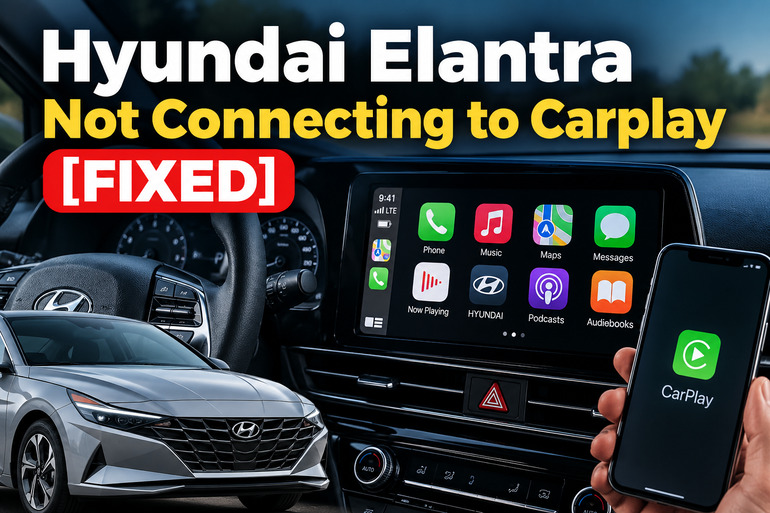
Why Your Hyundai Elantra Is Not Connecting to CarPlay
Apple CarPlay allows you to access supported iPhone apps through your car’s infotainment screen. Depending on the Elantra model, the connection uses a USB data connection or a wireless link involving Bluetooth and Wi-Fi. Bluetooth audio working by itself does not prove that CarPlay is functioning correctly.
Several symptoms can help you narrow down the cause. If your iPhone charges but CarPlay does not appear, the cable may be supplying power without transmitting data, the wrong USB port may be in use, or phone projection may be disabled. If CarPlay worked previously but suddenly stopped, a software glitch or pairing problem is more likely.
Wireless connection failures have a different set of clues. Your iPhone may appear in the car’s Bluetooth device list but fail to launch CarPlay, or the car may repeatedly ask you to pair your phone. These symptoms often point to a problem with the saved connection or the wireless settings.
The exact procedure also varies by Elantra year, trim, and market. For example, Hyundai’s owner documentation describes USB-based CarPlay setup on some Elantras, while newer configurations may support wireless CarPlay or offer different connection options. Confirm your vehicle’s capabilities before troubleshooting the wrong connection method.
Hyundai Elantra Not Connecting to Carplay [FIXED]: Likely Causes
Your Elantra’s CarPlay failure may originate from the iPhone, the connection itself, or the car’s infotainment system. These are the five most relevant causes to investigate before paying for a repair.
1. An Incompatible USB Cable or Incorrect USB Port
A cable can charge your iPhone without supporting reliable data transfer. This happens with some inexpensive charging cables, damaged cables, and cables that have worn connectors. The phone may display a charging symbol while the car fails to recognize it as a device for CarPlay.
The USB port also matters. Some vehicles have multiple USB connections, and their functions may differ. A port intended for charging may not support phone projection. A loose connection or debris inside the phone’s charging port can also interrupt data transmission.
If your iPhone starts charging immediately but the CarPlay interface never appears, check the cable and port before changing complicated settings. Apple’s official guidance recommends trying another suitable cable and USB port when a wired CarPlay connection fails.
2. Apple CarPlay Is Disabled in the Infotainment Settings
Your Elantra may support CarPlay even though the feature is switched off in the vehicle’s settings. This can happen after settings are changed, the infotainment system is reset, or a phone is paired again.
Hyundai’s interface varies across model years. On some systems, you can find the relevant setting under Setup > Device Connections > Apple CarPlay. Other systems use a Phone Projection or Device Connection menu. If the feature is disabled, plugging in a phone or completing Bluetooth pairing may not launch CarPlay.
Your iPhone’s settings matter too. Siri must be enabled, and CarPlay must be permitted by the phone’s restrictions. When any of these requirements is unmet, the vehicle may fail to start projection even when the cable and infotainment screen are working normally.
3. Wireless CarPlay Has a Pairing or Connection Conflict
Wireless CarPlay relies on a connection between the iPhone and the vehicle’s infotainment system. Bluetooth helps establish the connection, while Wi-Fi carries the data required for wireless projection. If either part is switched off or the saved pairing has become unreliable, CarPlay may fail to launch.
A common clue is that your Elantra can make Bluetooth calls or play music but cannot open CarPlay. Another is a connection that starts briefly before disconnecting. Your iPhone may also keep asking you to approve a connection that was previously automatic.
Previously paired phones can complicate matters, especially if the car connects to another phone first. Stale pairing information or a problem with automatic connection settings may prevent the intended iPhone from connecting correctly.
4. An iPhone Setting or Software Problem Is Blocking CarPlay
An iPhone update, a changed privacy restriction, or a temporary software error can interfere with CarPlay. Screen Time restrictions may prevent the feature from running, while Siri being disabled can stop the expected setup process.
Outdated iOS software may also contribute to compatibility problems. This does not mean every connection failure requires an update, but keeping your iPhone current helps resolve known software issues. Apple’s troubleshooting guidance specifically recommends checking Siri, CarPlay restrictions, and the iPhone’s software.
The phone’s charging port can also be involved. Pocket lint or physical damage may interfere with a wired connection, even if the charging function appears to work. If your iPhone connects successfully to another compatible car but fails in your Elantra, the vehicle’s settings or hardware may deserve closer attention.
5. The Infotainment System Has a Software Fault
Your Elantra’s infotainment system is controlled by software that manages Bluetooth, USB connections, phone projection, audio, and the display. A temporary system error may prevent CarPlay from appearing or cause the screen to freeze during connection.
This possibility becomes more likely if the touchscreen is slow, the system repeatedly restarts, or other functions stop responding alongside CarPlay. An outdated infotainment software version can also contribute to compatibility problems.
Hyundai provides software updates for supported Elantra infotainment systems, with versions depending on the vehicle and equipment. A system problem is worth investigating after you have ruled out basic connection faults. Persistent failures may also indicate a damaged USB port or a problem within the infotainment unit itself.
Hyundai Elantra Not Connecting to Carplay [FIXED]: Likely Causes
Start with the simplest checks and test CarPlay after each change. This approach helps you identify the cause without unnecessarily resetting your phone or changing several settings at once.
1. Confirm Your Elantra Supports Your Preferred Connection Method
First, establish whether your particular Elantra supports wired CarPlay, wireless CarPlay, or both. Check the owner’s manual for your exact model year and infotainment system. If the vehicle was imported, use documentation that matches its original market because specifications can differ.
For a wired system, connect your iPhone directly to the designated USB data port. Avoid USB hubs, extension cables, and adapters while testing. For a wireless system, use the car’s phone connection or CarPlay setup menu rather than assuming a Bluetooth music connection will activate projection.
Once connected, unlock your iPhone and approve any permission request shown on the phone or car screen. If the CarPlay icon appears on the infotainment display but the interface does not open automatically, select the icon manually.
If your Elantra does not support the connection method you are trying, changing unrelated settings will not solve the problem. Use the supported method specified in the owner’s manual.
2. Replace the USB Cable and Check the Connection
If your Elantra uses wired CarPlay, try another known working cable that supports data transfer. Choose a cable compatible with your iPhone’s connector, whether Lightning or USB-C, and connect it directly to the vehicle’s designated port.
Follow these checks while the vehicle is safely parked.
-
Disconnect the current cable from both the car and the iPhone.
-
Inspect the cable and connectors for visible damage.
-
Connect a different, reliable data cable directly to the correct USB port.
-
Unlock your iPhone and accept any CarPlay permission prompt.
-
Wait for the system to recognize the phone and open CarPlay.
Avoid repeatedly plugging and unplugging the connector in quick succession. Hyundai warns in its display audio documentation that repeated rapid USB connections can cause device errors or system problems.
If the replacement cable works, the original cable was likely faulty or unsuitable for data transfer. If neither cable works, try another supported USB data port if your vehicle has one. A loose port or damaged connector may require professional inspection.
3. Enable CarPlay and Check Your iPhone Settings
The next step is to confirm that CarPlay is enabled on both devices. Start with the iPhone because these settings are easy to verify.
Open Settings > General > CarPlay and check whether your Elantra appears in the list. If the car is listed, select it and review the available connection settings. Next, go to Settings > Siri or the corresponding Siri settings on your version of iOS and make sure Siri is enabled.
If CarPlay is missing or fails to activate, check the Screen Time restrictions. On compatible iOS versions, open Settings > Screen Time > Content & Privacy Restrictions and locate the allowed apps or features. Make sure CarPlay is permitted.
Now check your Hyundai’s screen. Depending on the infotainment system, open Setup, Device Connections, Phone Projection, or the equivalent menu and enable Apple CarPlay if the option is available.
Reconnect the phone and approve any prompts. When the connection is successful, the CarPlay interface should appear on the vehicle’s display. If the option is missing entirely, confirm the vehicle’s specifications and iPhone compatibility before assuming the infotainment system is defective.
4. Forget the Saved Connection and Pair Your iPhone Again
If wireless CarPlay worked previously but no longer connects, remove the old pairing from both devices and establish a fresh connection. This can clear outdated connection information that interferes with automatic pairing.
On your iPhone, open Settings > General > CarPlay, select your Hyundai if it is listed, and choose Forget This Car. The exact interface may differ slightly by iOS version.
Next, remove the existing phone pairing from the Hyundai’s Bluetooth or device connection settings. Menu names differ by vehicle, so consult the owner’s manual if the relevant option is not obvious. Be aware that deleting a device may also remove its saved Bluetooth settings.
Restart the phone, then put the vehicle’s infotainment system into its supported pairing mode. For wireless CarPlay, make sure Bluetooth and Wi-Fi are both enabled on the iPhone. Follow the on-screen instructions to connect the phone again. If the system asks you to approve CarPlay, accept the request.
If your Elantra supports wireless CarPlay, check that the car’s CarPlay option is selected for the paired device. A Bluetooth connection alone may leave you with hands-free calls and music without activating CarPlay. Apple’s official troubleshooting guidance recommends forgetting the vehicle and completing setup again when connection problems persist.
5. Restart Your Devices and Check for Software Updates
A temporary software error may clear after restarting the iPhone and infotainment system. Park the car safely, switch it off, and follow the owner’s manual’s instructions for shutting down the infotainment system. Allow the vehicle’s systems to power down before starting it again.
Restart your iPhone as well. Once the phone and car are ready, reconnect using the correct method and test CarPlay before changing more settings.
If the problem remains, check for an available iOS update under Settings > General > Software Update. Install an update only when you can follow Apple’s instructions and have enough battery power or a suitable power source.
You should also check Hyundai’s official software update service for your exact vehicle and infotainment system. On supported systems, the update may be installed using a USB drive or another manufacturer-specified method. Use the correct software package and follow its instructions carefully. Installing software intended for another vehicle or system can cause additional problems.
Some Hyundai infotainment systems have a dedicated reset button that can restart an unresponsive system. Use it only if your owner’s manual identifies the button and explains the correct procedure for your vehicle. A factory reset is different from a simple restart and can erase saved settings, so avoid it as an early troubleshooting step.
6. Contact a Qualified Automotive Technician
If your Elantra still refuses to connect after the checks above, professional diagnosis may be necessary. This is particularly relevant if the USB port is loose, the infotainment screen freezes frequently, the system restarts on its own, or several connected functions have stopped working.
A technician can test the USB data connection, inspect the relevant connectors, verify the infotainment software version, and determine whether the head unit has a fault. If the failure started after an infotainment replacement or electrical repair, mention that history because it may help narrow down the problem.
Avoid replacing the infotainment unit or disturbing electrical wiring before the cause is established. The fault may be limited to a connector, software issue, or compatibility setting.
Wrap-Up
A Hyundai Elantra that will not connect to CarPlay often has a problem with the cable, phone settings, wireless pairing, or infotainment software. Start with the checks that match your vehicle’s connection method, then work through the settings and restart procedures before considering repairs.
Pay attention to the symptoms and change one thing at a time. If the connection returns, test it again on a later trip to confirm that it remains stable. If the same fault persists, a qualified technician can identify whether the problem lies with the iPhone, USB connection, or infotainment hardware.