
A Kia microphone that stops picking up your voice can leave callers hearing silence while their voices come through clearly. You might also find that voice commands go unanswered or work only some of the time.
The cause could be a muted call, a phone connection problem, or a fault in the vehicle’s microphone system. A few careful checks can help you narrow down the problem before paying for parts you may not need.
What a Kia Microphone Problem Means
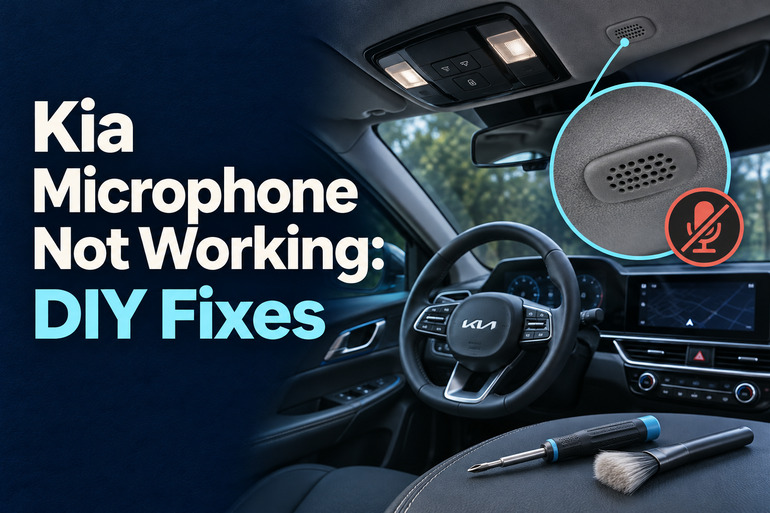
Your Kia’s microphone captures your speech for supported functions such as hands free calls and voice commands. Its location depends on the vehicle, although Kia places it above the driver’s head in several systems. Check your model’s manual for the exact location. Wind from open windows and strong airflow from the climate system can interfere with voice recognition.
The first useful distinction is between trouble hearing someone and trouble being heard. If your caller sounds clear but hears nothing from you, focus on call muting, the selected call connection, and the microphone input. Turning up the speaker volume won’t establish whether the car is capturing your voice.
Also, separate normal phone calls from individual voice features. If callers hear you clearly but one assistant won’t respond, the microphone is working during those calls. That makes the affected feature or its connection a better starting point than replacing the microphone.
Treat test results as clues rather than proof of a failed part. A problem affecting several phones and supported voice functions deserves a different investigation from one affecting a single app. Perform all checks while parked, with the parking brake applied, so screen menus and phone settings don’t distract you from driving.
Kia Microphone Not Working: Common Causes
Several problems can produce similar symptoms, so silence during a call doesn’t automatically mean the microphone has failed. The conditions under which it works, stops, or sounds muffled can help narrow the possibilities.
1. A Muted Call or Incorrect Call Connection
An accidental mute setting is one of the simplest explanations for a caller hearing silence. On some Kia models, pressing the steering wheel volume control during a call mutes the microphone. Button functions vary, so use your vehicle’s guide to identify the correct control.
The phone may also be using a different call connection from the one you expect. During a parked test call, check whether the phone shows the Kia as the selected audio device. A connected music player alone doesn’t confirm that the call is using the vehicle correctly.
2. A Bluetooth Connection Problem
A phone can appear connected while a particular Bluetooth function behaves incorrectly. Kia’s troubleshooting guidance recommends reconnecting Bluetooth, restarting the phone, and deleting the pairing from both devices before pairing again when Bluetooth errors occur.
This possibility becomes more relevant when the problem affects only one phone or begins after a change to that phone. If another compatible phone makes clear calls through the same vehicle, investigate the original phone and its connection before buying a microphone.
However, a successful second phone test doesn’t identify the exact software fault. It simply gives you a useful comparison. Record which phone works, which connection each uses, and whether the same type of call was tested.
3. Wind, Fan Noise, or an Obstructed Microphone Area
A microphone that picks up too much surrounding noise may seem weak even though it still works. Callers might hear rushing air, struggle to understand words, or report that your speech becomes clearer when the cabin gets quieter.
Kia identifies open windows, high fan speeds, rough roads, and air vents aimed at the microphone as conditions that can interfere with hands free operation. If the sound improves with the windows closed and the fan reduced, cabin noise is a stronger suspect than a completely failed microphone.
4. An Infotainment or Phone Projection Software Error
The infotainment system is the screen and audio unit that manages many vehicle entertainment and phone functions. If it freezes, responds slowly, or develops connection errors alongside the microphone complaint, software troubleshooting is reasonable. Kia lists a system restart and appropriate software updates among its responses to system operation faults.
Phone projection adds another connection to check. Apple CarPlay, for example, has its own requirements involving the phone, Siri, and a wired or wireless connection. Apple recommends checking those settings, restarting the phone and car, and setting up CarPlay again when it fails to work as expected.
Keep the distinction clear during testing. A failure limited to CarPlay doesn’t establish that the vehicle microphone is defective, especially if ordinary Bluetooth calls work. Likewise, a successful phone assistant test outside the vehicle doesn’t confirm that the car’s microphone works.
5. A Microphone Circuit Fault or Incompatible Replacement Unit
A persistent failure across multiple phones and supported vehicle voice functions makes the vehicle’s microphone, its connections, and the audio unit reasonable areas for professional testing. Those results still don’t identify which component needs replacement.
Repair history can be especially useful. Kia bulletin ELE145, revised in April 2018, covers certain 2014 and 2015 Sorento and Forte vehicles that lost microphone functions after head unit replacement. It describes microphone and head unit mismatches involving different operating voltages or software compatibility. That bulletin applies to specific vehicles and circumstances, rather than every Kia with a microphone complaint.
Kia Microphone Not Working: DIY Fixes
Start with checks that help separate a simple setting or phone problem from a vehicle fault. After each change, repeat the same parked test call so you can tell which action made a difference.
1. Check Mute and Identify Which Functions Fail
Place a normal call to someone who can describe what they hear. Check the call screen on both your phone and the Kia display for a muted microphone symbol, then turn mute off if necessary. Use the controls identified in your model’s manual.
On the phone, check the call’s audio selection and choose the Kia when it’s available. Ask your caller whether they hear clear speech, faint speech, background noise, or complete silence. These descriptions are more useful than a general report of poor sound.
Next, try a supported built in voice command if your vehicle has that feature. Note whether calls and vehicle commands fail together or whether only one function has trouble. Don’t use an emergency assistance button as a microphone test.
2. Make the Cabin Quieter and Check the Microphone Area
Close the windows and sunroof, reduce the climate fan, and redirect vents away from the microphone location shown in your manual. Speak normally from your usual driving position. For supported voice commands, follow the system prompts and wait until it’s ready before speaking.
Look for a loose accessory or other visible object covering the microphone opening. Move removable items away without disturbing trim. Don’t push pins into the grille, spray cleaner into it, or remove the overhead console. If quieter conditions improve the result, repeat the call under those conditions before considering a repair.
3. Restart Your Phone and Rebuild the Pairing
First, restart the phone and turn Bluetooth off and back on. Reconnect it to the vehicle, then repeat your test call. If the problem continues, remove the saved pairing from both sides.
The menu names depend on your phone and Kia system, but the basic process is straightforward.
- Open the vehicle’s Bluetooth or device connection settings.
- Delete the affected phone from the saved device list.
- Open the phone’s Bluetooth settings and forget the Kia.
- Start a new pairing through the vehicle’s phone menu.
- Confirm the matching code and complete the displayed prompts.
Pair only the phone you’re testing initially, which makes the active connection easier to identify. Kia recommends deleting both saved registrations and pairing again for Bluetooth connection errors. If possible, follow with a comparable call using another compatible phone. A clear result from that phone helps direct further troubleshooting.
4. Test CarPlay or Android Auto Separately
If the fault happens during phone projection, compare it with an ordinary Bluetooth call where your system allows that connection. Disconnect phone projection using the normal controls or cable, then establish the Bluetooth call connection. Keep your caller and testing conditions the same.
For CarPlay, Apple recommends restarting the iPhone and car, checking that Siri is enabled, and confirming the connection. With wired CarPlay, try a known working cable and the vehicle’s supported data port. For wireless use, check Bluetooth and Wi-Fi. You can also use Settings, General, CarPlay, your car, then Forget This Car before setting it up again.
For Android Auto, follow the current instructions for your phone and vehicle rather than applying iPhone menu steps. Test a regular call as well as the affected assistant or app. If only one function fails, report that specific result instead of assuming every microphone feature has stopped working.
5. Restart the Infotainment System and Check Applicable Updates
Use your model’s manual to find the approved system restart procedure. Some Kia systems have a small reset button, but its location and operation vary. Kia’s U.S. reset guidance specifically directs owners to their manual for the exact location. Don’t insert a tool into an unidentified opening.
Once the system restarts and the phone reconnects, repeat the call and voice command tests. A restart may clear a temporary error, but repeated failures still deserve attention. Avoid disconnecting the vehicle battery as a routine microphone troubleshooting step.
Next, check Kia’s official update service using your VIN or exact vehicle details. Follow the instructions for that system and update method, including its power requirements. Don’t interrupt installation or remove update storage while an update is running. An available update may address software problems, but it cannot be assumed to fix a damaged microphone or connection.
6. Contact a Qualified Kia Technician
Arrange diagnosis if the microphone still fails after these checks, the fault keeps returning, or several phones show the same result. Seek help sooner if the problem follows water entry, overhead trim work, or audio unit replacement. Leave trim removal and electrical testing to someone with the correct service information.
Bring a short record of your results. Include your model year, phone model, connection type, whether callers hear silence or distortion, and whether built in voice commands work. If the fault is intermittent, note what was happening when it occurred. That information gives the technician a clearer starting point.
For an applicable vehicle that developed the problem after head unit replacement, mention bulletin ELE145. Ask for the microphone circuit and installed components to be checked before authorizing replacement parts. Kia’s own troubleshooting guidance recommends dealer assistance when suggested system checks don’t resolve the fault.
Wrapping Up
A Kia microphone problem is easier to assess when you separate complete silence from muffled speech and compare ordinary calls with other voice functions. Those differences help you choose a useful next step without assuming that an expensive component has failed.
Begin with a parked test call, confirm the settings, and work through the connection checks that fit your system. If the problem persists, take your results to a qualified technician. Clear observations give the repair shop useful evidence and help you make a better informed repair decision.