
When the touchscreen in your Hyundai Veloster stops responding, the radio may still play, the display may freeze on the Hyundai logo, or the screen may go black altogether. These symptoms can point to a temporary software fault, a power supply problem, or damaged screen hardware.
Start with a few simple checks before paying for a replacement unit. The right solution depends on your Veloster’s model year and audio system, so confirm which equipment your vehicle has before attempting a repair.
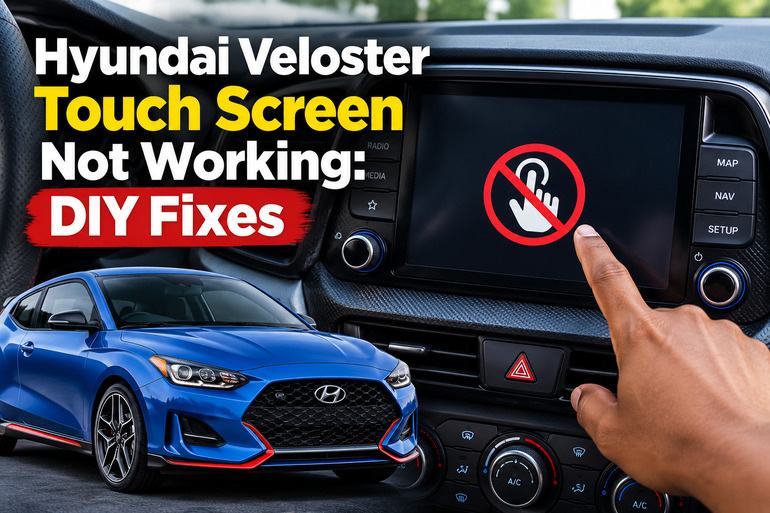
Understanding the Hyundai Veloster Touch Screen Problem
The touchscreen in your Hyundai Veloster allows you to control audio, Bluetooth, phone connections, and other available infotainment functions. Depending on the model year and trim, the system may also provide built-in maps, a rearview camera display, and smartphone projection through Apple CarPlay or Android Auto.
When the screen stops working, the first step is to identify exactly what has failed. A completely black display suggests a different problem from a screen that displays menus but ignores your finger. Similarly, a frozen screen that still plays music may indicate that the infotainment software has stopped responding while some of its other functions remain active.
You may also notice that only part of the screen responds to touch. For example, the volume controls and radio menu might work, while buttons on the opposite side do nothing. This can indicate damage to the touch-sensitive panel, although a software fault can produce similar symptoms.
It’s also worth separating a genuine touchscreen failure from a phone connection problem. If your home screen and radio work normally but Apple CarPlay or Android Auto displays a black screen, the fault may involve the USB cable, smartphone, or phone projection software rather than the touchscreen itself.
Hyundai Veloster Touch Screen Not Working: Likely Causes
Several faults can produce similar symptoms, so a careful diagnosis helps you avoid replacing parts unnecessarily. Start by considering how the screen behaves, whether the physical controls still work, and whether the problem began after a software update, battery discharge, or physical damage.
1. Temporary Infotainment Software Freeze
The infotainment system relies on software to process touch inputs, display menus, and communicate with connected devices. If that software freezes, the screen may remain illuminated without responding to your finger. In some cases, the display may become completely black even though the system had been working normally moments earlier.
A temporary software error can occur during startup, after a device connection fails, or when the system encounters an internal processing problem. You might notice that the radio continues playing, the physical buttons respond intermittently, or the system becomes unusually slow before freezing.
A restart can resolve this type of fault without requiring replacement parts. Hyundai’s 2019 Veloster 7-inch display-audio manual specifically recommends pressing and holding the system’s reset button when the system becomes slow or unresponsive. It also directs owners to contact the dealer if the problem persists. The exact controls may differ on other Veloster versions.
2. Dirty, Wet, or Obstructed Touchscreen
A touchscreen needs clear contact with your finger to register commands correctly. Dust, oily fingerprints, moisture, or a poorly fitted screen protector can interfere with touch detection. Gloves that are incompatible with the screen can also prevent it from registering your input.
This type of problem often produces inconsistent responses rather than a completely dead display. You may need to tap the same icon repeatedly, notice that certain touches register only occasionally, or find that the screen behaves differently after being wiped.
Static electricity can also interfere with touch operation. Hyundai’s multimedia manual cautions against allowing electrically conductive materials to contact the screen and against using excessive pressure or pointed objects. These precautions matter because aggressive cleaning or pressing may cause additional damage instead of restoring normal operation.
3. Damaged Touch Panel or Display
The display assembly contains components that present images and detect touch. Depending on the unit’s design, the LCD display and touch-sensitive layer may be separate components or integrated into one assembly. Damage to either can produce different symptoms.
A cracked screen, pressure damage, or deterioration of the touch-sensitive layer can leave the display visible while making some or all touch controls unusable. The fault may also appear as inaccurate touches, where tapping one icon activates a different part of the menu.
Physical damage is more likely if the problem started after an impact, excessive pressure, or an object striking the dashboard. However, a screen that looks perfect can still have an internal fault. Repeatedly pressing hard on an unresponsive area will not repair the damaged components and may make the problem worse.
4. Blown Fuse or Electrical Supply Problem
The infotainment unit needs a reliable electrical supply to power its display and internal electronics. A blown fuse can prevent it from starting, while a poor connection or an electrical supply problem may cause intermittent operation or repeated shutdowns.
If the touchscreen and radio are both dead, check whether the system shows any sign of receiving power. A completely inactive head unit raises different concerns from a screen that remains illuminated but ignores touch commands.
A fuse can blow because of an electrical fault, and simply replacing it may not solve the underlying issue. The correct fuse location and rating vary by model year and equipment. Never assume that a fuse marked for an audio system in another Hyundai fits your Veloster’s configuration.
5. Smartphone or USB Connection Failure
A failed USB cable, incompatible phone connection, or smartphone software problem can make the infotainment screen appear faulty when the built-in system is working correctly.
For example, your Veloster may display its normal radio interface but show a black screen after connecting an iPhone or Android phone. Alternatively, the phone projection feature may freeze while the radio continues playing normally.
Hyundai’s multimedia troubleshooting guidance recommends disconnecting and reconnecting the phone’s USB cable and restarting the smartphone when phone projection displays a black screen. These steps are particularly relevant when the failure occurs only during smartphone use.
Hyundai Veloster Touch Screen Not Working: DIY Fixes
The most effective approach is to start with basic operating checks and move to the reset procedure or electrical inspection only when necessary. Follow the steps below in order, paying attention to whether the problem affects the entire infotainment system or only the touch function.
1. Confirm That the Display Is Turned On
A dark screen does not always mean the display has failed. Some Veloster infotainment systems allow you to turn off the display or the audio system using the physical power control. If that setting was activated accidentally, the screen may appear completely dead even though the equipment is still functional.
Park the vehicle safely and start the engine so the infotainment system has a stable operating environment. Locate the physical power button or volume knob on the audio control panel. On systems equipped with a power button that controls the display, press it once to see whether the screen returns.
If the screen comes back, check the relevant display settings for brightness or screen-off options. The precise menu names vary by system, so consult the manual for your model year.
If the screen remains black but the radio is playing, do not immediately assume that the entire unit needs replacing. The display, its backlight, or its internal connections may still require diagnosis.
2. Clean the Screen and Remove Connected Accessories
If the screen is illuminated but responds inconsistently, clean it before attempting a reset. Turn off the infotainment system and use a clean, soft, dry cloth to remove fingerprints and surface dirt. Avoid abrasive materials, household glass cleaners, strong solvents, and excessive moisture.
Next, remove any screen protector that appears damaged, poorly fitted, or visibly obstructive. If you are wearing ordinary gloves, remove them before testing the touchscreen. Use gentle touches rather than pressing firmly on the display.
Disconnect any connected USB devices temporarily. A malfunctioning phone or accessory can complicate troubleshooting, particularly if the issue began immediately after connecting it.
Turn the system back on and test several areas of the screen. If every area responds normally, the fault may have resulted from surface contamination or an accessory. If particular sections remain unresponsive, a touch panel fault becomes more plausible and may require professional inspection.
3. Restart the Infotainment System Using Its Reset Button
A system reset is one of the most useful first-line solutions when your Hyundai Veloster touchscreen freezes, becomes sluggish, or stops accepting commands. It restarts the infotainment electronics and may clear a temporary software error.
Many Veloster infotainment units have a small, recessed reset button on the control panel. Its location and appearance depend on the installed system. Consult your vehicle’s multimedia manual to identify the correct button before proceeding.
On the 2019 Veloster 7-inch display-audio system, Hyundai instructs owners to press and hold the reset button using a suitable tool, such as a pen or paper clip. Follow the instructions for your specific unit and apply gentle pressure. Do not push a sharp object into an unidentified opening, as it may damage another component.
Allow the system to restart, then test the display and touch controls. You may need to wait for the startup screen to disappear before interacting with the menus.
If the touchscreen returns to normal, monitor its performance during subsequent starts. A fault that repeatedly returns may indicate a deeper software or hardware problem that a basic reset cannot correct.
4. Check the Infotainment Fuse
If the screen and audio system will not turn on, the infotainment fuse deserves attention. The fuse protects the associated electrical circuit against excessive current, and a blown fuse can interrupt the power supply to the head unit.
Begin with the fuse diagram in your Veloster’s owner’s manual. Identify the fuse associated with the audio or infotainment system for your exact model year and equipment. Fuse assignments can differ between versions, so do not rely on a fuse number taken from an unrelated vehicle.
Switch off the ignition and other electrical accessories before accessing the fuse panel. If your owner’s manual provides a safe replacement procedure and you are comfortable carrying it out, inspect the identified fuse using the recommended method. Replace a blown fuse only with one of the exact specified amperage.
Never install a higher-rated fuse or bridge the fuse contacts with wire or another object. If the replacement fuse blows again, stop testing and have the circuit inspected. Hyundai’s 2019 display-audio manual recommends having a repair shop replace a fuse when the system will not turn on.
If the fuse appears intact but the unit remains dead, the problem may involve its wiring, connectors, power supply, or internal electronics. A technician can test these components without unnecessary parts replacement.
5. Troubleshoot Smartphone Connections and Check for Software Updates
If the built-in radio works but the screen fails during Apple CarPlay or Android Auto use, isolate the phone connection before considering a head unit repair.
First, disconnect the USB cable and check whether the Veloster’s normal home screen and radio functions return. Restart your smartphone, unlock it, and reconnect it using a compatible cable. If possible, try a known-good cable and check for visible damage or debris around the phone’s charging port.
If the phone projection screen remains blank, check the connection settings on both devices. Confirm that the relevant feature is supported and enabled. Testing with another compatible smartphone can help determine whether the problem follows the phone or remains with the vehicle.
Software updates may help resolve certain infotainment bugs, improve compatibility, or correct specific system faults. Hyundai provides an official software update website where owners can identify available updates by vehicle type or VIN. Confirm that an update applies to your exact model, system, and region before installing it.
Do not attempt an update when the display is completely unusable unless the manufacturer provides a suitable procedure for that condition. Follow the official instructions carefully and do not interrupt an installation while it is in progress.
An update will not repair a cracked display, a failed digitizer, damaged wiring, or a blown fuse caused by another electrical fault. If the same issue remains after the relevant connection and software checks, further diagnosis is needed.
Final Solution: Contact the Appropriate Professional
Professional diagnosis is the right next step when your Hyundai Veloster touchscreen remains unresponsive after a reset, has visible physical damage, or repeatedly stops working after restarting. It is also necessary when the infotainment system loses power, a replacement fuse blows again, or the display operates intermittently.
A qualified automotive electrician, Hyundai dealer, or experienced infotainment technician can test the power and ground circuits, inspect the connectors, and determine whether the display assembly or entire head unit requires repair or replacement. Where appropriate, the technician can also check for software faults and verify whether a model-specific service procedure applies.
Explain exactly what happens when you start the car, whether the radio still plays, which screen areas respond, and whether the issue began after a battery discharge, update, or physical impact. These details can help narrow the fault before parts are ordered.
If the rearview camera display also fails, take extra care when reversing and use your mirrors and direct visual checks. Never rely on a malfunctioning camera or touchscreen to confirm that the area behind the vehicle is clear.
Wrap-Up
A Hyundai Veloster touchscreen that stops working may have a temporary software fault, a dirty touch surface, an electrical supply problem, or damaged display hardware. Identifying whether the screen is dark, frozen, or selectively unresponsive helps narrow down the likely cause.
Start with the basic operating checks, clean the display carefully, and use the correct reset procedure for your infotainment unit. Check the appropriate fuse only when it is safe and practical to do so. If the fault continues, professional diagnosis can help identify the failed component and prevent unnecessary replacement costs.