
A Hyundai wireless charging pad that stops working can leave your phone with a low battery even when it’s sitting in the correct place on the center console. Sometimes the problem comes from a phone case, poor positioning, or an incompatible device. In other cases, the charging system may be overheating or experiencing an electrical fault.
Identifying the symptoms can help you narrow down the cause before paying for repairs. The right checks also help you avoid replacing a charging pad that still works properly.
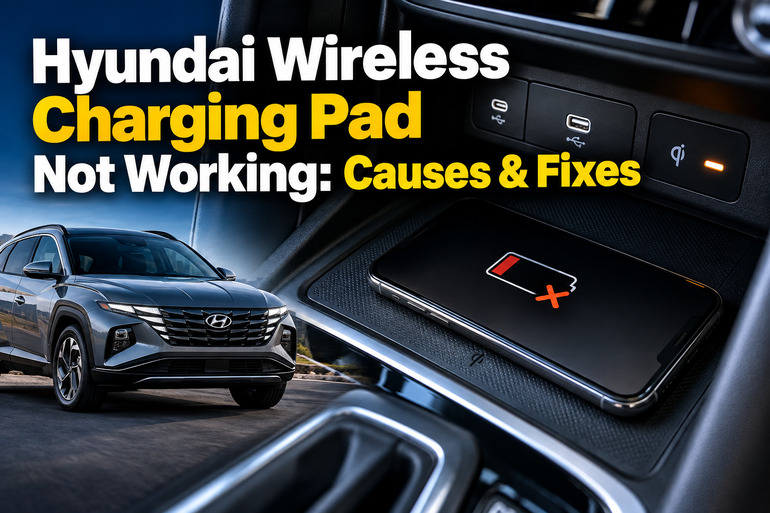
Why Your Hyundai Wireless Charging Pad Is Not Working
Hyundai’s wireless charging system uses an induction coil to transfer energy to a compatible smartphone without a charging cable. Your phone must support Qi wireless charging, and its internal charging coil needs to align with the coil inside the pad.
When everything works correctly, the charging indicator illuminates or the phone displays its charging status, depending on the vehicle model. If the phone doesn’t respond, charging starts and stops repeatedly, or the system displays a warning, something may be interfering with the process.
The cause isn’t always a defective charging pad. Thick phone cases, metal accessories, excessive heat, and incorrect phone placement can prevent reliable charging. Some Hyundai models also have charging settings or operating conditions that affect when the pad works.
Pay attention to the exact symptom before attempting a repair. A pad that never charges any phone suggests a different problem from one that works with another device. If you notice a burning smell, melted plastic, or unusual heat, stop using the pad and arrange an inspection.
Hyundai Wireless Charging Pad Not Working: Likely Causes
Several faults and everyday conditions can prevent your Hyundai’s wireless charger from working correctly. Start by identifying which of the following causes best matches your symptoms.
1. Your Phone Isn’t Compatible With Wireless Charging
Hyundai’s factory wireless charging pad supports compatible Qi-enabled smartphones. If your phone lacks built-in wireless charging, placing it on the pad won’t charge its battery, regardless of how well the pad works.
Compatibility can also vary between phone models. A phone that charges wirelessly on a home charging stand may still have alignment or compatibility issues with a particular vehicle’s charging system.
Check your phone’s specifications or manufacturer’s documentation to confirm Qi support. If your phone has no built-in wireless charging hardware, you’ll need a compatible external receiver accessory, provided it can be used safely with your phone.
2. A Thick Phone Case or Metal Object Is Blocking Charging
Wireless charging relies on a magnetic field between coils inside the pad and phone. A thick protective case can increase the distance between these coils and interfere with energy transfer. Metal plates, coins, magnetic accessories, and card holders can also disrupt charging.
This problem often appears when charging works without a case but fails as soon as the case is reinstalled. A case containing a metal mounting plate may cause similar symptoms even if it’s relatively thin.
Hyundai also warns that metal objects can heat up during wireless charging. Remove coins, keys, cards, and other loose items from the pad before testing your phone. Keep bank cards and magnetic-stripe cards away from the charging area to prevent possible damage.
3. The Phone Is Misaligned on the Charging Pad
Your phone’s charging coil must be positioned close enough to the coil beneath the Hyundai charging surface. When the phone sits too far to one side, the system may charge slowly, fail to start charging, or repeatedly interrupt the process.
This can happen when a phone is particularly large or when the shape of its case makes it difficult to position it correctly. Some foldable phones also require a particular orientation.
Center the phone on the pad with its screen facing upward and its back resting against the charging surface. If charging doesn’t begin, shift the phone slightly to the left or right. The best position depends on the phone and vehicle model.
4. The Charging System Is Overheating
Heat can interrupt wireless charging even when every component is functioning correctly. Hyundai’s charging systems may temporarily stop transferring power when the temperature inside the charger rises beyond its operating limits.
High cabin temperatures, direct sunlight, demanding phone applications, and simultaneous wireless charging and phone projection can contribute to excessive heat. Some phones also reduce or stop charging when their own temperature becomes too high.
You may notice that charging begins normally and stops after several minutes. It may resume after the phone and charging pad cool down.
If this happens, remove the phone and allow it to cool naturally. Don’t cover the pad or try to cool it with ice, water, or other liquids. If the system repeatedly overheats during ordinary use, have it inspected.
5. The Charging Pad Has an Electrical or Internal Fault
If a compatible phone fails to charge after you’ve removed its case, cleared the pad, checked the settings, and allowed the system to cool, the charging unit itself may be faulty.
Possible problems include a damaged charging coil, an internal connection fault, a failed electronic control component, or an interruption in the power supply. Damage from spilled liquids can also affect the unit.
An illuminated or blinking indicator can provide a useful clue, but it doesn’t identify the failed component by itself. On several Hyundai models, the charging indicator blinks orange for approximately 10 seconds when the system detects a malfunction.
If the indicator repeatedly blinks or the pad fails with multiple compatible phones, professional diagnosis is the next step. Avoid removing the console trim or probing the charging unit’s wiring without the appropriate service information.
Hyundai Wireless Charging Pad Not Working: DIY Fixes
You can resolve many wireless charging problems without replacing any parts. Work through these checks in order, starting with the phone and charging surface before considering an electrical fault.
1. Check the Wireless Charging Settings
Some Hyundai vehicles allow you to enable or disable the wireless charging system through the infotainment screen. If the feature is switched off, the pad won’t charge your phone even when the phone is compatible.
Park safely and switch the vehicle to the operating state specified in your owner’s manual. On many models, the doors must be closed and the ignition or start button must be in the ON or START position for charging to work.
Look for a menu similar to Setup > Vehicle > Convenience > Wireless Charging System for Mobile Devices. The wording and location vary by model and infotainment software.
Enable wireless charging if the option is available, then place your phone on the pad. Check whether the charging indicator illuminates and whether the phone displays its charging symbol. If the setting is already enabled, continue with the next check.
2. Remove the Phone Case and Reposition Your Phone
A phone case is one of the easiest things to rule out when the charging pad stops working. Even a case that worked previously may become a problem if you add a magnetic holder, card wallet, or metal accessory.
Follow these steps to test the phone.
-
Remove the phone case and any attached magnetic accessories.
-
Clear the charging pad of coins, keys, cards, and other objects.
-
Place the phone flat in the center of the pad with its screen facing upward.
-
Wait a few seconds and check whether charging begins.
-
If there’s no response, move the phone slightly to the left or right.
If charging works without the case, replace it with a thinner, wireless charging-compatible model. If the phone still doesn’t charge, try another compatible phone before assuming the Hyundai charging unit has failed.
3. Allow the Phone and Charging Pad to Cool
When charging stops after several minutes, excessive temperature may be responsible. This can happen on a hot day or when your phone is running demanding applications while connected to Android Auto or Apple CarPlay.
Remove the phone from the pad and let it cool naturally. If the cabin is hot, allow the interior to cool before trying again. Close demanding applications temporarily and avoid placing the phone under direct sunlight.
Once the phone and pad have cooled, try charging again with the phone centered on the surface. If charging resumes and remains stable, heat was likely contributing to the interruption.
Repeated overheating deserves further investigation. If the pad becomes unusually hot or produces a burning smell, stop using it and seek professional assistance rather than continuing to test it.
4. Restart the Vehicle’s Infotainment System
If the charging function has stopped responding and the vehicle’s settings appear correct, a temporary electronic or software issue may be involved. Restarting the infotainment system can help if the fault is related to the interface or its controls.
First, park the vehicle safely. Check your owner’s manual for the approved infotainment restart procedure for your specific Hyundai model. Some systems have a dedicated reset button, while others use a different procedure.
After the system restarts, check whether the wireless charging option remains enabled and test the phone again. Avoid disconnecting the vehicle’s battery simply to reset the charger, since doing so may erase settings or create additional issues.
If the infotainment system works normally but the charging pad remains inactive, a separate charging-system fault may be responsible. A software update should only be considered when it’s applicable to your vehicle and supported by Hyundai’s service information.
5. Test Another Compatible Phone
Testing another Qi-enabled phone is a useful way to separate a phone-related problem from a vehicle-related one. You don’t need special equipment, and the test can prevent unnecessary replacement of the charging unit.
Place the second phone on the pad using the same conditions. Remove its case if necessary, clear away other objects, and position it in the center.
Interpret the results as follows.
-
The second phone charges successfully. The original phone may have a compatibility issue, a damaged charging coil, or a case that interferes with charging.
-
Neither phone charges. The vehicle’s settings, operating conditions, power supply, or charging hardware may be responsible.
-
Both phones charge intermittently. Check for overheating, poor positioning, or objects interfering with the charging field.
This test narrows down the possibilities but doesn’t conclusively identify a faulty component. If the symptoms persist, a technician can perform further checks.
6. Contact a Qualified Hyundai Technician
If the previous fixes don’t restore charging, arrange an inspection at a Hyundai dealership or a qualified automotive electrical repair shop.
Professional diagnosis is particularly useful when the indicator repeatedly blinks orange, the pad stops working with several compatible phones, or the problem began after liquid entered the console or electrical work was performed.
A technician can check the charging unit, its electrical connections, the relevant power supply, and any applicable diagnostic trouble codes. Depending on the findings, the repair may involve correcting a connection, addressing a software issue, or replacing a defective component.
Avoid dismantling the center console or replacing the charging pad based on the indicator light alone. The exact repair depends on the vehicle’s model year, equipment, and diagnostic results.
Wrap-Up
A Hyundai wireless charging pad that stops working often has a straightforward explanation. Phone compatibility, case thickness, poor positioning, and excessive heat are sensible places to start before investigating an electrical fault.
Work through the basic checks carefully, and pay attention to whether the charging indicator responds and whether another phone works on the same pad. These observations can help you narrow down the cause without buying unnecessary parts.
If the charger still fails after these checks, professional diagnosis is the safest next step. Have the system inspected before replacing components, particularly if you notice repeated warning indicators, unusual heat, or signs of electrical damage.