
Hyundai Bluelink can stop responding in several ways. The app may refuse to sign in, display outdated vehicle information, time out when you try to lock the doors, or fail to send a remote start command. These symptoms can come from your phone, account, vehicle’s cellular connection, or a temporary service interruption. Identifying which part has failed helps you avoid unnecessary repairs.
Start with simple checks before changing vehicle settings. Some problems can be resolved through an app update or a connectivity refresh, while others require a head unit reset or professional diagnosis.
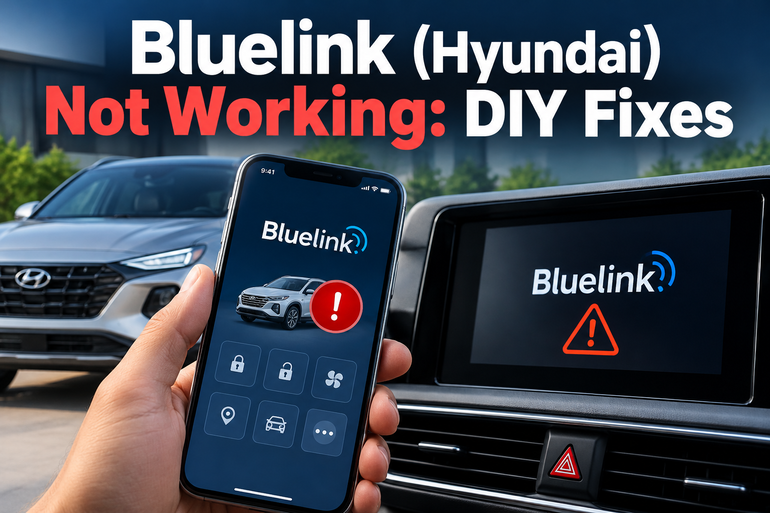
What Happens When Hyundai Bluelink Stops Working?
Bluelink connects your Hyundai to supported connected services through a built-in communication system. Depending on your vehicle and subscription, you may be able to check vehicle status, locate your car, lock or unlock doors, remotely start the engine, or manage charging on compatible electric vehicles.
The system depends on several components working together. Your phone must communicate with Hyundai’s services, your account must have access to the relevant features, and your vehicle must maintain a working connection to the required cellular network. The infotainment system and the vehicle’s built-in communication hardware also need to function correctly. Hyundai explains these network restrictions in its official Bluelink service documentation.
The symptoms can help you narrow down the problem. An app that crashes immediately after opening points towards a phone or software issue. An app that opens normally but shows an old fuel level or battery charge reading may be struggling to retrieve vehicle data. When every remote command fails while the rest of the app works, the vehicle’s connection, account permissions, subscription or communication hardware deserves closer attention.
A failed remote start command does not automatically mean Bluelink is broken. Hyundai vehicles enforce safety conditions that can prevent remote starting even when the app and cellular connection are functioning correctly. Persistent connectivity failures deserve investigation, particularly if the vehicle also displays a Bluelink error or loses several connected services simultaneously.
Bluelink (Hyundai) Not Working: Likely Causes
Several faults can produce similar symptoms, so avoid assuming that your phone or vehicle needs replacing. These five causes cover the main areas worth checking before paying for repairs.
1. Weak Cellular Signal or a Temporary Service Interruption
Bluelink uses a cellular connection built into the vehicle to communicate with Hyundai’s connected services. If that connection becomes weak or unavailable, commands may time out, status updates may remain stale, or vehicle location information may fail to refresh.
The problem can occur in underground parking garages, tunnels, remote areas, or locations surrounded by tall buildings. Some older vehicles and regional versions also depend on particular cellular technologies, so network availability and compatibility matter. Hyundai’s official owner’s manual explains that Bluelink access can be restricted by mobile network conditions.
A temporary service interruption can produce similar symptoms even when your local phone reception is excellent. If several Bluelink features fail together and other drivers report the same problem, a service-side issue becomes more plausible. In that situation, changing vehicle settings repeatedly is unlikely to help.
2. An Outdated or Unresponsive Phone App
The MyHyundai with Bluelink app in the United States provides access to supported remote vehicle features. An outdated installation, an incomplete app update, corrupted temporary data, or a temporary application error can prevent those features from working properly.
You may notice that the app freezes on its opening screen, closes unexpectedly, displays a login error, or continues showing old vehicle information. Your vehicle may still operate normally because the underlying fault is confined to the phone application.
Phone connectivity can contribute as well. A weak Wi-Fi connection, an unstable mobile data connection, or a VPN interfering with the connection can prevent the app from reaching Hyundai’s services. These possibilities are worth checking before attempting to reset the vehicle’s infotainment system.
3. An Inactive Subscription or Incorrect Account Setup
Bluelink features are available only on supported vehicles and depend on the applicable account, enrollment and subscription requirements. Some features also require a particular service package. Hyundai’s MyHyundai app listing describes these requirements and explains that feature availability varies by vehicle.
A recently purchased used vehicle, a new owner account, or an incomplete activation process can leave the app unable to control the car. The problem may also appear after a subscription expires or an account password changes.
Account problems often affect specific functions rather than the entire phone. For example, you may be able to view general vehicle information but receive an error when attempting a remote command. Confirming ownership, vehicle enrollment and subscription status helps distinguish an account restriction from an actual hardware fault.
4. An Infotainment or Communication System Glitch
The infotainment system manages several vehicle functions, and some Hyundai models provide connectivity settings directly through the touchscreen. A temporary software error may leave the system unable to establish or maintain its Bluelink connection.
Possible symptoms include a persistent connection error, connected services that stop responding after the vehicle starts, or a system that continues failing even after you restart the phone. The problem may follow an interrupted connection or an infotainment software issue, although these symptoms alone cannot confirm the cause.
A connectivity reconfiguration or supported infotainment reset may resolve a temporary fault. However, the reset procedure varies by model year and system type. A failed reset, repeated error or persistent loss of communication may indicate a software problem requiring dealer attention or a fault in the built-in communication hardware.
5. Vehicle Battery Problems or Remote Start Restrictions
A weak 12-volt battery can affect electronic systems and may prevent some remote functions from operating as expected. This is particularly relevant when the vehicle has been parked for an extended period or displays other electrical warning signs.
Remote start also depends on vehicle safety conditions. Depending on the model, these may include having the vehicle in Park, switching off the ignition, locking all doors, closing the hood and trunk, and having sufficient battery power. Hyundai’s Bluelink User Manual describes these restrictions for applicable vehicles.
If remote starting fails but door locking and vehicle status updates work, check the requirements for your particular model before assuming that the communication system has failed. If the car also cranks slowly, displays battery warnings, or struggles to start normally, investigate the battery and charging system.
Bluelink (Hyundai) Not Working: DIY Fixes
The most effective approach is to test the simplest possibilities first. Follow the steps below in order, and use your vehicle’s owner’s manual whenever a procedure differs by model year or infotainment system.
1. Check Your Internet Connection and Restart the App
Begin with your phone because this is the easiest part of the system to test. Make sure mobile data or Wi-Fi is working by opening a few other websites or applications. If you use a VPN, temporarily disconnect it to see whether the app can establish a connection without it.
Next, close the MyHyundai with Bluelink app completely and reopen it. On an iPhone, swipe the app away from the app switcher. On Android, close it from the recent apps screen or use the phone’s app settings to force stop it.
Sign in again if necessary, then try refreshing the vehicle status. On supported versions of the U.S. app, you can pull down on the vehicle status screen to request an updated reading.
Allow some time for the request to complete. If the app begins responding after you restart it or change the phone’s connection, the issue was likely related to the application or its internet connection rather than a confirmed vehicle hardware fault.
2. Update the App and Restart Your Phone
An application that repeatedly crashes or refuses to load may need an update. Open the Apple App Store or Google Play Store, search for the official Hyundai application available in your region, and install any available update.
Check your phone’s operating system for pending updates as well. An older system version may have compatibility problems with newer app releases, although an update will not fix every possible fault.
If the app is already current, restart your phone and sign in again. Android users may also be able to clear the app’s cache through Settings, Apps, the Hyundai app, Storage, and Clear cache. Menu names vary by phone manufacturer.
Avoid selecting Clear storage or Clear data unless necessary because doing so can remove locally stored application settings and require you to sign in again. On an iPhone, reinstalling the app may help with a persistent application fault, but first make sure you know your account credentials and can complete any required authentication.
3. Verify Your Bluelink Account and Vehicle Enrollment
Open your Hyundai owner account through the official website or application for your market. Confirm that you can sign in successfully and that the correct vehicle appears under your account.
Check the following details.
-
Vehicle activation: Confirm that Bluelink enrollment has been completed and that the vehicle is linked to the appropriate owner account.
-
Subscription status: Check whether the applicable service or trial remains active.
-
Feature availability: Make sure the function you are trying to use is supported by your model, model year and service package.
-
Authentication: If you recently changed your password or enabled additional account security, sign in again and complete any required verification.
If you bought a used Hyundai, the vehicle may need an ownership transfer or account association update. Follow Hyundai’s official procedure rather than attempting to bypass the existing account.
Once the account and subscription details are confirmed, retry the same function. If vehicle information remains available but remote features continue to fail, note the exact error message. It may help Hyundai support identify whether the issue involves account permissions, vehicle communication or a particular feature.
4. Check Vehicle Conditions and Connectivity
Park your Hyundai in a safe location and start the vehicle normally. Check the infotainment screen for a Bluelink or cellular network indicator, a connectivity warning, or a message about service activation.
If the vehicle has been parked inside an underground garage or another area with poor reception, move it to an open location when safe to do so. Give the system an opportunity to reconnect, then retry the affected feature.
For remote start problems, verify the requirements in your owner’s manual. Depending on the vehicle, you may need to switch off the ignition, select Park, lock the doors, close the hood and trunk, and ensure the alarm is armed. A low vehicle battery may also prevent the request from succeeding.
Never use remote start in an enclosed garage because exhaust gases can accumulate. If the vehicle shows a battery warning, has trouble starting normally, or has other electrical problems, arrange a proper battery and charging system test instead of relying on repeated remote commands.
5. Reconfigure Bluelink or Reset the Infotainment System
If the phone, account and vehicle conditions appear correct, a connectivity refresh may help. Hyundai publishes specific instructions for affected U.S. vehicles on its Bluelink Reset Instructions page.
For vehicles with the relevant menu, Hyundai’s procedure begins with the ignition on. Open Settings on the touchscreen, select Data/Network or Bluelink, depending on the system, and choose Reconfigure. Follow the on-screen instructions and check whether the system confirms successful reconfiguration.
If this fails, the official procedure describes different infotainment reset methods for different vehicles. Some systems have a dedicated reset pinhole, while other systems use a combination of physical buttons. Hyundai’s published instructions describe holding the applicable reset pinhole for 5 to 10 seconds or, on certain systems, pressing Map and Setup together for about 10 seconds.
Verify the exact procedure for your model year before resetting anything. Do not push a paperclip into an unidentified hole or assume that every Hyundai uses the same button combination. A supported infotainment reset is different from a factory reset that may erase personal settings.
After the system restarts, allow it to reconnect and try Bluelink again. If the connection still fails, further resets are unlikely to be useful without a more specific diagnosis.
6. Contact Hyundai Support or a Qualified Technician
If the preceding checks fail, contact Hyundai Bluelink customer support or an authorized Hyundai dealer. Give them your vehicle’s model year, the exact error message, the features that fail, and the steps you have already completed.
Support can help verify account activation and subscription eligibility. A dealer can investigate persistent infotainment faults, software problems, a failed communication module, or electrical issues affecting the system.
In the United States, Hyundai lists Bluelink customer support at 855-225-8354 on its official connected services support page. Contact details and available services can differ in other countries.
Professional diagnosis is particularly appropriate when Bluelink remains disconnected after a supported reset, other electronic functions begin failing, or the vehicle develops battery or starting problems. Avoid disconnecting the vehicle battery or replacing communication hardware without guidance, since those steps may introduce additional faults and may not address the original problem.
Wrap-Up
Hyundai Bluelink depends on a working phone app, a properly activated account, an available cellular connection and compatible vehicle equipment. A failure in any one of these areas can interrupt remote commands or prevent vehicle information from updating.
Start with the phone and account, then check vehicle conditions and connectivity before attempting a model appropriate infotainment reset. Pay attention to error messages and whether all features fail or only one function is affected. When the problem persists, Hyundai support or a qualified technician can determine whether the cause is an account restriction, software fault, weak battery or communication hardware failure.