
A Hyundai Ioniq screen that suddenly goes black, freezes on the home page, or refuses to respond to touch can make driving less convenient. You may lose access to navigation, music controls, phone connectivity, and the rearview camera display, depending on your model. The cause could be a temporary software fault, a power supply problem, a blown fuse, or a failing display unit.
Fortunately, several checks are worth trying before paying for repairs. The right approach depends on what the screen is doing and which Ioniq model you drive.
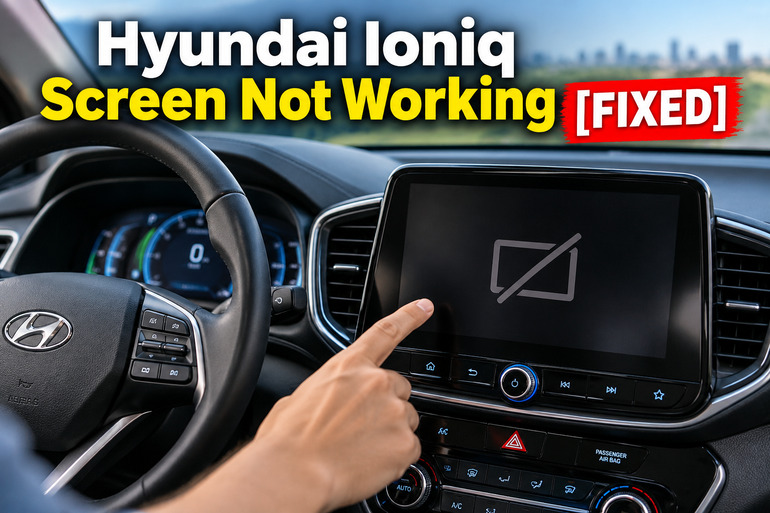
What It Means When Your Hyundai Ioniq Screen Stops Working
The infotainment screen in your Hyundai Ioniq provides access to features such as radio, Bluetooth, navigation, smartphone connectivity, and vehicle settings. Depending on the model year and trim, some functions may be integrated into the same unit, while others operate through separate controls.
When the screen stops working, the first task is to identify whether the entire infotainment system has lost power or whether only the display has failed. For example, a completely black screen with no sound may point to a power supply or system startup problem. If music continues playing while the display remains black, the head unit may still be operating even though the screen or its internal display circuitry has developed a fault.
A frozen screen presents a different set of clues. You may see the Hyundai logo indefinitely, find that the displayed menu no longer changes, or notice that the touchscreen ignores your fingers. These symptoms can occur when the infotainment software encounters an internal error. Restarting an unresponsive system may help, although persistent problems require further investigation.
The distinction matters because replacing the entire infotainment unit without diagnosing the fault can be an unnecessary expense. A simple restart may resolve a temporary software problem, while a recurring blank screen may require electrical testing or inspection of the display hardware.
Hyundai Ioniq Screen Not Working [FIXED]: Likely Causes
Several faults can produce a blank or unresponsive screen in a Hyundai Ioniq. These are the most relevant possibilities to consider before deciding which repair is appropriate.
1. A Temporary Infotainment Software Glitch
The infotainment unit relies on software to manage its display, audio, connected devices, and other functions. Like other electronic systems, it can occasionally freeze or fail to complete its startup sequence.
A software glitch may occur after starting the car, switching between media sources, connecting a phone, or using a particular feature. The screen may remain black, freeze on the Hyundai logo, or stop responding even though other electrical functions continue working.
An intermittent problem that disappears after restarting the system is consistent with a software issue. However, a successful restart does not prove that the software was the original cause. An underlying electrical problem can produce similar symptoms.
2. A Blown Infotainment Fuse or Power Supply Fault
The infotainment unit needs a reliable electrical supply to start and remain operational. A blown fuse can interrupt power to the unit, preventing the screen and associated controls from working.
You may notice that the screen remains completely blank every time you start the car. Other symptoms, such as unrelated electrical functions failing at the same time, may indicate a broader electrical fault rather than a problem limited to the display.
A fuse can blow because of an electrical fault in the circuit or an issue with connected equipment. Replacing it without investigating a recurring failure can leave the underlying problem unresolved.
3. A Weak 12 Volt Electrical Supply
The infotainment electronics depend on the vehicle’s low voltage electrical system. If the 12 volt supply becomes unstable, electronic accessories may behave unpredictably.
A weak auxiliary battery, poor electrical connection, or charging fault may cause symptoms such as an infotainment unit that fails to start consistently, repeated resets, or other electronic functions behaving abnormally. These symptoms are more useful when considered together than when the screen is examined in isolation.
A blank screen alone does not establish that the 12 volt battery is faulty. The battery may test correctly while the infotainment unit has an internal defect. Hybrid and electric Ioniq models also have high voltage systems, so battery diagnosis and electrical repairs must follow the correct procedures for the specific vehicle.
4. A Faulty Display or Internal Head Unit
Sometimes the infotainment system remains powered but the screen can no longer show an image. The fault may involve the display panel, its internal electronics, or the head unit that controls the screen.
A useful clue is whether the radio continues playing, Bluetooth audio remains connected, or other infotainment functions appear to operate despite the black display. If audio is still available, a complete loss of power to the entire unit becomes less likely, although it cannot be ruled out entirely.
Physical damage, age, heat exposure, or a developing electronic fault may contribute to display failure. A damaged screen may also show lines, flickering, distorted images, or dark patches before failing completely. These symptoms warrant a proper diagnosis before a replacement is purchased.
5. A Loose Connection or Related Wiring Fault
Electrical connections behind the display and infotainment unit carry power and signals between components. If a connector becomes loose, a wire is damaged, or a connection develops excessive resistance, the screen may lose power or behave intermittently.
The problem may appear after previous dashboard repairs, an aftermarket stereo installation, or work involving the vehicle’s electrical accessories. Intermittent operation during vibration can also justify checking the wiring and connectors.
The same symptoms can arise from a defective display or head unit, so disturbing dashboard wiring without testing is unlikely to provide a reliable diagnosis. Accessing internal connectors may require removing trim panels and handling delicate components, making this a job for a qualified automotive electrician or technician.
Hyundai Ioniq Screen Not Working [FIXED]: How to Fix
Start with the simplest checks, then move to more involved troubleshooting only when necessary. The steps below can help resolve a temporary fault and identify situations that require professional repair.
1. Check the Ignition Mode and Screen Controls
Before assuming that the display is damaged, confirm that the infotainment system is receiving power and has been switched on.
Park the car safely, apply the parking brake, and make sure the vehicle is in the appropriate operating mode. Depending on the model, the system may operate in accessory mode or when the vehicle is switched on. If the screen is blank and there is no audio, press the infotainment power button once to check whether the system starts.
If the display is faint rather than completely black, inspect the brightness and display settings where accessible. Some models allow screen brightness to be adjusted separately from the instrument cluster.
Watch what happens after these checks. A screen that starts normally may have been switched off or affected by a display setting. If it remains blank, continue with the next step rather than repeatedly pressing buttons.
2. Restart the Infotainment System
A system restart is one of the first remedies worth trying when the screen is frozen, unresponsive, or stuck during startup. It can clear a temporary software error without requiring replacement parts.
Many Hyundai infotainment units have a small recessed reset button, often located near the volume control or other multimedia buttons. The location and reset procedure vary by model and year, so consult the owner’s manual for your exact Ioniq.
Where the manual specifies a pinhole reset, follow its instructions using a suitable nonconductive tool if available. Apply gentle pressure to the designated button. Do not push a tool into an opening unless you have confirmed that it is the reset button.
Some Hyundai models use a button combination rather than a pinhole reset. Do not assume that a procedure intended for an Ioniq 5, Ioniq 6, or another Hyundai model applies to an older Ioniq Hybrid, Plug-in Hybrid, or Electric vehicle.
Allow the system time to restart before trying again. If the screen returns and responds normally, test the radio, touchscreen, and other usual functions while the vehicle is safely parked. If the display repeatedly freezes, further investigation is necessary.
3. Disconnect Your Phone and USB Accessories
A connected phone or USB accessory can sometimes contribute to problems with media playback or smartphone projection. A fault involving Apple CarPlay, Android Auto, a USB cable, or a connected device may affect the projected interface even when the vehicle’s built-in infotainment system remains functional.
Park the vehicle before troubleshooting. Disconnect the USB cable and any removable USB storage device, then restart the infotainment system using the correct procedure for your model.
If the screen becomes usable, test the system without connecting your phone. You can then try a different compatible cable and reconnect the phone after unlocking it. If the problem returns only when one particular device or cable is connected, that accessory deserves closer inspection.
A black screen that persists with all external devices disconnected is less likely to be caused solely by a phone connection. If disconnecting the accessories makes no difference, move on to the electrical checks.
4. Inspect the Relevant Fuse
If the infotainment system has no power, a blown fuse is worth considering. However, the correct fuse location and rating depend on the Ioniq’s model year, market, and equipment.
Switch the vehicle off and consult the fuse diagram in the owner’s manual or on the fuse box cover. Identify the fuse specifically assigned to the infotainment system, audio unit, or related circuit. Do not pull random fuses in an attempt to locate the fault.
If the manual permits owner inspection and you are comfortable working with the fuse panel, check whether the designated fuse has blown. Replace a faulty fuse only with one of the exact specified ratings. Never install a higher rated fuse or bridge the fuse terminals.
If the replacement fuse blows again, stop replacing it and seek professional diagnosis. A repeated failure may indicate a short circuit or another electrical fault. If you cannot confidently identify the correct fuse, have an automotive electrician perform the inspection.
5. Check for Software Updates and Recurring Faults
If the screen works intermittently or becomes unstable during normal use, an infotainment software update may be worth checking. Updates can address certain software problems, although they cannot repair a failed screen, blown fuse, or damaged wiring.
Use Hyundai’s official software update resources for the appropriate vehicle and infotainment system. Verify the model, year, market, and supported update method before proceeding. Some vehicles support different update procedures, while others may require service centre assistance.
Do not install firmware intended for a different Ioniq variant or force an update when the system is not operating reliably. An interrupted or incompatible update can create further problems.
If the screen becomes stable after an update, test the system again under normal conditions. If it continues freezing, restarting, or going black, record when the problem occurs and whether audio remains available. Those details can help a technician distinguish a software issue from an electrical or hardware fault.
6. Have the Power Supply and Display Hardware Tested
If the previous checks fail, the next step is proper electrical diagnosis rather than replacing components at random.
A qualified technician can test the relevant low voltage supply, check the designated fuse circuit, inspect electrical connections, and use appropriate diagnostic equipment to identify communication or system faults. If the radio continues playing while the display remains black, the technician can investigate whether the fault is limited to the display or involves the head unit itself.
Do not remove the dashboard display or disconnect hybrid and electric vehicle wiring without the necessary training. In particular, avoid orange high voltage cables and components. Those parts require specialist handling.
If testing confirms a defective display or infotainment unit, the technician can determine whether repair or replacement is appropriate. The correct replacement must match the vehicle’s hardware and equipment, since units that look similar may have different wiring or functions.
Contact a Qualified Automotive Technician
Professional diagnosis is necessary when the screen remains black after a correctly performed restart, the relevant fuse repeatedly fails, several electrical systems malfunction together, or the display shows signs of physical or internal damage.
Seek prompt assistance if the failure affects the rearview camera display or another feature you rely on for safe manoeuvring. Do not depend on a blank or unreliable screen when reversing. Park safely and arrange inspection before using the affected feature again.
A technician can test the system before recommending expensive parts. This is especially useful when audio still works, the screen fails intermittently, or the fault returns after a restart. The aim is to identify the failed component rather than replace the entire unit without sufficient evidence.
Wrap-Up
A Hyundai Ioniq screen that stops working may have a simple software problem, a power supply fault, or a defective display. Checking the operating mode, performing the correct system restart, and disconnecting external devices are sensible first steps. Fuse inspection and software updates may also help when they apply to your vehicle.
If the screen remains black or the fault keeps returning, arrange a proper electrical diagnosis. Identifying the actual cause before purchasing replacement parts can help avoid unnecessary expense and restore the infotainment system safely.