
A USB port that suddenly stops working in your Hyundai Palisade can leave your phone without power, interrupt your music, or prevent Apple CarPlay and Android Auto from connecting. The cause may be a faulty cable, a blown fuse, a dirty connector, or a problem with the infotainment system. Before replacing any parts, a few simple checks can help you narrow down the fault and determine whether you can fix it at home.
The right approach depends on whether the port has stopped charging devices, transferring data, or doing both. Identifying that difference can save you time and unnecessary repair costs.
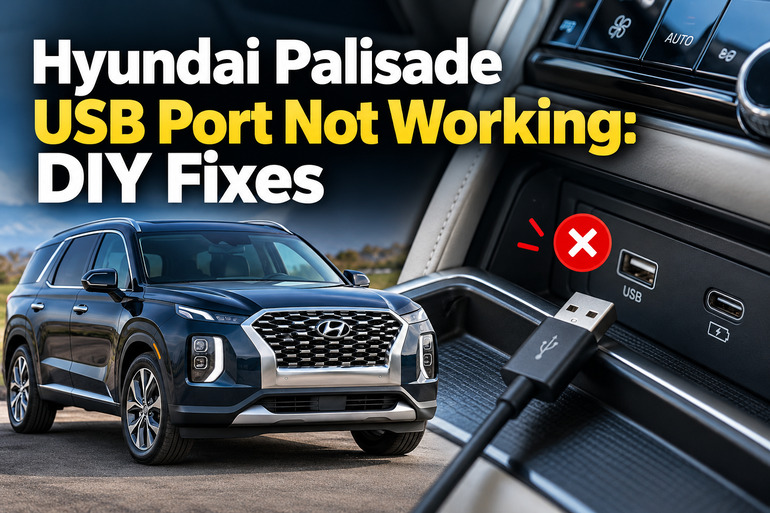
What It Means When Your Hyundai Palisade USB Port Stops Working
Your Hyundai Palisade has USB connections that can serve different purposes. Depending on the model year, trim level, and port location, some USB ports provide power for charging, while others also transfer data to the vehicle’s infotainment system. Certain ports may support phone integration, such as Apple CarPlay or Android Auto, while rear passenger ports may be intended primarily for charging.
This distinction matters because a phone that charges but cannot connect to the infotainment system may have a data connection problem rather than a power supply fault. Similarly, a phone that works perfectly with the front port but fails to charge from a rear port points you toward a different set of possible causes.
The symptoms provide useful diagnostic clues. A port that has no power, a phone that repeatedly connects and disconnects, or a USB drive that the audio system cannot recognize may require different checks. The cable and connected device should be tested before you assume that the vehicle’s hardware has failed.
Leaving the problem unresolved can also be inconvenient if you depend on wired phone integration for navigation, calls, or music. If you notice a burning smell, unusual heat, melted plastic, or visible corrosion around the connector, stop using that port and seek professional assistance.
Hyundai Palisade USB Port Not Working: Likely Causes
Several faults can produce similar symptoms, so it’s worth narrowing down the possibilities before spending money on replacement parts. The following causes cover the most useful starting points for diagnosing a nonworking USB port.
1. A Faulty USB Cable or Connected Device
A damaged cable is a common reason a USB connection fails. The cable may have broken internal conductors, worn connectors, or missing data connections even though it still looks normal from the outside. A charging-only cable can also supply power without allowing your phone to communicate with the infotainment system.
This often happens when a cable has been repeatedly bent near its connector, pulled out at an angle, or used for a long time. Your phone may charge intermittently, disconnect when the vehicle moves, or charge normally while Apple CarPlay or Android Auto refuses to launch.
The connected device can also be responsible. A damaged phone charging port, incompatible accessory, or temporary software issue may produce symptoms that resemble a faulty vehicle USB port. Testing with another suitable cable and a second compatible device helps distinguish these possibilities.
2. Using a Port That Does Not Support Your Intended Function
Not every USB port in the Palisade necessarily supports the same functions. Depending on the model and equipment, a port may provide charging power without supporting data communication. Connecting your phone to a charging-only port will not establish a wired smartphone connection, even when the phone charges correctly.
The location of the port is therefore an important clue. A front USB connection intended for smartphone integration may have different capabilities from a USB charger located in the second or third row. The number, type, and placement of ports can also change between model years.
Check the port descriptions in your vehicle’s owner’s manual or Hyundai’s official USB port location and function guide. Use a port that supports the function you need before investigating the vehicle’s electrical system.
3. Dirt, Debris, or Physical Damage Inside the Port
USB ports sit in areas where dust, food particles, pocket lint, and other debris can accumulate. Small deposits may prevent the cable connector from seating fully, creating a weak or intermittent connection. This can cause your phone to disconnect when the cable is touched or when the vehicle travels over uneven roads.
Physical wear can produce similar symptoms. If a connector has been pulled sideways repeatedly, its internal contacts may become damaged or the port assembly may loosen behind the console. Moisture from spilled drinks or wet cleaning cloths can also cause corrosion that interferes with the electrical connection.
A port that feels loose, has visibly bent contacts, or works only when the cable is held at a particular angle may have a physical fault. Avoid forcing the connector into place, as this can make the damage worse and turn a minor repair into a replacement of the USB port assembly.
4. A Blown Fuse or Interrupted Power Supply
The Palisade’s electrical system uses fuses to protect individual circuits against excessive current. If a fuse supplying a USB charging circuit blows, the affected port may stop delivering power. This can occur after an electrical overload or a fault involving a connected accessory.
The symptoms depend on which circuit is affected. One USB charger may stop working while others continue to function, or several charging ports may lose power together. A port may also appear inactive because its power supply is controlled by the ignition or vehicle operating state.
A blown fuse is only one possibility, and it should not be assumed without inspection. Hyundai uses different fuse arrangements across vehicle versions, so the correct fuse location and rating must come from the manual and fuse panel label for your particular Palisade. If a replacement fuse blows again, an underlying electrical fault needs professional diagnosis.
5. An Infotainment Software or USB Port Hardware Fault
Sometimes the USB connection itself is working, but the infotainment system fails to recognize the connected device. A temporary software glitch, an incompatible USB storage device, or an unsupported file format may prevent media playback. Phone integration can also fail even while charging continues normally.
For example, your phone may receive power through the cable while Apple CarPlay or Android Auto remains unavailable. If a compatible cable and device work elsewhere but repeatedly fail at the vehicle’s data port, the fault may involve the infotainment software, port electronics, or wiring.
A physically damaged port, a loose electrical connector behind the console, or a failed internal component can cause similar symptoms. These faults require more detailed testing to distinguish them from software problems. Replacing the entire infotainment unit without first checking the cable, port, and system operation can lead to unnecessary expense.
Hyundai Palisade USB Port Not Working: DIY Fixes
Start with the simple checks before opening any fuse panel or arranging a component replacement. The following methods can help you isolate the cause while keeping the vehicle and your connected devices safe.
1. Test the USB Cable and Your Phone
Begin by disconnecting the existing cable and trying another known-good cable that supports the function you need. For phone integration, use a compatible data cable, not one intended for charging alone. Make sure the cable matches your phone’s connector and the vehicle’s USB port.
Next, connect a second compatible phone or device to the same port. If the second device works, the original phone, its connector, or the cable is the more likely source of the problem. You can also test your original phone with a suitable cable on another compatible USB connection.
For media playback, try a different compatible storage device if your Palisade supports USB media. Connect it directly to the vehicle’s port instead of using an extension cable or USB hub. If changing the cable or device restores normal operation, you probably do not need to replace any vehicle components.
2. Confirm the Port’s Function and the Vehicle’s Power State
Check that you are using the correct port for charging, music playback, or wired smartphone integration. Consult the owner’s manual for your exact model year and trim because port functions and connector types can vary.
Put the vehicle in a safe condition before testing. Park on level ground, select Park, and follow the ignition instructions in the owner’s manual. Depending on the port and vehicle configuration, USB charging may operate only when the ignition is in a specified state, such as ON or START.
Connect your device and check whether it charges. Then test the data function separately, if the port supports it. If charging works but phone integration does not, focus on the cable, compatibility, and infotainment system. If the port provides no power at all, inspect the power supply and fuse after ruling out a defective device or cable.
3. Clean the Port and Inspect It for Damage
If the cable feels difficult to insert or the connection drops when the cable moves, inspect the port for visible debris. Switch the vehicle off before cleaning and disconnect the cable. Use a light to look inside without inserting metal tools or forcing anything against the contacts.
For loose dust, use a clean, soft brush intended for delicate electronics. Avoid liquids, household cleaners, and objects that can bend the contacts. Do not use excessive compressed air or attempt to scrape debris out with a pin, screwdriver, or other metal tool.
After cleaning, reconnect the cable gently and test the port. A secure connection that works consistently suggests that debris was interfering with the contacts. If the port remains loose, shows corrosion, or has damaged internal components, stop using it and have the assembly inspected by a qualified technician.
4. Restart the Infotainment System and Check for Updates
When the phone charges but the infotainment system does not recognize it, a temporary system glitch may be responsible. Start by disconnecting the phone and restarting the phone itself. Then switch the vehicle off and allow its electronics to shut down according to the owner’s manual before starting it again.
Once the system restarts, connect the phone directly to the correct data port using the known-good cable. Confirm that wired Apple CarPlay or Android Auto is enabled and that the phone permits the connection when prompted. The precise menu names and settings depend on the phone and infotainment version.
If the problem continues, check whether an applicable infotainment software update is available through Hyundai’s official update resources or an authorized dealer. Follow the instructions for your specific system. Do not interrupt an update while it is installing, and avoid trying random reset procedures that are not documented for your unit.
5. Check the Relevant USB Fuse
If a port has no power, checking its fuse may help determine whether an interrupted circuit is responsible. Before doing this, consult the official Hyundai owner’s manual portal and select the information for your specific vehicle. Use the fuse panel label to identify the relevant circuit because fuse names, positions, and ratings may differ by model year and equipment.
Turn the vehicle off and remove the key or keep the smart key away from the vehicle as directed in the manual. If the manual provides a fuse inspection procedure, follow it carefully and use the specified fuse puller. Inspect the correct fuse for a broken or melted internal element. If you cannot confidently identify the circuit or remove the fuse safely, leave this step to a technician.
Replace a blown fuse only with one of the same specified rating and type. Never fit a higher-rated fuse, bridge the circuit with wire or foil, or substitute a fuse from a safety-critical circuit. After replacement, test the USB port again. If the new fuse blows, stop using the affected circuit and arrange professional diagnosis rather than repeatedly replacing the fuse.
6. Contact a Qualified Automotive Technician
Professional diagnosis is the appropriate next step when the cable, device, port selection, cleaning, software restart, and relevant fuse checks fail to restore operation. A technician can test the power supply and ground, inspect the wiring behind the console, and determine whether the fault is in the USB port assembly or infotainment system.
Seek assistance promptly if the port becomes unusually hot, produces a burning smell, shows signs of melted plastic, or has been exposed to liquid. Leave suspected wiring faults and internal component repairs to someone equipped to diagnose automotive electrical systems safely.
Explain which ports are affected and whether they still charge devices or transfer data. Mention any recent spills, accessory installations, electrical work, or intermittent symptoms. These details can help narrow the fault and reduce unnecessary parts replacement.
Wrap-Up
A nonworking USB port in your Hyundai Palisade can result from something as simple as a damaged cable or an incorrect port choice, but electrical and hardware faults are also possible. Start by testing a known-good cable and device, confirming the port’s function, and inspecting the connector for visible debris or damage.
If those checks do not solve the problem, follow the correct fuse and software procedures for your model year. A fuse that repeatedly blows or a port showing signs of heat or damage needs professional attention. A methodical diagnosis gives you a clearer idea of what has failed and helps prevent unnecessary repairs.