
Hyundai voice recognition lets you control selected infotainment features using spoken commands, including making phone calls, searching for destinations, and changing audio settings. When the system stops responding, misunderstands your words, or closes before completing a command, simple tasks can become frustrating.
The cause may be as simple as excessive cabin noise or an unsupported command. However, a faulty microphone, an infotainment software problem, or a disconnected phone can produce similar symptoms. Identifying the exact fault helps you choose the right fix without replacing working components unnecessarily.
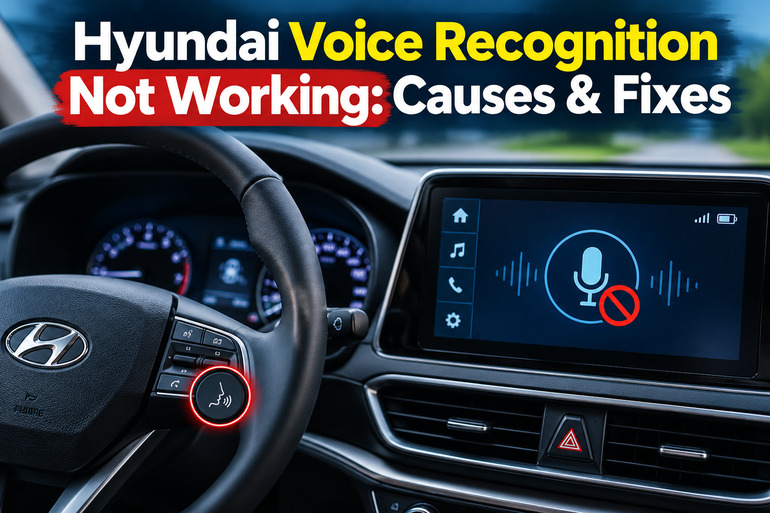
What It Means When Your Hyundai Voice Recognition Stops Working
Hyundai voice recognition uses a microphone, steering wheel controls, and infotainment software to interpret spoken commands. Depending on your vehicle’s model year, trim level, and installed equipment, the system may control audio, phone calls, navigation, and other supported features. Some newer models also offer additional connected services.
A problem can appear in several ways. Pressing the voice recognition button might produce no response, the system might activate but fail to understand you, or the display might show that no valid command was recognized. In some cases, voice control works for radio functions but fails when you try to call a contact or search for an address.
These symptoms don’t necessarily indicate a defective component. Hyundai’s owner’s manuals explain that recognition can be affected by road noise, ventilation, speaking patterns, language settings, and commands that aren’t supported by a particular vehicle.
It’s also necessary to distinguish the car’s built-in voice recognition from Siri or Google Assistant through Apple CarPlay or Android Auto. These systems can use the same steering wheel button, depending on the vehicle and phone configuration, but they rely on different software and connections. Identifying which system is failing will help you avoid troubleshooting the wrong component.
Hyundai Voice Recognition Not Working: Common Causes
Several faults can produce similar symptoms, so the most useful starting point is to observe exactly what happens when you activate voice control.
1. Excessive Noise Inside or Outside the Vehicle
Hyundai voice recognition depends on the microphone receiving understandable speech. Wind entering through an open window, a loud ventilation fan, heavy rain, or tire noise on rough roads can interfere with the system’s ability to distinguish your words.
The problem may be particularly noticeable when driving at highway speeds. You might find that the system recognizes commands correctly while the vehicle is parked but struggles during a noisy journey. This pattern suggests that the listening conditions may be responsible rather than a damaged microphone.
Hyundai documentation identifies strong wind, high fan speeds, tunnels, rough roads, and storms as conditions that can reduce recognition accuracy. A system that works inconsistently under these circumstances may not require any repair.
2. Unsupported Commands or Incorrect Language Settings
Voice recognition doesn’t understand every phrase you might naturally use. Each infotainment system supports a particular set of commands, and available features depend on the vehicle’s configuration. Asking an older system to perform a function that it doesn’t support will produce an unsuccessful result even when the microphone works perfectly.
Language settings can create a similar problem. Some Hyundai systems support fewer voice recognition languages than display languages, so changing the system language may affect which spoken commands are available. Accents, unusual pronunciations, and pauses between words can also affect recognition accuracy.
Contacts containing unusual symbols or punctuation may be difficult for the system to identify by name. If general commands work but calling one particular person fails, the contact’s saved name may be responsible rather than the voice recognition system itself.
3. A Faulty Microphone or Steering Wheel Button
The microphone captures your speech and sends the audio signal to the infotainment system. Its position varies by model, although it is commonly located in the overhead console near the driver’s head. Dust, physical damage, a loose electrical connection, or a failed microphone can prevent the system from receiving clear speech.
A faulty microphone is more likely when voice commands consistently fail, particularly if other functions that use the same microphone also have problems. However, poor call quality alone doesn’t prove that the microphone is defective because Bluetooth settings, network conditions, and the connected phone can affect calls too.
The steering wheel voice recognition button presents another possible source of trouble. If the button is damaged or its electrical connection is faulty, pressing it may not activate the system. Other steering wheel buttons can still work because they use different controls or electrical circuits.
Pay attention to whether the infotainment screen changes when you press the voice button. If voice recognition activates normally but doesn’t understand anything you say, investigate the microphone and listening conditions. If the system never activates, the button, software, or related electrical connections deserve closer attention.
4. Bluetooth, Apple CarPlay, or Android Auto Connection Problems
Some voice commands depend on your smartphone being connected correctly. For example, making a call through the vehicle may require Bluetooth pairing and a synchronized contact list. Using Siri or Google Assistant through phone projection also depends on the phone, connection, permissions, and supported vehicle features.
A connection problem can cause voice control to work in one situation but fail in another. Your Hyundai might recognize commands for its radio while refusing to place calls, or built-in voice recognition might work even though the connected phone’s assistant doesn’t respond.
A recently replaced phone, changed Bluetooth permissions, incomplete contact synchronization, or an unreliable USB connection can contribute to the problem. Identifying whether the fault affects every voice command or only smartphone-related features helps narrow the diagnosis.
5. Infotainment Software Glitches or Outdated Software
Your Hyundai’s infotainment system uses software to process commands, communicate with connected devices, and control supported features. A temporary software malfunction can interfere with these operations, even when the hardware is working correctly.
You may notice that voice recognition stops responding after the screen freezes, a phone disconnects unexpectedly, or several infotainment functions begin behaving unusually. If the problem started immediately after a software update, compatibility or update-related issues may also deserve investigation.
Software updates can introduce improvements to supported features and system stability. However, an outdated system isn’t automatically the cause of failed voice recognition. Updates must match your vehicle and infotainment system, and some models receive different software packages.
Hyundai Voice Recognition Not Working: DIY Fixes
Start with simple checks before considering component replacement. The following methods can help isolate the fault, restore normal operation, or establish when professional diagnosis is necessary.
1. Test the Voice Recognition Button and Use a Supported Command
Park your vehicle in a safe location and switch on the infotainment system. Locate the voice recognition button on the steering wheel, which usually carries a speech or voice icon. Its appearance and operation can vary by model.
Press the button and wait for the system’s prompt or confirmation tone before speaking. Try a basic command such as “Radio” or “Commands” if supported by your infotainment system. Speak naturally and avoid adding unnecessary words.
Pay attention to the response. If the screen changes and the system begins listening, the button is probably activating the recognition function. If nothing happens, try again after the system has fully started. Persistent failure to activate suggests that a control, software, or electrical problem may need further diagnosis.
2. Reduce Background Noise and Improve Speech Recognition
If the system activates but repeatedly misunderstands you, test it under quieter conditions. Close the windows and sunroof, reduce the climate control fan speed, and switch off unnecessary audio playback while testing.
Keep your normal upright driving position during the test. The microphone is commonly positioned above the driver, so speaking clearly at a normal volume is generally more effective than shouting or leaning toward the infotainment screen.
Use short, supported commands and speak naturally after the prompt or beep. Avoid speaking over the system’s instructions because some systems wait for their guidance to finish before accepting input. If recognition improves under quieter conditions, repeat the test on another occasion to confirm that background noise is contributing to the problem.
3. Check the Language, Available Commands, and Recognition Settings
Open the infotainment system’s settings while the vehicle is parked. Depending on the system, voice recognition settings may appear under Setup, Settings, or a similarly named menu. Check the current system language and confirm that it is supported by the installed voice recognition feature.
Next, consult the owner’s manual for your model or activate voice recognition and say “Commands” if that feature is available. Using a documented command is a useful way to distinguish an unsupported request from a system failure.
Check whether you are asking the system to perform a function supported by your specific trim level and equipment. If a phone contact isn’t recognized, review its saved name and remove unusual symbols if necessary. Avoid changing several settings simultaneously, since doing so makes it harder to identify which adjustment resolved the problem.
4. Reconnect Your Phone and Check Smartphone Voice Control
If the problem affects phone calls, Siri, or Google Assistant, check the connection between your phone and the Hyundai infotainment system. Confirm that Bluetooth is enabled, the correct phone is connected, and the required permissions are available.
If calls work but spoken contact names fail, check that your contacts have synchronized correctly. You can test a simple voice command using a clearly named contact or manually place a call while parked. Successful manual calling doesn’t prove that voice recognition is working, but it can help establish whether the problem is limited to spoken commands.
For persistent connection problems, disconnect and reconnect the phone using the vehicle’s documented pairing procedure. If you use Apple CarPlay or Android Auto, also check the USB cable or wireless connection, where applicable. Keep in mind that Bluetooth voice commands and smartphone assistant commands may follow different operating procedures, so use the instructions for the system you’re testing.
5. Restart the Infotainment System and Check for Updates
A restart can resolve temporary software problems affecting voice recognition. Follow your vehicle’s owner’s manual to locate the infotainment system reset control. Some Hyundai systems have a small reset pinhole, while others use a different restart procedure.
If your vehicle has a dedicated reset button, use the procedure specified for that model. Don’t assume that a factory reset and a system restart are the same thing. A factory reset can erase paired devices, saved settings, or other personal configurations, so it shouldn’t be your first troubleshooting step.
If the problem persists, check whether compatible infotainment software is available. Hyundai provides a software update service for supported vehicles and regions. Follow the instructions for your specific system and region. Don’t install software intended for another vehicle or interrupt an update while it is running.
6. Contact a Qualified Automotive Technician
Professional diagnosis is appropriate if voice recognition remains unavailable after the basic checks, the steering wheel button doesn’t respond, or other electrical and infotainment functions fail at the same time. A technician can inspect the microphone circuit, test the switch, check wiring connections, scan relevant electronic systems, and determine whether the head unit requires repair.
Seek assistance sooner if the problem began after electrical work, dashboard repairs, liquid damage near the overhead console, or installation of aftermarket electronics. These circumstances can provide useful clues about a wiring or hardware fault.
Explain the exact symptoms, when they occur, and which troubleshooting steps you’ve already attempted. Include whether calls, Bluetooth, radio controls, and smartphone voice assistants work normally. This information helps narrow the diagnosis and reduces the risk of replacing components that are still functioning correctly.
Wrap-Up
Hyundai voice recognition problems often come down to background noise, unsupported commands, incorrect settings, or a smartphone connection issue. Testing the system under quiet conditions and using documented commands can help you identify the likely cause before spending money on repairs.
If a restart and the appropriate software checks don’t resolve the problem, further diagnosis may be necessary. Pay attention to whether the system fails to activate, fails to hear your voice, or works only with certain functions. Those distinctions provide useful clues and help you choose the right repair for your Hyundai.