
When the music in your Hyundai stops playing, the cause may be as simple as selecting the wrong audio source or as complicated as a fault in the infotainment system. You might see your phone connected to the car, watch a song’s playback timer move forward, or notice that your USB drive is recognized without hearing any sound.
The right repair depends on where the problem originates. A few simple checks can help you determine whether your phone, audio settings, USB device, or Hyundai’s sound system needs attention.
What Does It Mean When Hyundai Music Is Not Playing?
When your Hyundai music stops working, it means the vehicle cannot play audio as expected from one or more media sources. You might experience complete silence, music that pauses unexpectedly, a connected phone that produces no sound, or an infotainment screen that refuses to play selected tracks.
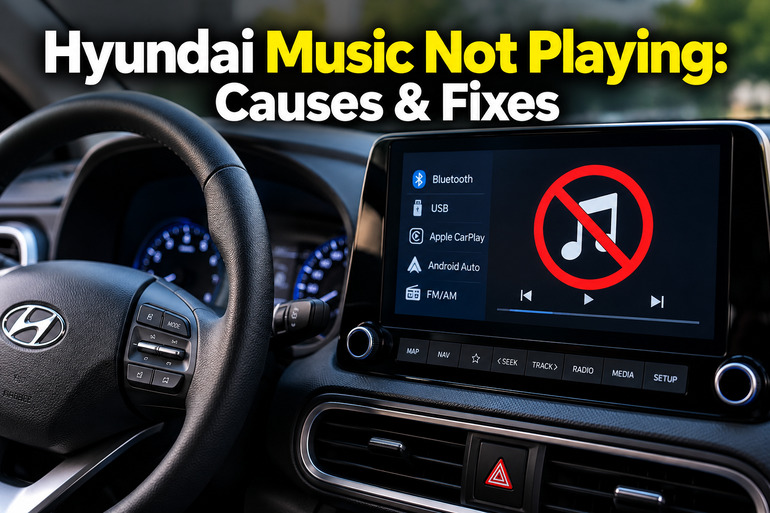
Your Hyundai’s infotainment system manages audio from sources such as FM or AM radio, Bluetooth, USB storage, Apple CarPlay, and Android Auto, depending on the model and available equipment. The system routes the selected audio to the vehicle’s speakers, sometimes through a separate amplifier. A fault anywhere along this path can interrupt playback.
Pay attention to which sources still work. If the radio plays normally but Bluetooth music does not, the speakers and at least part of the audio system are working. The problem may involve the phone, Bluetooth settings, or media connection. If every source is silent, the issue may involve a shared volume setting, an infotainment software fault, an amplifier, or the speaker wiring.
The distinction matters because replacing the radio or speakers without testing other sources can waste money. Start with straightforward checks while your vehicle is safely parked. Avoid adjusting the screen or phone while driving, and consult the owner’s manual for instructions specific to your Hyundai’s model year and infotainment system.
Hyundai Music Not Playing: Likely Causes
Several faults can prevent music from playing through your Hyundai’s speakers. Start by identifying whether the problem affects one particular source or the entire audio system.
1. Incorrect Audio Source or Volume Settings
Your Hyundai may be connected to your phone correctly but playing from a different source. For example, the infotainment system could remain on FM radio when you expect it to play a Spotify playlist through Bluetooth. The music might be playing on your phone without being routed through the car’s speakers.
Volume settings can cause similar symptoms. The system may be muted, the media volume may be too low, or a sound setting may make audio appear to be missing from particular speakers. Phone projection, navigation guidance, phone calls, and music may have separate volume controls on some systems.
Try switching between radio and another available audio source. Hyundai’s owner manuals describe using the audio or media controls to select a playback mode, although button names and screen layouts vary by model.
2. Bluetooth Is Connected but Music Will Not Play
A Bluetooth connection does not always mean that media streaming is working. Your phone may be connected for hands-free calls while its Bluetooth audio setting is disabled, leaving you able to make calls but unable to play music.
Another possibility is that the phone is connected to another speaker or audio device. In that situation, a music app may continue playing, but the sound goes somewhere other than your Hyundai’s speakers. An interrupted pairing session can cause similar behavior.
The problem may also involve the music app itself. If one app produces silence while another works correctly, the fault is more likely to involve the original app, its playback settings, or its connection to the audio system than a general vehicle audio failure.
3. Apple CarPlay, Android Auto, or USB Cable Problems
CarPlay and Android Auto allow compatible phones to provide music apps through the infotainment screen. If the connection fails, the music app may disappear, refuse to open, or stop transmitting sound.
A damaged cable is a common possibility with wired connections. Some cables provide charging but do not support reliable data transfer. A faulty USB port or an unsuitable adapter can produce similar symptoms. Wireless connections can fail because of Bluetooth, Wi-Fi, permission, pairing, or software problems.
For persistent CarPlay problems, troubleshooting may involve checking the cable or wireless connection, restarting the phone and vehicle, or removing the existing vehicle pairing and setting it up again.
4. USB Drive or Audio File Compatibility Problems
If your Hyundai plays Bluetooth music but cannot play songs from a USB drive, the problem may be the storage device or its files.
The drive could contain unsupported audio formats, corrupted files, or music protected by digital rights management. It may also use a file system that your particular infotainment system does not recognize. A damaged drive can cause playback to stop or prevent the system from displaying any songs.
Supported audio formats and file restrictions depend on the infotainment system. Some systems support formats such as MP3, OGG, FLAC, WMA, and WAV, while modified or rights-protected files may not play. These specifications should not be assumed to apply to every Hyundai model.
There is another detail worth checking. Certain Hyundai models have a selectable USB port mode that determines whether the port supports charging alone or charging and data transfer. If the port is set to charging only, a connected device may receive power without providing music to the infotainment system.
5. Infotainment Software or Audio Hardware Failure
Sometimes the settings and connected devices are working correctly, but the infotainment system has temporarily frozen or developed a software fault. The screen may respond slowly, the selected track may not start, or audio may disappear until the system restarts.
Persistent silence across several sources can indicate a more serious fault. Possibilities include a damaged head unit, an amplifier malfunction, electrical supply problems, or damaged speaker wiring. Blown speakers can also prevent sound from coming from particular locations.
These symptoms require careful diagnosis. For example, silence from all speakers does not automatically mean the speakers themselves are damaged. The shared audio signal, amplifier, or power supply may be responsible. Testing the radio, Bluetooth, and USB sources separately helps narrow down the cause before parts are replaced.
Hyundai Music Not Playing: How to Fix
Start with the simplest checks and work through the different audio sources before attempting more involved troubleshooting. This approach helps you identify whether the fault is in the settings, phone, connected device, or vehicle itself.
1. Check the Volume and Select the Correct Media Source
Begin by turning on your Hyundai’s infotainment system and checking that the sound is not muted. Raise the volume gradually using the vehicle’s volume control while playing a song. On some models, you may need to adjust the volume while the relevant audio source is active.
Next, select the source you actually want to use. Depending on your vehicle, you may find options such as Bluetooth Audio, USB Music, Apple CarPlay, Android Auto, AM, or FM under the Audio, Media, or Home menu.
Play a radio station to establish whether the vehicle can produce sound independently of your phone. If the radio works, return to your original media source and continue troubleshooting that connection.
If the system has balance and fader settings, check that the sound has not been directed entirely to one side or toward a different seating area. These controls are usually under the sound settings menu, although their availability and names vary.
2. Restart Your Phone and Infotainment System
A temporary software problem can interrupt playback even when the connections appear normal. Restarting your phone and the infotainment system may restore normal operation without requiring repairs.
First, stop playback and close the music app. Restart your phone using its normal power menu, then reopen the app and try playing a downloaded song or another available track.
If the Hyundai display remains frozen or refuses to play audio, restart the infotainment system using the procedure specified in your owner’s manual. Some older Hyundai systems have a dedicated reset button, while other systems use different restart methods. Do not insert a pin into an unidentified opening or use an unfamiliar button combination.
After restarting, test the radio and then your original media source. If sound returns temporarily but disappears again, the system may have a recurring software or connection fault that needs further investigation.
3. Reconnect Bluetooth and Enable Media Audio
If your Hyundai is connected to your phone but Bluetooth music will not play, check the phone’s Bluetooth settings first.
On many Android phones, you can open Settings, select Bluetooth, tap the settings icon beside your Hyundai’s name, and confirm that Media audio is enabled. The exact labels and menu locations vary by phone. A connected device with calls enabled but media audio disabled can produce the precise symptoms described above.
Next, open your phone’s music app and start a song while the vehicle is parked. Select Bluetooth Audio on the Hyundai display and confirm that your car is the selected output.
If the problem persists, remove the Hyundai pairing from your phone and delete the phone from the vehicle’s paired-device list. Pair the two devices again by following the prompts on both screens. This creates a fresh connection and may resolve corrupted pairing information.
Avoid connecting the same phone through USB and Bluetooth simultaneously unless your particular Hyundai system supports the arrangement. On some infotainment systems, connecting a smartphone through multiple methods at once can cause distorted sound or other system problems.
4. Troubleshoot CarPlay or Android Auto
If your music app works on your phone but produces no sound through CarPlay or Android Auto, test the phone connection separately from the app.
For a wired connection, inspect the USB cable for visible damage and try another compatible data cable. Connect it directly to the appropriate vehicle port rather than through an unverified adapter. If your Hyundai has several USB ports, consult the owner’s manual to identify which one supports smartphone integration.
For a wireless connection, check that the required Bluetooth and Wi-Fi settings are enabled. Confirm that your phone is connected to the correct vehicle and that CarPlay or Android Auto is selected on the display.
Then test a different music app. If one app works while another remains silent, check whether you’re signed in, whether the track is available, and whether the app requires a subscription or internet connection. Some media services require a compatible app, the correct account, or an active subscription.
For persistent CarPlay problems, open your iPhone’s Settings, select General, then CarPlay, choose your Hyundai, and use the option to forget the vehicle. Reconnect and complete the setup process again. Follow your vehicle’s manual for any additional steps required by your model.
5. Test the USB Drive and Check the Port
When music stored on a USB drive will not play, test the drive before assuming the infotainment system is defective.
First, connect the drive according to the instructions in your Hyundai’s owner’s manual. Some systems have specific requirements for connecting or disconnecting external storage. Check that the correct USB Music or USB Audio source appears on the display.
If the system recognizes the drive but displays no playable tracks, try a small set of ordinary, unprotected MP3 files on another compatible USB drive. Use the supported file formats and storage specifications listed in your vehicle’s manual. This comparison can help distinguish incompatible files from a faulty port.
Inspect the cable and USB connector for obvious damage, dirt, or looseness. Do not force the connector into the port or insert metal objects to clean it. If your model has a USB port selection control, confirm that data transfer is enabled rather than charging alone.
If you decide to reformat a USB drive, copy your music elsewhere first because formatting erases its contents. Only use a file system supported by your Hyundai. If multiple compatible drives fail while other audio sources work, a port or infotainment fault becomes more likely.
6. Contact a Qualified Automotive Technician
Professional diagnosis is appropriate when the preceding checks fail, especially if your Hyundai has no sound from any audio source. A qualified automotive technician can check the infotainment unit, electrical supply, amplifier, speaker circuits, and relevant diagnostic trouble codes without relying on guesswork.
Seek assistance sooner if the display repeatedly reboots, the audio cuts out with other electrical symptoms, or a burning smell or signs of overheated wiring appear. Stop using any visibly damaged electrical connection and have it inspected.
A technician may need to test the head unit’s audio output and amplifier before deciding whether a component needs repair or replacement. If the fault started after an infotainment software update or electrical repair, provide that information because it may help narrow the diagnosis.
Bring details about the symptoms, including which sources work, whether phone calls produce sound, and whether the problem occurs intermittently. This information can reduce unnecessary testing and help the repairer identify the faulty part.
Wrap-Up
Hyundai music playback problems can result from incorrect source selection, Bluetooth pairing errors, phone projection issues, USB incompatibility, or faults in the infotainment and audio hardware. Identifying which sources still work is the most useful first step because it helps separate a connection problem from a vehicle-wide audio failure.
Start with the volume, playback source, and connected device before attempting more involved repairs. If the sound remains missing across all sources or repeatedly cuts out, arrange a professional inspection. A diagnosis based on the actual symptoms will help you avoid replacing parts that are still working correctly.