
Your Hyundai may refuse to connect to Android Auto even when your phone is charging, Bluetooth is enabled, and everything appears to be working normally. Sometimes the connection fails completely. In other cases, Android Auto starts and then disconnects, or your phone pairs with the car without displaying your apps on the infotainment screen.
These problems can stem from a faulty USB cable, incorrect settings, outdated software, or a wireless pairing error. A few straightforward checks can help you identify the cause and restore the connection without replacing working parts unnecessarily.
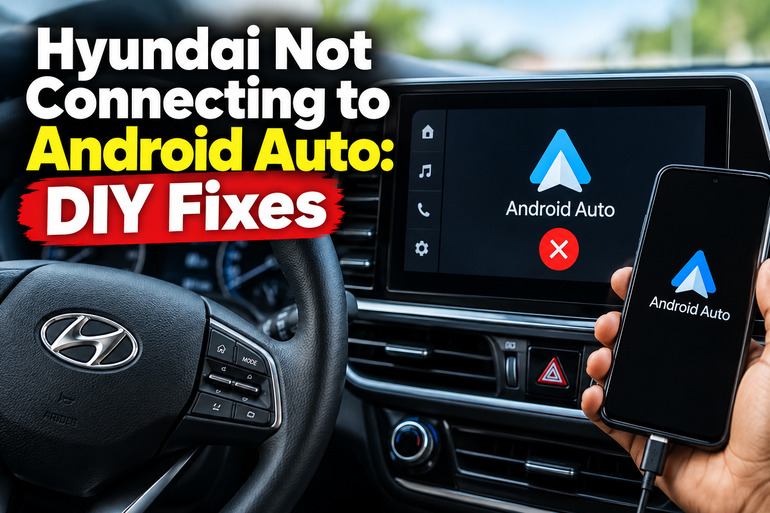
What It Means When Your Hyundai Won’t Connect to Android Auto
Android Auto allows you to use supported phone features, including Google Maps, music apps, calls, and messages, through your Hyundai’s infotainment display. Depending on your vehicle’s equipment, the connection may use a USB cable or a wireless connection.
When you connect your phone, the vehicle’s multimedia system must recognize the device, establish communication, and launch Android Auto. A problem with any of these stages can prevent the interface from appearing, even when the phone charges successfully. Charging alone does not prove that the USB cable or port can transfer data.
The symptoms often provide a useful starting point. If your Hyundai does not recognize the phone at all, the cable, USB port, or connection settings could be responsible. If Bluetooth calls work but Android Auto does not open, phone projection may be disabled or the devices may need to be registered again.
Wireless connections introduce a different set of possible problems because compatible devices must establish the correct Bluetooth and Wi-Fi connections. Hyundai’s official infotainment instructions explain that the available connection methods and settings depend on the installed system. A Hyundai with wired Android Auto may therefore require a different solution from one equipped for wireless connectivity.
Leaving the problem unresolved may affect access to phone-based maps, calls, and audio, although ordinary vehicle functions may continue working. Start with the simplest checks before considering a software reset or professional repair.
Hyundai Not Connecting to Android Auto: Likely Causes
Several faults can produce similar symptoms, so it helps to establish whether the problem involves the phone, the connection method, or the vehicle’s infotainment system. The following causes are common places to begin your diagnosis.
1. A Faulty or Incompatible USB Cable
A damaged USB cable is a common reason a Hyundai fails to recognize an Android phone. Some cables support charging but lack the data connections required for Android Auto. Others may have internal wire damage that causes intermittent communication.
You may notice that the phone charges normally while the infotainment display continues showing the home screen. In other cases, Android Auto connects briefly before disappearing whenever the cable moves.
Cable quality matters, and a connector that fits your phone is not automatically suitable for data transfer. A long cable, loose connector, worn plug, or unsuitable adapter can also interfere with the connection. Google recommends following its Android Auto connection guidance when troubleshooting a wired or wireless setup. Trying a known working data cable is a useful first diagnostic step.
2. Android Auto Is Disabled in the Hyundai’s Settings
Your phone may be compatible with the car while Android Auto remains unavailable because the phone projection feature is switched off.
Hyundai infotainment systems use different menu layouts. Depending on the model and software version, you may find the relevant setting under Setup, Device Connections, Phone Projection, or Android Auto. Some systems provide separate controls for USB and wireless connections. Hyundai’s owner documentation describes enabling Android Auto and adding a phone on supported systems.
This problem is particularly likely when Android Auto has never worked in your vehicle, another person has changed the settings, or the infotainment system has been reset. The phone may still connect through ordinary Bluetooth for calls and music, which can make the fault appear more complicated than it is.
3. An Outdated or Unresponsive Phone Software Component
Android Auto relies on compatible phone software and communication between your phone and the vehicle. A software update, temporary application error, or outdated infotainment system can interrupt that process.
You might see a blank Android Auto screen, a repeated connection prompt, or an error that appears even when the cable and USB port seem fine. The issue may also begin after an operating system update or a change in the phone’s connection permissions.
An app update does not necessarily mean the problem will disappear immediately. The phone and infotainment system may both need to restart before the updated software behaves normally. Checking for available updates helps rule out known software problems before you consider more involved repairs.
4. A Failed Pairing Record or Connection Permission
Your Hyundai and phone store information used to recognize each other. If that information becomes outdated or corrupted, the devices may fail to reconnect properly.
This is especially relevant when a phone previously worked in the car but suddenly stops connecting. Wireless Android Auto may fail during startup, or the phone may remain listed in the vehicle without completing the connection.
Permissions can also be part of the problem. During initial setup, Android Auto may request access to supported features or ask you to approve the connection on your phone’s screen. If the setup was interrupted or a prompt was dismissed, the connection may not complete. Deleting the old pairing and registering the phone again can help.
5. A Faulty USB Port or Infotainment System
If several compatible phones fail to connect, the problem may lie in the Hyundai rather than your own device.
A worn USB port, damaged connector, loose internal connection, or infotainment software fault can prevent the system from recognizing phones. Dust and debris inside the port can also interfere with a secure connection. A port that feels loose or has visible damage deserves particular attention.
A failed connection alone does not establish that the infotainment unit needs replacement. Other possible causes, including disabled settings and software errors, should be ruled out first. If multiple phones fail using known working cables, professional diagnosis becomes more useful.
Hyundai Not Connecting to Android Auto: DIY Fixes
The best way to restore Android Auto is to work through the connection process in a sensible order. Start with the cable, compatibility, and settings before removing paired devices or changing software configurations.
1. Check the Cable and USB Connection
If your Hyundai uses wired Android Auto, begin by checking the cable. Disconnect it from both the phone and vehicle, then inspect the connectors for visible damage, dirt, or looseness.
Use a short, good-quality USB cable that supports data transfer. A cable supplied with your phone or one from a reputable manufacturer is a reasonable choice, provided it supports the required connection. Avoid USB hubs and extension cables during testing because they introduce additional connection points.
Next, connect the phone directly to the vehicle’s designated USB port. Some Hyundai models have multiple USB ports, but not every port supports Android Auto data connections. Consult your owner’s manual to identify the correct one.
Unlock your phone and accept any Android Auto or connection prompts that appear. If the phone charges but Android Auto does not launch, try another known working data cable before assuming that the vehicle’s USB port is faulty.
A successful result: The infotainment system recognizes your phone and launches Android Auto, or displays a prompt allowing you to complete the setup.
2. Enable Android Auto in the Infotainment Settings
If the cable works but Android Auto remains unavailable, check the vehicle’s settings while parked safely.
The exact menu names depend on your Hyundai’s model year and infotainment system. On some vehicles, the process resembles the following:
-
Start the vehicle or switch on the infotainment system as instructed in the owner’s manual.
-
Open Setup or Settings on the display.
-
Select Device Connections, Phone Projection, or a similarly named menu.
-
Find Android Auto and enable the feature.
-
If the system provides separate USB and wireless connection options, activate the method your phone uses.
-
Return to the home screen and reconnect your phone.
These menu names are examples, not universal instructions. Your owner’s manual should take priority if the options are arranged differently. Hyundai’s official manuals provide model-specific guidance for enabling phone projection and registering supported devices.
Once the setting is enabled, reconnect the phone and approve any prompts that appear. If Android Auto starts successfully, the problem was likely related to configuration rather than a damaged component.
3. Restart Your Phone and Infotainment System
Temporary software errors can prevent a working connection from starting correctly. Restarting both devices clears many temporary faults without deleting your personal information.
First, disconnect the phone from the USB cable or wireless connection. Restart the phone using its normal power menu. Once it has restarted, check that Android Auto and the phone’s operating system have no outstanding updates requiring installation.
Next, restart the Hyundai’s infotainment system using the method specified in its manual. Some systems restart when the vehicle is switched off and back on after an appropriate shutdown period. Others provide a dedicated reset procedure or reset button.
Do not press unidentified buttons or disconnect the vehicle battery simply to restart the display. If your system has a documented reset procedure, follow it with the vehicle safely parked.
After both systems have restarted, reconnect the phone and wait for the setup prompts to appear. If the connection works, a temporary software issue may have been responsible.
4. Update Android Auto and Check Phone Permissions
Software compatibility can change after updates to your phone or vehicle. Checking for available updates is particularly useful if Android Auto stopped working shortly after a software change.
Open Google Play Store on your Android phone and check for updates to Android Auto and other relevant Google applications. Android Auto is integrated into many modern Android phones, so its availability and settings may differ from older devices. Install available updates through the normal update process, and follow any instructions to restart the phone.
Also check the phone’s Settings for Android Auto and its connected vehicle options. Depending on your Android version and device manufacturer, the menu may appear under Connected Devices, Connection Preferences, or Apps. Ensure that required permissions are allowed and that the vehicle has not been blocked or removed from the phone’s connection settings.
For wireless Android Auto, keep Bluetooth and Wi-Fi enabled during setup. Google explains that an initial wireless connection requires Bluetooth pairing, with Wi-Fi and other relevant phone settings active for the connection process.
Reconnect while parked and accept the displayed prompts. If the phone reports that the vehicle is incompatible, check the supported vehicle and phone requirements before trying further fixes.
5. Remove the Old Pairing and Connect Again
If Android Auto previously worked but refuses to connect now, registering the phone again can resolve a failed pairing record.
Begin by removing the existing phone connection from the Hyundai’s device list. Look under the Bluetooth, Device Connections, or Phone Projection menu, depending on your infotainment system. Select the affected phone and use the available option to delete or forget it.
Then open your phone’s Bluetooth settings and remove the Hyundai from the paired device list. On phones with Android Auto vehicle settings, you may also have an option to forget previously connected cars. Use that option only when necessary because it removes stored connection information.
Restart the phone if the old connection persists. With the vehicle parked and its infotainment system ready, start the pairing process again.
For a wireless setup, follow the vehicle’s instructions to add a phone, and keep Bluetooth and Wi-Fi enabled. For wired Android Auto, connect the phone to the appropriate USB port and respond to the setup prompts.
If the connection succeeds after registering the devices again, the old pairing information was likely the cause. You may need to repeat the initial permissions and setup steps, including authorizing supported phone features.
6. Contact a Qualified Automotive Technician
If the preceding checks fail, further diagnosis may be necessary. This is particularly true if several compatible phones fail to connect through known working cables or if the infotainment screen freezes, repeatedly restarts, or displays other unusual faults.
A technician can check the USB port and its wiring, verify whether the installed infotainment system supports Android Auto, inspect relevant fault codes where available, and determine whether a software update or hardware repair is required.
Avoid replacing the infotainment unit, USB port, or phone based on symptoms alone. The cause should be identified before parts are purchased. If the vehicle has a damaged port, signs of electrical damage, or repeated infotainment failures, have it inspected rather than attempting repairs to internal wiring.
Ask the technician to confirm that Android Auto works with your particular vehicle configuration and phone after the repair. This final check can help establish whether the original fault has been resolved.
Wrap-Up
When your Hyundai won’t connect to Android Auto, begin with the cable, USB port, and vehicle settings. These checks are straightforward and can help you identify a connection problem without spending money on unnecessary parts.
If the basic checks fail, restarting both systems, updating the phone, and registering the devices again can address software and pairing issues. Persistent failures may point to an infotainment or connection hardware fault that requires professional diagnosis. The most effective repair starts with identifying where the connection fails, then addressing that specific cause.