
The voice button can beep right on cue, yet your Kia may still miss a command it understood yesterday. Sometimes it opens the wrong assistant. Other times, the screen shows that it heard you, but the call or search never happens.
Start with a command your Kia has handled before while the car is parked. What happens on the screen, and whether the same problem occurs with your phone disconnected, can help you narrow down the fault.
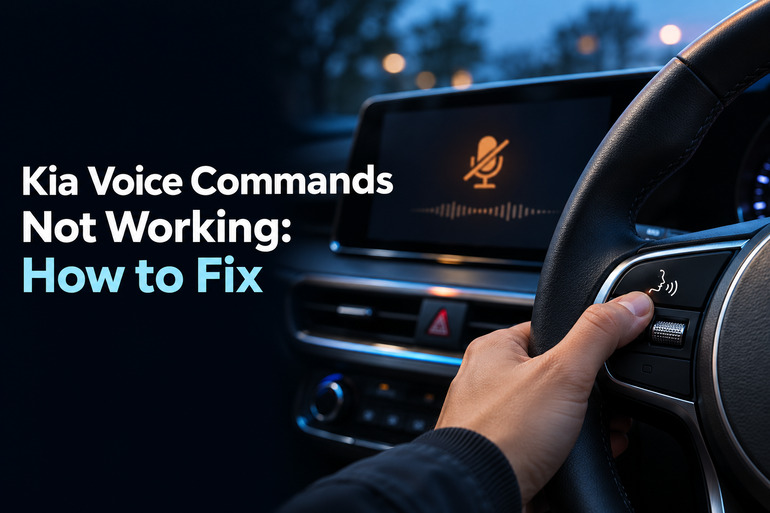
What Happens When Kia Voice Commands Fail
On a Kia equipped with built in voice recognition, the steering wheel button can start a listening session. A cabin microphone picks up what you say, and the infotainment system tries to match it to a task it supports. Tuning the radio is a simple example. Looking up a business or calling someone by name may require access to an online service or the contacts on your phone.
Apple CarPlay and Android Auto bring their own voice assistants to the car screen. Depending on your Kia, a quick press and a longer hold of the same steering wheel button can start different assistants. Check what appears on the display when you press the button. If Siri opens while you’re trying to tune the Kia’s radio, you may have sent the command to the wrong system.
Pay attention to where the request stops. A listening screen tells you the assistant opened. If the screen shows the correct words but the task fails, check the service, app, or device that should carry it out. If the task works but you hear no reply, try adjusting the volume while the assistant is giving a prompt. Some units let you set that volume separately from the music.
A voice problem by itself usually means you’ll need to use the screen or buttons for that task. Repeated screen freezes or trouble making calls through the car give you more clues to work with. Until you’ve sorted out the issue, set your route and make any calls you need to make before setting off.
Kia Voice Commands Not Working: Common Causes
Several faults can produce the same message asking you to repeat yourself. The details that help most are which assistant was listening, which commands failed, and what else was happening in the car at the time.
1. Cabin Noise or Early Speech
Air rushing through a cracked window can make your words hard to pick out. A fan running at full speed, other people talking, or road noise on rough pavement can have a similar effect. If commands work in a quiet parking lot but fail on the highway, start by checking the conditions inside the car.
Timing matters too. On systems that play a prompt and then a tone, speaking over the prompt can cut off the first part of your request. Waiting too long can also let the listening session end. A familiar command that works when you say it promptly after the tone points to timing.
2. A Command or Setting Your Kia Doesn’t Support
Kia’s command list varies with the model, equipment, and software. Your car may support radio commands and still lack voice control for the temperature. The system language can matter as well. If recognition stopped after someone changed the display language, check whether that language supports voice commands on your unit.
A single failed contact name can tell a different story. If other names work, check how the problem name appears in your phone. Unusual punctuation can make some names hard for the system to recognize.
If the button works but saying “Hey Kia” does nothing, check whether your model supports that feature and whether it’s on. The spoken phrase is available on certain systems and has its own setting.
3. A Phone Connection or Assistant Problem
If the Kia can tune the radio by voice but Siri never opens, focus first on CarPlay and the iPhone. The same reasoning applies if the failure is limited to Android Auto. A weak USB connection can drop the phone interface completely, while Siri being turned off can keep CarPlay voice control from working as expected.
A regular Bluetooth call can fail for a different reason. For instance, the car may pair with your phone and play music, yet lack access to your contacts. If the Kia’s phone screen has no names to choose from, checking the phone’s contact sharing setting makes more sense than changing the way you say a name.
4. A Kia Connect Service or Signal Issue
Some Kia systems use Kia Connect to look up places in an online map database. The online feature can depend on an active service and the car’s cellular connection. So a search that works outside but fails in an underground garage may have lost access to the network.
Try to separate one failed search from a wider service problem. If the car finds several businesses but keeps missing one, try its street address. If every online search fails and a connected feature you normally use also stops working, check the service status and your plan before suspecting a bad microphone.
5. A Fault in the Screen, Button, or Microphone
If the voice button stops responding at the same time the screen freezes or the menus become slow, the infotainment software may have stalled. Note whether the screen comes back after a normal restart and how long the system works before the fault returns. That pattern gives a technician more to go on than an occasional missed command.
If a phone assistant opens from the touchscreen but won’t open from the steering wheel when you use the correct press, the button or the path that carries its signal needs a closer look. A microphone problem can show up differently. The voice screen opens as usual, but the car misses simple requests in a quiet cabin.
A Bluetooth call can offer another clue. If the other person barely hears you and the Kia also struggles to hear commands, the car’s microphone or its wiring is worth checking. A single muffled call can come from a poor connection, so look for the same problem across several tests.
Kia Voice Commands Not Working: DIY Fixes
Park before changing settings so you can watch the screen and hear the prompts. Start with a simple command, then change one thing at a time so you can tell what made a difference.
1. Try a Known Command in a Quiet Cabin
Close the windows and sunroof, turn down the fan and radio, and sit upright in the driver’s seat. Disconnect the phone if you can do so easily and want to test Kia’s built in system. Give the voice button a quick press if that’s the method in your manual. Wait for the listening prompt or beep, then speak clearly at your usual volume.
Try “Radio” if your Kia lists it as a supported command. You can also say “Commands” on units that use that request to show available options. If a prompt appears on the screen but sounds too quiet, raise the volume while it’s playing. Once a simple request works twice, retry the one that first gave you trouble.
2. Check Voice Settings and the Command List
Open the infotainment manual for your model and look for the voice recognition section. Match the command to your equipment and check the supported system languages. Some units list the exact words they expect for certain tasks, such as calling a contact. Try one of those commands before changing other settings.
If you normally start the assistant by speaking, look in the car’s voice recognition settings for the option to activate the wake phrase. On supported models, turn it on and test it from the driver’s seat using the wording in your manual.
For a failed call command, open the car’s contacts screen and look up the person there first. If the list is empty, make sure the intended phone is connected for calls and allow contact sharing at the phone’s pairing prompt or in its Bluetooth settings, where available. Try a simple name once the list appears.
3. Reconnect CarPlay or Android Auto
Open CarPlay or Android Auto on the Kia screen first. For Siri, make sure it’s enabled on the iPhone, then hold the steering wheel voice button until Siri responds or touch and hold the CarPlay Home or Dashboard button on the screen. For Android Auto, try its microphone icon or hold the steering wheel button until you hear the tone.
If the phone interface drops out or won’t open, restart the phone and reconnect it. For wired projection, try a known working USB data cable plugged directly into the car’s designated phone connection port. Some USB ports only charge. For wireless projection, check that both Bluetooth and WiFi are on. If the connection keeps failing, remove the saved connection and set it up again. On an iPhone, the option is under Settings, General, then CarPlay. Select your Kia and tap Forget This Car.
Once the phone interface stays open, use its screen control for a routine request such as asking for directions. Then repeat it with the steering wheel button. If the screen control works every time, you’ve confirmed the phone assistant can respond through the car and can focus on how the wheel button starts it.
4. Check Kia Connect Where the Car Has Signal
If a basic voice command works but online place searches fail, try again after parking somewhere with better cellular coverage. Use the online search command listed for your Kia and test a familiar business or address. If your system has another Kia Connect feature you normally use, such as online weather, check whether that loads too.
When several connected features fail, look for the Kia Connect section in your car’s settings and check whether service is active. Review your plan if the trial recently ended or you bought the car used. If your plan includes the feature and it still fails in several locations, ask Kia Connect support to check the account and service.
5. Restart the Infotainment System
If the screen froze once, turn the vehicle off and let the infotainment screen shut down. Start the vehicle again and wait for the menus to load before testing the same command. A brief interruption may clear after a normal shutdown.
If the problem persists, check the manual for a dedicated infotainment reset button. On units with a labeled pinhole reset, use the tool and method Kia specifies for that model. Verify the location first because a microphone opening can also look like a small hole.
After the display restarts, try the same request under the same conditions. A successful restart can restore the feature for the moment. If the screen freezes again, note what was open at the time and whether a phone was connected.
6. Check for the Correct Software Update
If the same fault keeps returning, check the software version in the unit’s system information menu. Use your vehicle identification number, or VIN, on Kia’s official software update site to look for an available update. Read the release notes and follow the instructions for your exact infotainment unit. The update method can vary.
If your Kia needs a USB update, keep the vehicle powered as Kia directs and leave the drive connected until the installation finishes. If you’re unsure which package applies, ask a Kia dealer before installing it.
Once the update finishes and the screen is ready, retest the same basic Kia command and the request that kept failing. If the update reports an error, save the exact message so the dealer can check what happened.
7. Contact Kia Support or a Qualified Technician
Contact a Kia dealer or an automotive technician experienced with infotainment if the button still fails, the system keeps freezing, or callers repeatedly have trouble hearing you through the car. Give them the model year, software version, exact message on the screen, and the results with your phone disconnected. If the trouble began after work near the headliner or steering wheel, mention that too.
A technician can test the switch, microphone signal, and wiring before replacing any parts. Leave steering wheel and trim removal to the shop. If the fault is limited to a subscribed online feature, Kia Connect support can start with your account and the vehicle’s connection.
Wrapping Up
A failed voice command is easier to trace when you can describe exactly what the car did with it. There’s a difference between a screen that never opens, a system that keeps asking you to repeat yourself, and an assistant that hears the request but can’t finish it. Even one reliable test gives you a starting point.
If the problem returns, jot down where you were, which assistant opened, and whether other functions worked. That short record can help you repeat the fault while parked or show a technician where to look.