
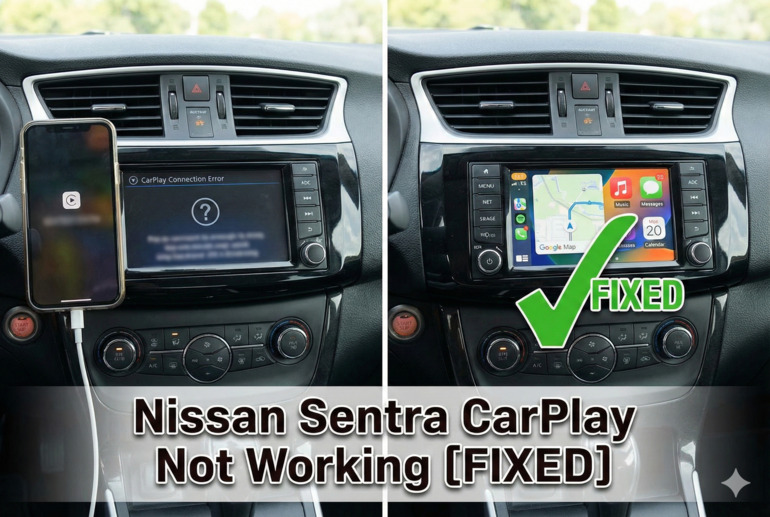
You’re driving along, excited to use your favorite navigation app or stream your playlist, and then it hits you. CarPlay won’t connect. Your iPhone sits there, completely ignored by your Nissan Sentra’s display screen. Frustrating doesn’t even begin to cover it.
This glitch happens more often than you’d think, and it’s not always because something’s broken. Sometimes it’s a simple software hiccup or a loose connection playing tricks on your tech. Understanding why this happens can save you a trip to the dealership and get you back to enjoying hands-free calls and easy navigation.
Throughout this guide, you’ll learn exactly what causes CarPlay to stop working in your Sentra and, better yet, how to fix it yourself. Most solutions take just minutes and require zero technical expertise.
What’s Really Going On With Your CarPlay Connection
CarPlay is basically a bridge between your iPhone and your car’s infotainment system. It mirrors select apps from your phone onto your dashboard screen, letting you access maps, messages, music, and more while keeping your hands on the wheel. When that bridge collapses, you’re stuck with basic radio functions and manual phone handling.
The connection relies on both hardware and software working together smoothly. Your USB cable physically links your phone to the car, while software protocols on both devices communicate back and forth. If either side of this conversation breaks down, CarPlay fails to launch or disconnects randomly while you’re using it.
Several things can interrupt this process. Your cable might be damaged in ways you can’t see. Your phone’s software could need updating. The car’s infotainment system might have cached corrupted data. Even settings you changed months ago on your iPhone could suddenly prevent CarPlay from working properly.
What makes this particularly annoying is that the problem often appears without warning. CarPlay worked fine yesterday, and today it refuses to cooperate. That sudden change usually points to a software issue rather than physical damage, which actually makes it easier to fix on your own.
Nissan Sentra CarPlay Not Working: Common Causes
Before you can fix the issue, you need to know what’s causing it. CarPlay problems typically stem from a handful of common culprits, and identifying the right one saves you from trying every fix under the sun.
1. Faulty or Incompatible USB Cable
Your charging cable does more than just power your phone. It carries data between your iPhone and the car’s system, and if that cable is damaged or not Apple-certified, CarPlay won’t function. Even cables that charge your phone perfectly fine can fail at data transfer.
Cheap third-party cables are the usual suspects here. They might work initially, but they lack the quality control of genuine Apple cables. Internal wires fray, connectors loosen, and suddenly your phone charges but CarPlay stays dead.
Sometimes the issue is subtler. The cable works with CarPlay in one car but not yours. That’s because different vehicles have different power requirements and data protocols. Your Sentra might be pickier than your friend’s Honda.
2. Outdated iPhone or Car Software
Software updates fix bugs, including ones that break CarPlay connectivity. If your iPhone is running old iOS or your Sentra hasn’t received its latest infotainment update, compatibility issues crop up. Apple and Nissan both release patches that address connection problems, but you have to actually install them.
Your iPhone might have automatic updates turned off. Meanwhile, car software updates don’t happen over the air like phone updates do. You often need to download them from Nissan’s website onto a USB drive, then manually install them through your car’s system. Most people have no idea this is even necessary.
3. CarPlay Restrictions Enabled on Your iPhone
Hidden deep in your iPhone’s settings is a restriction feature that can disable CarPlay entirely. If you activated Screen Time restrictions or handed your phone to someone who did, CarPlay might be blocked without you realizing it. This catches people off guard because everything else on their phone works normally.
Parents sometimes enable these restrictions on their kids’ phones and forget they’re active. Factory resets can also restore old restriction settings you thought were long gone. The setting sits there silently, preventing your Sentra from accessing CarPlay functionality.
4. Bluetooth Interference or Pairing Issues
Even though CarPlay primarily uses a wired connection through USB, Bluetooth can interfere with the process. If your phone is already paired to your car via Bluetooth for hands-free calling, that connection might conflict with the CarPlay setup. Your Sentra’s system gets confused about which connection method to prioritize.
Some people have their phones paired to multiple devices in the car. Bluetooth headphones, previous owner’s settings still lingering in the system, or even a passenger’s phone can create interference. Your car tries to juggle all these signals and ends up dropping CarPlay in the process.
Bluetooth caching is another culprit. Your car remembers old pairing information that’s no longer valid, and that outdated data causes handshake failures when CarPlay tries to initialize.
5. Dirty or Damaged USB Port in the Car
Your Sentra’s USB port takes a beating. Dust, lint, food crumbs, and moisture all find their way inside. Over time, these contaminants prevent proper contact between your cable and the port’s internal connectors. The result looks like a cable problem but is actually a dirty port issue.
Physical damage happens too. Plugging and unplugging cables repeatedly loosens the port’s internal components. Someone might have jammed a cable in at the wrong angle, bending the metal contacts inside. These ports aren’t built to last forever, especially with daily use.
Nissan Sentra CarPlay Not Working: How to Fix
Fixing CarPlay doesn’t require a mechanic or an Apple Genius. Most solutions are straightforward and take just a few minutes to try. Work through these fixes in order, and you’ll likely get CarPlay running again before you finish this list.
1. Restart Your iPhone and Infotainment System
The simplest fix often works because it clears temporary software glitches. Turn off your iPhone completely by holding the side button and sliding to power off. Wait about thirty seconds, then turn it back on. This clears your phone’s RAM and resets any stuck processes.
For your Sentra’s infotainment system, turn off the car completely. Not just the ignition to accessory mode, but fully off. Open your door to make sure all systems shut down. Wait a full minute before restarting the car. This gives the infotainment computer time to completely reset.
When both devices restart fresh, they establish a clean connection without any cached errors from previous attempts. This fix resolves intermittent CarPlay failures more often than any other single solution.
2. Try a Different USB Cable
Swap out your current cable for a certified Apple Lightning cable. Borrow one from a friend if you need to, just to test whether your cable is the problem. Plug it into the same USB port you’ve been using and see if CarPlay springs to life.
If a different cable works, you’ve found your culprit. Replace your old cable with a quality one. Genuine Apple cables cost more but they’re worth it for reliable CarPlay performance.
Make sure you’re using the USB port labeled for data transfer, not just the one meant for charging. Some Sentras have multiple USB ports, and only certain ones support CarPlay. Check your owner’s manual if you’re not sure which port to use.
3. Update Your iPhone’s iOS
Go to your iPhone’s Settings, tap General, then Software Update. If an update is available, download and install it. Apple frequently releases iOS updates that fix CarPlay bugs and improve compatibility with car systems.
Before updating, make sure your phone has at least 50% battery or connect it to a charger. Updates can take fifteen to thirty minutes depending on your internet speed and the update size. Your phone will restart automatically when the update finishes.
After updating, try connecting CarPlay again. Sometimes the update alone doesn’t trigger the fix until you’ve established a fresh connection with your car.
4. Check and Disable CarPlay Restrictions
Open Settings on your iPhone, then tap Screen Time. Look for Content & Privacy Restrictions. If this is turned on, tap it and find Allowed Apps. Make sure CarPlay is toggled on and showing green.
If you don’t use Screen Time, this setting might still be active from when you first set up your phone. Disabling restrictions entirely won’t hurt anything if you don’t need them. Just toggle off Content & Privacy Restrictions at the top of that screen.
5. Forget and Re-Pair Bluetooth Connection
Open your iPhone’s Settings and go to Bluetooth. Find your Nissan Sentra in the list of devices and tap the “i” icon next to it. Select Forget This Device. This removes all saved pairing data between your phone and car.
Now go to your car’s infotainment system and delete your iPhone from its Bluetooth devices list too. The exact steps vary by model year, but usually you’ll find this in Settings or Setup menu under Bluetooth. Once both sides have forgotten each other, turn Bluetooth off on your phone.
Wait about twenty seconds, then turn Bluetooth back on. Connect your iPhone to CarPlay using just the USB cable, without re-pairing Bluetooth first. Let CarPlay establish itself, and it will handle any necessary Bluetooth connections on its own.
6. Clean the USB Port
Turn off your car and grab a flashlight. Look inside the USB port for any visible debris. Use a wooden toothpick or a dry soft-bristled brush to gently remove lint and dust. Never use metal objects or apply too much pressure, as you could damage the internal contacts.
Compressed air works well for this too. Hold the can upright and give the port a few short bursts. Let any dislodged debris fall out naturally. If you see significant buildup, you might need to clean it multiple times over a few days as more debris works loose.
Once the port looks clean, try your cable again. Sometimes just removing a tiny piece of lint makes all the difference in establishing a solid connection.
7. Contact a Nissan Dealership or Certified Technician
If none of these fixes work, you’re likely dealing with a hardware failure in your car’s infotainment system or a deeper software corruption that requires professional diagnostics. Your Sentra might need a full system reset using dealer-level equipment, or the USB port itself could be damaged beyond simple cleaning.
Schedule an appointment with your Nissan dealership’s service department. Explain what you’ve already tried so they don’t waste time repeating the same steps. They can run diagnostic tests, check for technical service bulletins about CarPlay issues specific to your model year, and determine if warranty coverage applies to your repair.
Wrapping Up
CarPlay problems in your Nissan Sentra usually come down to simple issues like cable quality, software updates, or settings conflicts. The fixes are straightforward enough that you can handle them yourself without special tools or technical knowledge.
Start with the easiest solutions first. Restart your devices, check your cable, and update your software. These three steps alone solve most CarPlay connection failures. If you need to try the more involved fixes, take your time and follow each step carefully. Getting your CarPlay working again means safer, more convenient drives ahead.