
You hop into your Nissan Altima, plug in your iPhone, and… nothing. No CarPlay. Just a blank screen or maybe an error message staring back at you. It’s frustrating, especially when you’re counting on your phone’s navigation or music to get you through your drive.
This happens more often than you’d think, and the causes range from simple cable issues to software glitches that need a bit of troubleshooting. Understanding what’s going wrong and how to fix it can save you a trip to the dealership and get you back on the road with your favorite apps running smoothly. You’ll learn exactly what causes CarPlay to stop working in your Altima and how to fix each issue yourself.
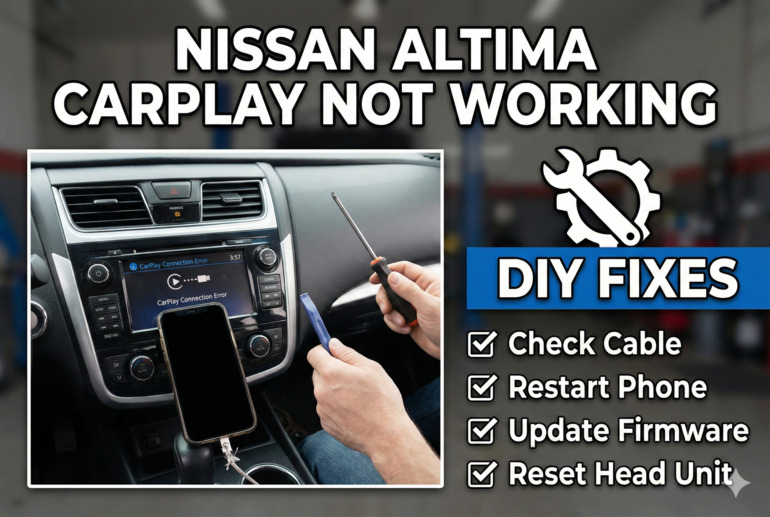
Why CarPlay Stops Responding in Your Altima
CarPlay is basically a bridge between your iPhone and your car’s infotainment system. When that bridge breaks, your phone and car can’t communicate properly. Sometimes the issue is hardware, like a damaged cable or USB port. Other times, it’s software related, where your phone’s iOS or your car’s system needs an update.
Your Altima’s infotainment system runs its own software that has to stay compatible with your iPhone’s operating system. If either one gets out of sync, CarPlay can fail to launch or disconnect randomly. The USB port itself can also wear out over time, especially if you’ve been plugging and unplugging cables regularly.
Physical damage matters too. If your Lightning cable has frayed wires or bent connectors, it won’t transmit data correctly even if it still charges your phone. Your car’s USB port can accumulate dust, debris, or even moisture that interferes with the connection. These aren’t always obvious problems, but they’re common culprits.
Ignoring CarPlay issues doesn’t just mean losing access to your apps. You might miss important navigation updates or hands-free calling features that keep you safer on the road. Plus, troubleshooting early prevents small problems from becoming bigger headaches later.
Nissan Altima CarPlay Not Working: Common Causes
Several factors can disrupt CarPlay in your Altima, and pinpointing the right one saves you time and effort. Let’s break down what’s usually behind this annoying problem.
1. Faulty or Incompatible USB Cable
Your Lightning cable is the physical link between your iPhone and your Altima’s system. If it’s damaged, cheap, or not Apple-certified, CarPlay won’t function properly.
Cables wear out faster than most people realize. The wires inside can break even when the outside looks fine, especially near the connectors where bending happens most. Non-certified cables might charge your phone but lack the data transfer quality CarPlay needs.
You might notice your phone charges intermittently or disconnects when you move the cable slightly. That’s a clear sign the cable is failing. Swapping it out with a certified Apple cable often solves the problem immediately.
2. Outdated iPhone or Car Software
Software compatibility is critical for CarPlay. If your iPhone is running an old version of iOS or your Altima’s infotainment system hasn’t been updated, they might not sync correctly.
Apple regularly releases iOS updates that fix bugs and improve CarPlay performance. Your Nissan also pushes out software updates for the infotainment system, though these are less frequent. When either system falls behind, communication errors can occur.
Missing an update isn’t always obvious. Your phone might work fine for everything else, but CarPlay specifically requires both systems to be current. Checking for updates on both devices should be part of your regular maintenance routine.
3. Dirty or Damaged USB Port
The USB port in your Altima takes a lot of abuse. Dust, lint, food crumbs, and even moisture can build up inside, blocking proper contact with your cable.
Physical damage can happen too. If you’ve ever yanked the cable out at an angle or accidentally knocked it while driving, the port’s internal pins might be bent or broken. This prevents your phone from establishing a stable connection.
Sometimes the port looks clean but still doesn’t work because the damage is internal. A quick visual check with a flashlight can reveal obvious debris, but deeper issues require closer inspection. Compressed air can clear out loose particles, though stubborn grime needs more careful cleaning.
4. CarPlay Restrictions on iPhone
Your iPhone has settings that can accidentally disable CarPlay, and you might not even know they’re turned on. Restrictions or Screen Time settings can block CarPlay from running.
This usually happens if you’ve set up parental controls or if you’ve tweaked privacy settings without realizing the impact. CarPlay needs specific permissions to access your apps, location, and microphone. If any of these are restricted, the feature won’t launch.
The frustrating part is that your phone won’t always tell you why CarPlay isn’t working. You’ll just see a failure to connect without any helpful error message. Checking your settings thoroughly can reveal hidden restrictions.
5. Bluetooth Interference or Pairing Issues
While CarPlay primarily uses a wired USB connection, Bluetooth can still cause conflicts. If your phone is trying to connect via Bluetooth for audio while also using the USB for CarPlay, confusion can occur.
Old Bluetooth pairings stored in your car’s memory can create problems too. If your Altima remembers previous devices or has corrupted pairing data, it might prevent new connections from working smoothly. Your phone might also struggle if it’s already connected to other Bluetooth devices like headphones or smartwatches.
These conflicts don’t always make sense on the surface. Your Bluetooth might work fine for phone calls but still mess with CarPlay. Clearing out old pairings and managing your active connections can eliminate this interference.
Nissan Altima CarPlay Not Working: DIY Fixes
Fixing CarPlay issues in your Altima doesn’t require advanced technical skills. Most solutions are straightforward and take just a few minutes to try.
1. Replace Your Lightning Cable
Start with the simplest fix: swap your cable for a new, Apple-certified Lightning cable. Generic cables might save you money upfront, but they often lack the quality needed for reliable CarPlay performance.
Look for cables with the “MFi” (Made for iPhone) certification. These meet Apple’s standards for data transfer and durability. If you’re unsure whether your current cable is certified, try a different one you know works well.
Test the new cable by plugging it into your Altima’s USB port and launching CarPlay. If it works immediately, you’ve found your culprit. Keep a spare certified cable in your car so you’re never stuck without a working connection.
2. Update Your iPhone’s iOS
Keeping your iPhone updated ensures CarPlay runs smoothly. Open your phone’s Settings app, tap General, then Software Update. If an update is available, download and install it.
Your phone needs a stable Wi-Fi connection and sufficient battery life for the update to complete. It’s smart to do this at home rather than in your car. Once the update finishes, restart your iPhone completely before testing CarPlay again.
iOS updates often include specific CarPlay improvements that aren’t mentioned in the release notes. Even if the update description doesn’t mention CarPlay, installing it can still fix underlying bugs that affect connectivity.
3. Update Your Altima’s Infotainment System
Nissan releases software updates for the Altima’s infotainment system periodically. You can check for updates through your car’s settings menu or by visiting a Nissan dealership.
Some updates can be downloaded and installed directly through your car if it has over-the-air update capabilities. Others require a USB drive with the update file, which you download from Nissan’s website. Follow the instructions carefully to avoid interrupting the installation process.
After updating, restart your car’s infotainment system by turning the ignition off completely, waiting a minute, then starting it again. This ensures the new software loads properly before you test CarPlay.
4. Clean the USB Port Thoroughly
Turn off your car and grab a flashlight to inspect the USB port. You might spot dust, lint, or other debris blocking the connection. Use compressed air to blow out loose particles, holding the can upright to avoid moisture.
For stubborn grime, carefully use a wooden toothpick or a soft-bristled brush to dislodge debris. Avoid metal tools that could damage the port’s internal pins. If you see visible corrosion or moisture damage, let the port dry completely before plugging anything in.
Once clean, test the port with your cable. If the connection still feels loose or unstable, the port itself might be damaged and need professional repair. But in many cases, a good cleaning restores full functionality.
5. Reset CarPlay Settings on iPhone
Go to Settings on your iPhone, scroll down to General, then tap CarPlay. You’ll see a list of available cars. Find your Altima and tap “Forget This Car.” This clears any corrupted connection data.
After forgetting the car, restart your iPhone completely. Then reconnect your phone to the car’s USB port. Your Altima should appear as a new CarPlay option, and you’ll go through the setup process again.
This reset often fixes persistent connection issues that other solutions don’t address. It gives your phone and car a fresh start, eliminating any glitchy settings that built up over time.
6. Disable and Re-enable CarPlay Restrictions
Open Settings on your iPhone, tap Screen Time, then Content & Privacy Restrictions. Make sure CarPlay is allowed under the restrictions menu. If you don’t use Screen Time, check Settings > General > CarPlay to ensure no restrictions are active.
Sometimes toggling these settings off and on again clears hidden bugs. Turn off all CarPlay restrictions, restart your phone, then turn them back on if needed. This forces your iPhone to refresh its permissions.
Test CarPlay after making these changes. If it works, you know a restriction was blocking it. If not, move on to the next fix.
7. Forget and Re-pair Bluetooth Connections
Open Settings on your iPhone, tap Bluetooth, and find your Altima in the list of devices. Tap the “i” icon next to it and select “Forget This Device.” Do the same in your car’s Bluetooth settings if possible.
Turn off Bluetooth on your phone completely, wait a few seconds, then turn it back on. This clears the connection cache and eliminates potential conflicts. Now reconnect your phone using the USB cable only, without pairing Bluetooth first.
Once CarPlay is working through USB, you can re-establish Bluetooth for other functions if needed. Keeping them separate often prevents the interference that causes connection problems.
8. Restart Both Your iPhone and Car System
Sometimes a simple restart fixes everything. Turn off your iPhone completely, wait about 30 seconds, then power it back on. While it’s restarting, turn off your car’s ignition and remove the key.
Wait at least a minute before restarting your car. This gives both systems time to clear their memory and reset any temporary glitches. Once both are back on, plug in your iPhone and try launching CarPlay.
This works surprisingly often because it clears temporary software bugs that accumulate during normal use. Think of it as giving both your phone and car a quick nap to reset themselves.
9. Contact a Certified Nissan Technician
If none of these fixes work, your Altima might have a hardware problem that needs professional diagnosis. A damaged USB port, faulty wiring, or a malfunctioning infotainment system requires specialized tools and expertise to repair properly. Visit your local Nissan dealership or a certified technician who can run diagnostic tests and identify the exact issue. They can also check if your car is covered under warranty for these types of repairs.
Wrapping Up
CarPlay problems in your Nissan Altima usually come down to cable issues, software that needs updating, or settings that need adjusting. Most of these fixes take just a few minutes and don’t require any special tools or technical knowledge.
Start with the easiest solutions first, like replacing your cable or updating your software. If those don’t work, move through the other fixes systematically. You’ll likely get CarPlay running again without ever needing to visit a repair shop, saving both time and money while getting back to enjoying your drive.