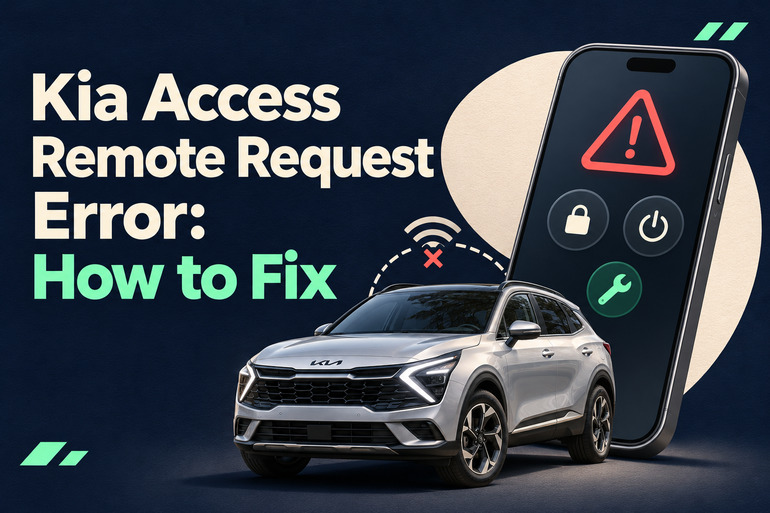
A remote request error in Kia Access can leave you unsure whether your vehicle received the command. You might be trying to warm the cabin, lock the doors, or check your car’s status, only to see the request fail.
The message alone doesn’t identify the cause. A connection problem, an unmet vehicle condition, or an account issue could be responsible. A few careful checks can help you narrow down the fault and choose the right fix.
What a Kia Access Remote Request Error Means
Kia Access provides access to supported Kia Connect features through your phone. Remote commands depend on several things working together, including your account, Kia’s service, and the vehicle’s connection. Available functions also vary by model, model year, equipment, and subscription. Having the app installed doesn’t establish that every remote feature is available on your vehicle.
A request error means the attempted action didn’t receive the expected successful result. However, you shouldn’t use that message alone to decide whether a door is locked or an engine has started. Check the actual vehicle when possible, especially before relying on a security command.
The pattern of failures is useful. If door locking works but remote start fails, check the conditions required for starting. If several commands fail and vehicle information remains unchanged, a connection or service issue becomes a stronger possibility. These are clues rather than confirmed diagnoses.
Before testing remote start, make sure the vehicle is parked somewhere suitable. Never run a gasoline engine in a closed garage or another enclosed or poorly ventilated space. This also matters with hybrids because the engine may operate during climate control. Kia warns against using remote start or climate control in these locations.
Kia Access Remote Request Error: Common Causes
Several problems can produce similar messages in Kia Access. The most useful distinction is whether the fault affects one feature, the phone app, or communication with the vehicle.
1. Weak Wireless Coverage
A strong connection on your phone doesn’t prove that your vehicle has a usable connection. The car may be parked underground, inside a concrete structure, or somewhere with poor cellular coverage.
Kia identifies wireless signal strength as a requirement for remote operation. Poor reception can prevent a command from completing or make it take longer. A failure that repeatedly happens in one parking location makes coverage worth checking.
Compare results after your next normal trip to another location. If commands consistently work outside the original parking area, that pattern supports a coverage explanation. It doesn’t, by itself, establish a defective vehicle modem.
2. Conditions for the Command Aren’t Met
Remote start has operating requirements that differ from a simple status request. Kia’s troubleshooting guidance lists closed doors, hood, and trunk, a locked vehicle, and the transmission in Park. For gasoline vehicles, the low fuel warning must also be off.
This cause becomes especially relevant when other commands still work. An open door indication or a fuel warning gives you something specific to address. Electric vehicles and plug in hybrids can have different charging and climate requirements, so instructions for another Kia may not apply to yours.
3. An Account or Subscription Problem
You may be able to open Kia Access and see ownership information while lacking access to a particular remote feature. An expired trial, a subscription change, or incomplete vehicle enrollment deserves attention when remote functions stop working.
A recently purchased used Kia can introduce another account issue. Kia directs owners to contact its support team when the previous owner’s Kia Connect account must be removed. Reinstalling the app won’t resolve an ownership association that requires Kia’s assistance.
4. Vehicle Systems Have Entered a Power Saving State
A car that hasn’t been started for several days may stop responding to remote requests to conserve battery power. This can explain why commands worked before a trip away but fail when you return.
The time limit isn’t identical across all Kia documentation. Kia’s general troubleshooting page describes three to five days, while the 2026 Sorento Features and Functions Guide describes a seven day connection window. Use your vehicle’s documentation rather than treating either limit as universal.
A failure after extended parking therefore doesn’t establish a dead battery. Still, slow cranking, a failure to start normally, or an explicit battery warning needs separate attention. Don’t assume every electrical symptom will disappear after reopening the app.
5. App Software or Vehicle Connectivity Trouble
Software faults can affect remote requests. Kia’s published app release history has included fixes for remote start failures and error messages, which makes checking for an available app update a reasonable step.
The vehicle’s connection can also need attention. Kia has published an infotainment reset procedure for connectivity problems following a past network outage. That guidance supports a reset in suitable circumstances, but it doesn’t establish that an outage is happening whenever your app displays an error.
Kia Access Remote Request Error: DIY Fixes
Start with checks that help identify where the request is failing. Change one thing at a time, then test again so you can tell which action made a difference.
1. Check the Request and Your Phone Connection
Save a screenshot of the error and note which command failed. Then check whether your phone can load a new webpage. If the connection is unreliable, try another trusted internet connection, reopen Kia Access, and send one request.
Allow the request to finish before trying again. Kia notes that some location requests can take up to two minutes and prevent additional commands while processing. Repeated tapping makes the outcome harder to follow. Check for a completion message and, when nearby, confirm what the vehicle actually did.
2. Prepare the Vehicle for the Requested Action
For a remote start failure, visit the vehicle and check its condition directly. Confirm Park is selected, turn the vehicle off, close the doors and cargo opening properly, and lock it. Check that the hood is securely latched without forcing it.
Look for an open panel indication or low fuel warning. Address the warning before another attempt. If an opening is physically closed but the vehicle continues to report it open, arrange diagnosis rather than trying to bypass the warning.
For remote charging, confirm that the vehicle is connected to charging equipment. For climate requests on an electric vehicle or plug in hybrid, follow the requirements in its manual. Kia lists different plug connection requirements for certain models, so copying another owner’s procedure can send you in the wrong direction.
3. Verify Your Account and Compare the Website
Confirm that the correct vehicle is selected in Kia Access. Then sign in to the Kia Owner’s Portal at owners.kia.com and review enrollment and the features included in your current subscription. Check the specific command you want to use before purchasing or changing a package.
Use the same account credentials associated with your vehicle’s enrollment. Kia specifically advises checking this when an already enrolled owner is asked to enroll again. If you recently changed phones or have multiple accounts, verify which account contains the active vehicle connection.
Where supported, try the equivalent command through the portal. A successful website request suggests that the phone app or its current session deserves closer attention. Failure through both routes leaves several possibilities, including account access, vehicle communication, and service trouble. Treat this comparison as a way to narrow the checks, rather than a complete diagnosis.
4. Update Kia Access and Refresh the Session
Open the Apple App Store or Google Play and check for a Kia Access update. Install any available update, close the app completely, and open it again. If the error continues, sign out and back in, provided you have your password and access to any required verification method.
Test one command after each change. If the portal works but the app still fails, reinstalling Kia Access is a reasonable next step. Confirm your login details first, and avoid deleting your vehicle or canceling enrollment as part of a routine reinstall. Those account changes create extra work without establishing the cause of the original error.
5. Wake the Vehicle and Use an Approved Reset if Needed
If your Kia has been parked for several days, start it normally with the key or smart key according to its manual. Afterward, shut it down, secure it, and retry the app. For example, Kia’s 2026 Sorento guide directs owners to restart the vehicle to restore connectivity after the documented inactivity period.
If that doesn’t help, check whether Kia’s infotainment reset procedure applies to your vehicle. Its published guidance describes turning the vehicle on, locating the identified reset pinhole, and holding the reset button for about five to ten seconds until the display goes black or begins restarting. Verify the location in your manual before inserting anything into an opening.
Keep the vehicle safely parked throughout the procedure. Once the system restarts, retry one command under suitable conditions. Don’t substitute a factory reset, battery disconnection, or fuse removal for the documented procedure. If the system has no clearly identified reset control, get model specific guidance from Kia.
6. Contact Kia Connect Support or a Kia Technician
Contact Kia Connect support when enrollment, ownership, subscription access, or repeated request failures remain unresolved. In the United States, Kia lists its Kia Connect support number as 844 886 9411. Have your vehicle identification number, model year, phone type, app version, and error screenshot ready.
Explain which commands fail, whether the website behaves the same way, and when vehicle information last updated. Include whether the problem follows extended parking or occurs only in one location. These details give support a clearer starting point than the error message alone. Ask whether there is a known service issue before arranging a repair visit.
A Kia technician is the appropriate next step if support identifies a vehicle problem, an approved reset doesn’t help, or the fault keeps returning. Seek assistance sooner for starting trouble, persistent electrical warnings, or an opening that won’t latch securely. Avoid replacing a battery, latch, or communications module solely because a remote request failed.
Wrapping Up
A Kia Access remote request error gives you a starting point, but it doesn’t tell you which part of the system needs attention. The most useful evidence is the pattern of failures, the vehicle’s actual condition, and whether commands behave differently through the app and website.
Begin with a single controlled test, then follow the checks that match your symptoms. If the fault persists, keep your screenshots and observations for Kia support. Clear information helps you get appropriate assistance without repeating the same unsuccessful steps or replacing parts unnecessarily.