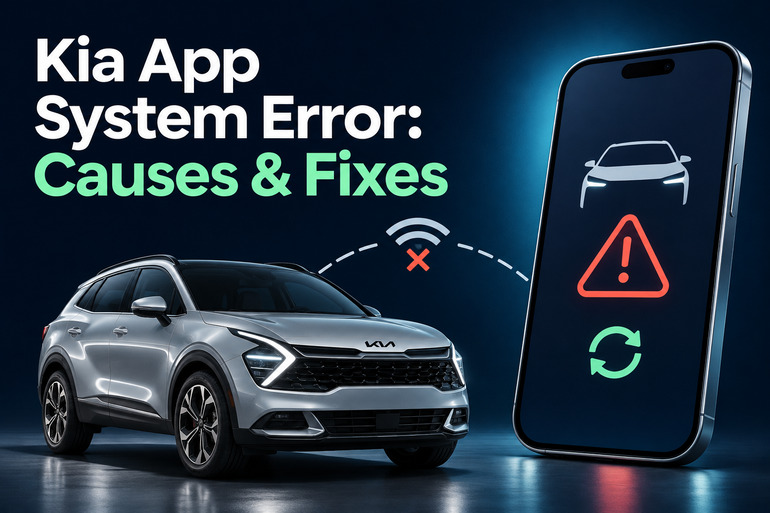
A system error in your Kia app can leave you unable to refresh vehicle information, lock your doors remotely, or start the cabin climate control. The message can be frustrating because it often gives you little detail about what actually went wrong.
However, the message alone doesn’t establish whether the trouble involves your phone, account, Kia’s online service, or the vehicle connection. Checking where the failure occurs helps you choose a useful fix and avoid unnecessary repairs.
What a Kia App System Error Means
For American owners, Kia Access is the official Kia ownership app. On compatible vehicles, it provides access to Kia Connect features such as remote locking, vehicle status, and climate control. Availability depends on your vehicle and service eligibility. Apps and features can differ outside the United States, so instructions for another region may not match your screen.
Remote functions rely on several separate connections. Your phone needs internet access, your account needs access to the requested service, and the vehicle’s connected system needs to communicate. Kia states that remote features require activation, a suitable subscription, a compatible smartphone, and adequate wireless coverage. A failure along that path can prevent a command from completing.
The point where the error appears offers a useful starting clue. An error before login calls for different checks than a failed remote start after the app has opened normally. Likewise, an old vehicle status timestamp deserves attention even if the displayed fuel level or door status looks reasonable. Treat those details as clues rather than a confirmed diagnosis.
Also, separate an app problem from a physical vehicle problem. If your Kia starts and operates normally using its regular controls, the app message alone doesn’t prove an engine or electrical fault. However, warning lights, smoke, a burning smell, or a failure to start require attention based on the vehicle’s symptoms. Don’t keep troubleshooting the app while overlooking a separate safety concern.
Kia App System Error: Common Causes
Several faults can interrupt the connection between Kia Access and your vehicle. The following possibilities help explain why the same broad error message can appear under different conditions.
1. A Kia Service Outage or Connection Disruption
Kia’s online services can experience disruptions that affect remote commands. For example, Kia published guidance following a February 2025 network outage and explained that some vehicles needed their connection restored after service returned. That historical event shows why a service interruption belongs on the list of possible causes. It doesn’t establish that an outage is happening now.
Suspect a wider service problem when several previously working functions stop together and the same trouble appears through both the app and owner website. Even then, account and vehicle connection faults remain possible. Look for a current Kia notice or ask support to check service availability before treating an outage as the explanation.
2. Weak Internet or Vehicle Cellular Coverage
Your phone and vehicle both need a usable connection for remote commands. A working phone connection doesn’t establish that your parked Kia has coverage. Kia specifically identifies signal strength at both ends as a requirement when investigating failed commands.
Underground parking is a useful example. Kia explains that a vehicle parked underground or in a weak coverage area can lose its connection, leaving services unavailable and displayed status outdated. Your phone may still work through the building’s WiFi while the vehicle remains unreachable.
A location pattern helps narrow this down. If commands consistently fail in one parking structure but work after you leave, coverage becomes a stronger possibility. However, one successful attempt elsewhere isn’t enough to rule out an intermittent service or vehicle fault.
3. An App Software Problem
A fault within Kia Access can interfere with login, screen loading, or a specific feature. Kia’s published app update history includes fixes for login error messages, crashes, vehicle status display issues, and remote start failures. Therefore, an available update may be relevant when your installed version develops one of those symptoms.
Phone troubleshooting becomes especially useful when the owner website works but the app doesn’t. That comparison suggests looking at the app installation or phone connection first. It still doesn’t prove which part is responsible, so change one thing at a time and check the result.
4. Account, Enrollment, or Subscription Trouble
An unexpected enrollment prompt can result from using different login details. Kia advises owners to use the same credentials associated with vehicle enrollment, including the phone number if enrollment used a phone number instead of an email address. Signing into another account can make an existing setup appear incomplete.
Feature access also depends on your service package and vehicle equipment. Being able to open maintenance information doesn’t establish that your account includes every remote function. Check the listed vehicle and subscription before assuming a missing or unavailable feature is a software failure.
This distinction matters after a trial ends or when you’re setting up a used vehicle. Record what the account actually shows, including any ownership or enrollment message. Avoid creating several replacement accounts, since that makes it harder to identify which account holds the correct vehicle connection.
5. Vehicle Conditions or a Modem Connection Fault
A remote command can fail because the vehicle doesn’t meet its operating conditions. Kia’s troubleshooting guidance lists requirements involving Park, closed doors and openings, locking, and fuel level for remote starting. It also explains that remote services may become inactive after the vehicle has remained unused for several days to conserve battery power. Exact behavior varies by vehicle.
A separate possibility is a vehicle modem connection fault. Kia service action SA611 covers certain vehicles from model years 2016 through 2025 with symptoms including failed remote climate control and vehicle status that won’t update. The bulletin requires checking the vehicle identification number for eligibility. Similar symptoms alone don’t establish that your Kia needs that procedure.
Kia App System Error: DIY Fixes
Start by finding out whether the error follows your phone, account, or vehicle. Then work through the checks below, testing after each change so you can tell what helped.
1. Record the Error and Compare the Owner Website
Take a screenshot before dismissing the message. Note the time, the selected vehicle, the feature you attempted, and whether the failure occurred before or after login. Also record the vehicle status timestamp if one appears.
Next, visit the Kia Owner’s Portal at owners.kia.com through your browser and sign into the same account. If your vehicle supports the relevant website function, compare its behavior with the app. Kia documents remote controls through both the website and Kia Access, although available features and menus vary.
If the website works, focus first on phone and app checks. If both fail, look more closely at the account, service availability, and vehicle connection. This comparison narrows the next step without proving a diagnosis. Check any current Kia service notice before repeatedly reinstalling software.
2. Test a Different Phone Connection
While safely parked, switch your phone from WiFi to cellular data, or try a trusted WiFi connection if cellular reception is weak. Open a normal webpage to confirm that the connection actually works, then reopen Kia Access.
Check that your phone allows Kia Access to use mobile data. On iPhone, look under Cellular in Settings. Android menu names vary, but the app information screen generally contains its data controls. Don’t assume that working WiFi means mobile data access is enabled for the app.
Retry one status refresh after changing the connection. If that works consistently on one network, the result points to a network related issue worth investigating. If your Kia is parked underground, test again after your next normal trip to an area with better coverage. Avoid moving or starting an unsafe vehicle simply to test the app.
3. Restart and Update Kia Access
Close Kia Access completely and reopen it. If the error continues, restart your phone. Apple recommends closing an unresponsive app, restarting the device, and checking for app and operating system updates when an app won’t work correctly.
Open the App Store or Google Play and check the official Kia Access listing for an update. Install an available update, then test the same function that failed earlier. Google also recommends restarting and updating when an Android app crashes, won’t open, or behaves incorrectly.
4. Verify Your Login and Vehicle Access
Before signing out, make sure you have access to your login details and any required verification method. Then sign back into the account used for enrollment. Compare the vehicle shown in the app with your actual Kia, using the vehicle identification number where available.
Review enrollment and subscription information through your account. If a remote feature is unavailable, confirm whether your vehicle and current package support it before paying for a different plan. A subscription change won’t correct an unrelated connection fault.
If the app shows the wrong vehicle, an ownership conflict, or an enrollment request you can’t explain, contact Kia support. Keep screenshots of those messages. Don’t delete the vehicle or cancel your account as a routine troubleshooting step, since support may need to inspect the existing setup.
5. Clear Cached Files or Reinstall the App
On Android, open Settings, select Apps, choose Kia Access, and look for Storage or Storage and cache. Try Clear cache first. Menu wording varies by manufacturer. Google includes clearing an app’s cache among its troubleshooting options.
If simpler checks haven’t helped, reinstall the official app. Apple recommends deleting and downloading an app again as a later troubleshooting step, while warning that locally stored app data may be lost. Make sure you can sign back in before removing it.
After reinstalling, sign into the existing account and test one function. Don’t create another account unless Kia specifically directs you to do so. If a fresh installation produces the same error through different phone connections, stop repeating the reinstall and move on to the vehicle or support checks.
6. Check Vehicle Readiness and Approved Reset Guidance
If only remote starting fails, consult your model’s manual for its exact requirements. Confirm the vehicle is in Park, the required openings are closed, and any listed fuel or charging conditions are satisfied. Never test remote starting in a closed garage or another poorly ventilated area. Kia warns against remote start or climate operation in enclosed spaces.
If your Kia has been parked unused for several days, start it normally when safe, then check whether connected services return. For persistent connection trouble, consult Kia’s head unit reset guidance and your exact owner’s manual. Kia describes a reset button procedure, but button location and applicability differ. Follow the procedure confirmed for your system.
Don’t confuse an approved restart with a factory reset. If you can’t identify the correct control or procedure, stop and ask Kia. Avoid pulling fuses, disconnecting the battery, or entering hidden service menus based on instructions for another model.
7. Contact Kia Support or a Qualified Technician
Contact Kia Connect support when login fails across the app and website, enrollment details appear incorrect, or the error persists after the checks above. Kia lists U.S. assistance at 844 886 9411. Provide your screenshots, vehicle details, app version, phone model, and the steps already attempted. Never share your password or security PIN.
A Kia dealer becomes appropriate when support identifies a vehicle connection problem or remote services remain unavailable despite correct enrollment and suitable coverage. Ask the dealer to check applicable software updates and service actions, including SA611 if relevant to your vehicle identification number. Coverage and repair requirements need individual confirmation.
Wrapping Up
A Kia app system error is easier to address when you identify exactly what stopped working. A failed login, an outdated vehicle status, and a rejected remote start provide different clues. Keep those details, compare the app with your owner account, and test each change before moving to the next step.
If the error continues, the information you collected gives Kia support or your dealer a clearer starting point. Meanwhile, check the vehicle directly whenever remote status is uncertain, and address any physical vehicle symptoms separately from the app message.