
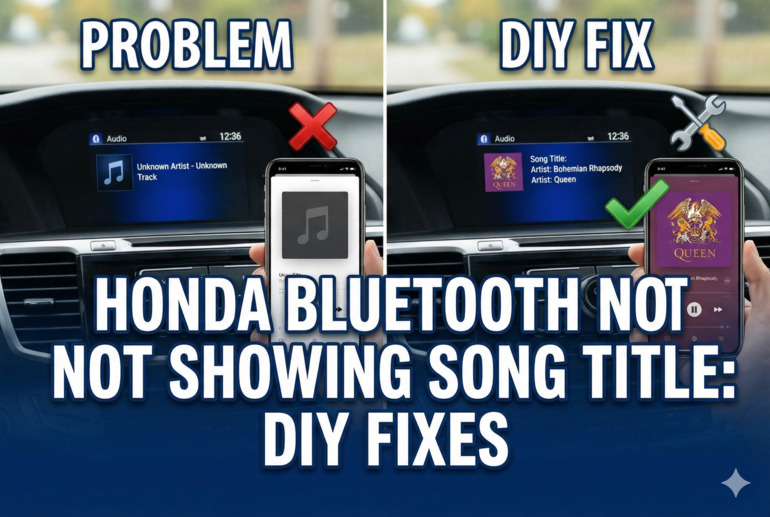
You’re cruising down the highway, your favorite playlist streaming through your Honda’s audio system, and suddenly you realize something’s missing. The song title isn’t showing up on your dashboard screen. Instead, you’re staring at “Unknown Track” or maybe just a blank space where the artist name should be.
This happens more often than you’d think, and it’s one of those annoying little glitches that can turn your daily commute into a guessing game. The good part is that you can usually fix this yourself without heading to the dealership. Here’s what you need to know about getting those song titles back where they belong.
What’s Actually Happening With Your Display
When your Honda’s Bluetooth system connects to your phone, it’s supposed to pull metadata from whatever music app you’re using. Metadata is just a fancy term for the information attached to your music files, like the song name, artist, album, and even album artwork. Your phone sends this data to your car’s head unit through something called AVRCP, which stands for Audio/Video Remote Control Profile.
Think of AVRCP as a translator between your phone and your car. When everything’s working smoothly, this translator passes along all the details about what’s playing. But sometimes the conversation gets garbled. Maybe your phone is speaking a newer dialect than your car understands, or maybe there’s static on the line.
The display issue doesn’t mean your Bluetooth connection is broken. Your music still plays perfectly fine. You can still take calls through your car speakers. Everything else works as expected. It’s just that one piece of information that refuses to show up, which makes the problem even more frustrating because it seems so random.
If you ignore this problem, nothing catastrophic happens to your car. Your Honda will keep running just fine. But you’ll be stuck guessing which song is playing every time you shuffle your playlist, and you won’t be able to skip tracks as easily since you can’t see what’s queued up next. Over time, this gets old fast.
Honda Bluetooth Not Showing Song Title: Common Causes
Several things can interrupt the flow of information between your phone and your Honda’s system. Some are simple software hiccups, while others involve compatibility mismatches that need a bit more attention.
1. Outdated Software on Your Phone or Car
Your phone’s operating system updates regularly, sometimes every few months. Each update can change how Bluetooth communicates with other devices. Meanwhile, your Honda’s infotainment system might be running software from when the car was manufactured, which could be years ago.
This creates a version mismatch. Your phone is trying to send song information using a newer protocol, but your car doesn’t recognize the format. It’s like trying to open a 2024 document on software from 2018. The file might open, but some features won’t display correctly.
Most people don’t think about updating their car’s software the way they update their phones. But Honda releases updates that improve Bluetooth functionality and fix bugs just like your phone manufacturer does. These updates often sit on Honda’s website, waiting to be installed.
2. Corrupted Bluetooth Pairing Data
Every time you pair your phone with your car, both devices save information about each other. This saved data helps them reconnect faster the next time. But sometimes this data gets corrupted, especially if the pairing was interrupted or if you’ve paired and unpaired multiple times.
Corrupted pairing data acts like a bad phone number in your contacts. Your car tries to call up the information from your phone, but it’s dialing the wrong number. The audio connection still works because that uses a different part of the Bluetooth system, but the metadata transfer fails.
3. Music App Limitations
Not all music apps play nice with car Bluetooth systems. Spotify, Apple Music, and YouTube Music generally work well because they’re designed with car integration in mind. But smaller streaming apps or custom music players might not send metadata properly.
Some apps only send basic information, while others send nothing at all. This isn’t necessarily a flaw in the app. It could be that the app developer didn’t prioritize AVRCP compatibility, or they’re using a stripped-down version of the protocol to save battery life.
4. Multiple Devices Fighting for Connection
If you’ve paired several phones with your Honda, they might be competing for control. Your car’s system tries to pull information from whichever device connected last, but if multiple devices are in range, things get confusing. Your phone might think it’s connected and sending data, but your car is actually listening to a different device.
This happens a lot in families where everyone’s phone is paired to the car. Dad’s phone connects automatically when he gets in, but Mom’s phone was the last one used, and now the system is trying to read from both at once. The result is missing or garbled song information.
5. USB Cable Interference
Here’s one that catches people off guard. If you have your phone plugged in via USB while also connected through Bluetooth, your Honda might get confused about which connection to prioritize. Some Honda models try to read metadata from both connections simultaneously, and the signals clash.
The USB connection often takes priority for charging but Bluetooth handles the audio. When both are active, your car’s head unit might default to showing information from the USB connection even though audio is streaming over Bluetooth. Since USB metadata transfer works differently, the song titles disappear.
Honda Bluetooth Not Showing Song Title: DIY Fixes
Getting your song titles back usually involves resetting connections or updating software. Most of these fixes take less than ten minutes and don’t require any special tools.
1. Delete and Re-Pair Your Phone
Start with the simplest solution. Go into your Honda’s Bluetooth settings and delete your phone from the list of paired devices. Then grab your phone and forget the car’s Bluetooth connection from your phone’s settings too. You need to remove the pairing from both ends.
Once everything’s cleared, restart both your phone and your car. Just turn your phone completely off and back on, and do the same with your car’s ignition. Give it a full restart cycle.
Now pair them again from scratch. Make sure your car is in pairing mode, then search for it on your phone. Follow the prompts, and when it asks for permission to access contacts and media, say yes to everything. This fresh pairing often clears up corrupted data that was blocking the metadata transfer.
2. Update Your Phone’s Operating System
Check if your phone has any pending software updates. Go to your settings, find the software update section, and install anything available. These updates frequently include Bluetooth improvements that help with car connectivity.
After updating, restart your phone before getting in your car. This ensures all the new changes take effect properly. When you reconnect to your Honda, the updated Bluetooth stack might communicate better with your car’s system.
Sometimes the fix is already waiting in an update you haven’t installed yet. Phone manufacturers regularly patch Bluetooth bugs, especially ones that affect popular car brands like Honda.
3. Update Your Honda’s Infotainment Software
Visit Honda’s owner website and look for software updates for your specific model and year. You’ll usually need your VIN to find the right files. Honda often releases updates on USB drives that you can install yourself.
Download the update file to a USB drive formatted as FAT32. Plug it into your car’s USB port with the ignition on but the engine off. Your system should recognize the update file and prompt you through the installation. This process takes about fifteen to twenty minutes.
Keep your car running or at least in accessory mode during the entire update. Don’t turn off the ignition or you could corrupt the installation. Once the update finishes, your system will reboot automatically and hopefully start displaying song titles again.
4. Switch Your Music App
If you’re using a less common music app, try switching to Spotify or Apple Music temporarily to see if song titles appear. This helps you figure out whether the problem is with your car’s system or your specific app.
If titles show up with a different app, the issue is with your original app’s AVRCP implementation. You can either stick with the new app or check if your original app has an update available that might fix the metadata transfer.
5. Disconnect All Other Paired Devices
Go through your Honda’s Bluetooth settings and delete every paired device except your current phone. This eliminates any confusion about which device should be sending information.
If other family members need to use the car, you can always re-pair their phones later. For now, having just one device paired helps isolate the problem and often resolves the song title issue immediately.
6. Disable USB Connection While Using Bluetooth
Try disconnecting your phone from the USB cable and rely solely on Bluetooth for both audio and charging. If your Honda has wireless charging, use that instead. Otherwise, just let your phone run on battery while driving.
If song titles suddenly appear when you unplug the USB cable, you’ve found your culprit. The competing connections were confusing your car’s head unit. You can continue using just Bluetooth, or look into whether a software update might fix the USB interference issue.
7. Contact a Honda Technician
If none of these fixes work, your car might have a deeper software issue or a hardware problem with the Bluetooth module. Honda technicians have diagnostic tools that can read error codes from your infotainment system and perform more advanced troubleshooting.
They can also install software updates that might not be available to the public yet or check if your Bluetooth module needs replacement. Sometimes the fix requires dealer-level access to your car’s systems, and that’s perfectly fine. At least you tried the basic fixes first and saved yourself a trip if it was something simple.
Wrap-Up
Missing song titles on your Honda’s display is annoying but rarely indicates a serious problem. Most cases come down to software mismatches or pairing glitches that you can fix at home. Start with re-pairing your devices, move on to software updates, and work through the other fixes until something clicks.
Your Honda’s Bluetooth system is pretty reliable overall. When it acts up, it’s usually because technology keeps moving forward and older systems need a little help catching up. Keep your phone and car software updated, and you’ll avoid most of these headaches going forward.