
You hop into your Nissan Altima, ready for your morning drive, and reach for your iPhone expecting that familiar CarPlay interface to pop up on your screen. Nothing happens. Your phone just sits there, and your infotainment system acts like it doesn’t even know what an iPhone is.
This happens more often than you’d think, and it can turn a pleasant drive into a frustrating experience. No navigation, no music streaming, no hands-free calls—just you and a blank screen wondering what went wrong. In this piece, you’ll discover exactly why your Apple CarPlay stops cooperating and learn straightforward ways to get it working again without a trip to the dealership.
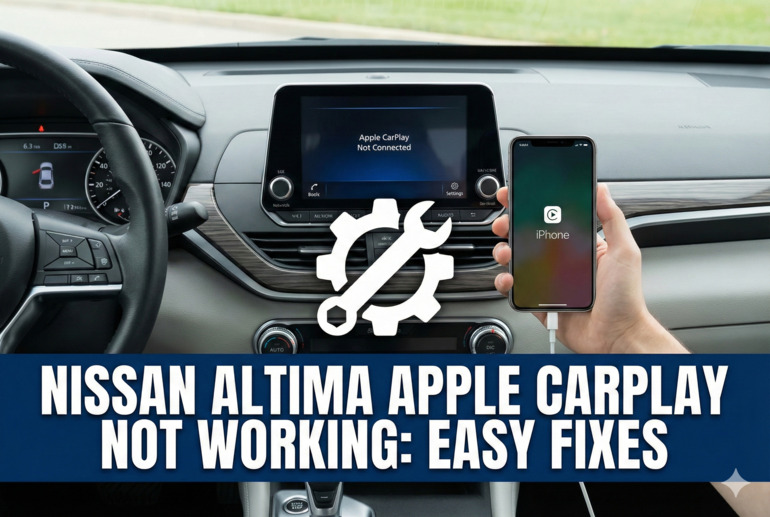
What’s Really Going On With Your CarPlay
Apple CarPlay is basically a bridge between your iPhone and your Altima’s infotainment system. It takes your phone’s interface and displays it on your car’s screen, letting you use apps safely while driving. Think of it as your phone’s abilities showing up on a bigger screen with easier controls.
When this connection breaks down, you’re left staring at your regular car screen without access to all those convenient features you’ve grown used to. Your Altima has a computer system that needs to communicate properly with your iPhone’s software, and sometimes these two just stop speaking the same language.
The frustrating part is that this issue can appear suddenly, even if everything worked perfectly yesterday. Your phone might charge when you plug it in, but CarPlay refuses to launch. Or maybe CarPlay connects for a few seconds before disappearing entirely.
Most CarPlay problems in the Nissan Altima stem from communication failures between your phone and the car’s system. Sometimes it’s a software glitch, other times it’s physical damage to cables or ports. Whatever the cause, these issues usually have simple fixes that you can handle yourself without special tools or technical knowledge.
Nissan Altima Apple CarPlay Not Working: Common Causes
Several factors can interrupt the connection between your iPhone and your Altima’s CarPlay system. Understanding these causes helps you pinpoint the problem faster and get back to enjoying your connected driving experience.
1. Cable Problems and Port Damage
Your Lightning cable takes more abuse than you probably realize. Every time you plug it in and unplug it, the connectors wear down just a little bit. After months of daily use, those tiny metal contacts inside the cable can bend, break, or collect debris that blocks proper connection.
Look closely at both ends of your cable. You might spot frayed wires near the connector, bent pins inside the Lightning end, or corrosion on the USB side. Even tiny amounts of lint from your pocket or bag can pack into the iPhone’s charging port and prevent the cable from seating properly.
Your Altima’s USB port faces similar challenges. Dust accumulates inside the port over time, and the metal contacts can get pushed out of alignment if you’ve ever forced a cable in at an angle. These ports weren’t designed to handle the constant plugging and unplugging that comes with daily CarPlay use.
2. Software Compatibility Issues
Apple releases iOS updates regularly, and sometimes these updates change how CarPlay communicates with car systems. Your Altima’s infotainment software was programmed to work with specific iOS versions, and newer updates can occasionally create conflicts.
This becomes especially noticeable after major iOS updates. Your phone might be running iOS 17 while your Altima’s system expects certain protocols from iOS 16 or earlier. These version mismatches don’t always cause problems, but when they do, CarPlay simply refuses to connect.
3. CarPlay Settings and Restrictions
Your iPhone has specific settings that control whether CarPlay can activate at all. If these settings get changed accidentally—maybe you let a kid play with your phone, or you tapped something while troubleshooting another issue—CarPlay gets blocked from launching.
Screen Time restrictions can also interfere with CarPlay functionality. Parents often set these controls to limit app usage, and sometimes CarPlay gets caught in these restrictions without anyone realizing it. Your phone thinks it’s protecting you from overuse when really it’s just blocking a feature you need while driving.
4. Infotainment System Glitches
Just like your computer at home occasionally needs a restart to work properly, your Altima’s infotainment system can develop temporary software bugs that mess with CarPlay. These glitches happen when the system’s memory gets cluttered with cached data or when background processes conflict with each other.
Your car’s computer tries to juggle multiple tasks at once—radio functions, climate controls, navigation, Bluetooth connections, and CarPlay support. Sometimes one of these processes crashes quietly in the background, and CarPlay becomes collateral damage.
The system might show no obvious signs of malfunction. Everything else works fine, but CarPlay just won’t activate. This type of glitch often resolves itself with a simple system reboot, though many Altima owners don’t realize their infotainment system can be restarted.
5. Bluetooth Interference
Your iPhone might be trying to connect via Bluetooth when it should be using the wired connection through your cable. Bluetooth audio and CarPlay can conflict with each other, especially if your phone previously paired with your car for hands-free calling before you started using CarPlay.
When both connection types try to work simultaneously, your phone gets confused about which one takes priority. Some Altimas handle this gracefully and switch automatically, but others get stuck in a loop where neither connection fully activates. Your phone shows it’s connected, but CarPlay never launches on the screen.
Nissan Altima Apple CarPlay Not Working: DIY Fixes
Getting your CarPlay working again usually takes just a few minutes and some basic troubleshooting. These fixes address the most common problems and work for most Altima model years equipped with CarPlay.
1. Inspect and Replace Your Cable
Start with the simplest possibility first—your cable might be the entire problem. Unplug it from both your phone and the car, then examine it carefully under good light.
Check the Lightning connector that plugs into your iPhone. Look for any bent or missing pins inside the connector housing. The pins should be straight and evenly spaced. Also check the cable itself for any kinks, cuts, or exposed wires, especially near both ends where the cable bends most often.
Now look at the USB end. The metal connector should be clean and free of corrosion. If you see any green discoloration or black spots, that’s oxidation preventing good contact. Try a different cable—ideally an official Apple cable or a certified MFi cable—to see if CarPlay connects. Generic cables often lack the proper certification chips that CarPlay requires for security purposes.
2. Clean Your iPhone Port and Car USB Port
Pocket lint is a silent killer of charging connections. Over time, every insertion of your Lightning cable pushes lint deeper into your iPhone’s port until it forms a compressed layer that prevents the cable from seating fully.
Turn off your iPhone first for safety. Then take a wooden toothpick or a plastic dental pick—never use metal, which could damage the delicate contacts—and gently scrape inside the Lightning port. You’ll be surprised how much fuzzy debris comes out. Work carefully around the edges and scoop out any packed material.
Your Altima’s USB port needs similar attention. Use compressed air to blow out dust, or carefully use a toothpick to dislodge debris. Shine a flashlight into the port to check your work. Once both ports are clean, try connecting your iPhone again.
3. Restart Your iPhone and Car Infotainment System
Sometimes you just need to turn it off and turn it back on. This advice sounds too simple to work, but it clears temporary software glitches that block CarPlay.
For your iPhone, press and hold the side button and volume button until the power-off slider appears. Slide it to shut down completely, wait thirty seconds, then press the side button to restart. Don’t just lock the screen—actually power it down.
Your Altima’s infotainment system needs a restart too. With your car running, press and hold the power button on the infotainment screen for about ten seconds. The screen should go black and reboot. Some Altima models require you to hold the volume knob instead, so check your owner’s manual if the power button method doesn’t work. Wait for the system to fully restart before plugging in your iPhone.
4. Check and Adjust CarPlay Settings
Your iPhone might have CarPlay disabled without you knowing it. Open Settings on your phone, then tap Screen Time. If Screen Time is active, go to Content & Privacy Restrictions and make sure CarPlay isn’t blocked under Allowed Apps.
Next, go back to the main Settings screen and tap General, then CarPlay. You should see your Altima listed here if it’s ever connected successfully before. Tap on your car’s name and check that it shows as available. If you see a “Forget This Car” option, you might want to use it to reset the connection completely, then reconnect from scratch.
Make sure your iPhone isn’t in Do Not Disturb mode either, as this can sometimes interfere with CarPlay activation. Swipe down from the top right corner to check your Control Center and verify that Do Not Disturb is off.
5. Update Your iPhone Software
Software updates fix bugs and improve compatibility with car systems. Apple regularly releases updates that address CarPlay issues specifically.
Open Settings, tap General, then Software Update. If an update is available, download and install it while connected to Wi-Fi and a charger. Your phone will restart during the update process, which takes about fifteen to thirty minutes depending on the size of the update.
After updating, try connecting to CarPlay again. Sometimes the fix you need was included in the latest update patch notes under “bug fixes and improvements.” Apple doesn’t always specify which bugs they fixed, but CarPlay connection issues are common enough that updates often address them.
6. Reset Network Settings on Your iPhone
Network settings control how your phone communicates with external devices, including your car’s CarPlay system. Resetting these settings clears out corrupted configurations that might be blocking the connection.
Go to Settings, then General, then Transfer or Reset iPhone. Tap Reset and choose Reset Network Settings. Your phone will ask for your passcode, then warn you that this will delete Wi-Fi passwords and other network preferences. That’s normal—you’ll just need to rejoin your home Wi-Fi afterward.
This reset specifically clears out old Bluetooth pairings and USB communication protocols. After your phone restarts, drive to your car and try connecting CarPlay fresh. The system will establish a new connection without any corrupted data from previous attempts.
7. Contact Your Nissan Dealer
If you’ve tried everything and CarPlay still refuses to work, your Altima’s infotainment system might need a software update that only the dealer can install. Nissan occasionally releases firmware updates for their head units that improve CarPlay stability and compatibility with newer iPhone models.
Call your local Nissan service department and explain the issue. Ask specifically if there are any technical service bulletins or software updates available for your model year’s infotainment system. Many dealers will update your system’s software for free or a minimal fee, especially if there’s a known issue they’re supposed to address.
Wrapping Up
CarPlay problems in your Nissan Altima usually come down to simple connection issues rather than major system failures. A worn cable, dirty port, or minor software glitch causes most of the frustration you experience when that screen stays blank.
Starting with the basics—checking cables, cleaning ports, and restarting both devices—solves the majority of cases without any technical expertise needed. Your morning commute doesn’t have to turn into a troubleshooting session when you know these straightforward fixes. Keep a quality replacement cable in your car, check those ports regularly, and stay current with software updates to prevent most CarPlay headaches before they start.