
Your morning commute just got a lot less fun. You plug in your iPhone, expecting your favorite playlist or podcast to start streaming through your Nissan Sentra’s speakers, but nothing happens. The screen stays blank, or maybe it shows that frustrating “unable to connect” message.
This problem hits at the worst times. Maybe you need GPS directions to an important meeting, or you’re trying to make a hands-free call while keeping your eyes on the road. Apple CarPlay has become such a reliable part of your driving routine that when it stops working, everything feels off.
This guide walks you through the most common reasons why Apple CarPlay fails in your Nissan Sentra and shows you exactly how to fix each one. You’ll learn simple troubleshooting steps that work, plus when it’s time to call in professional help.
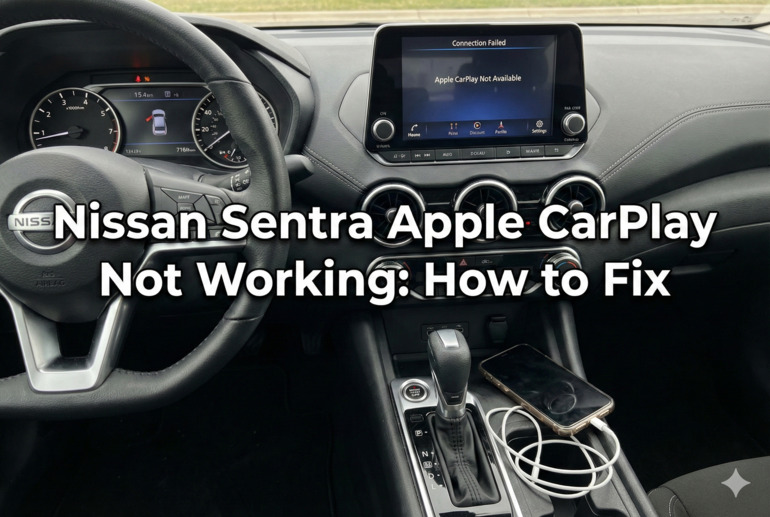
What’s Really Happening When CarPlay Fails
Apple CarPlay creates a bridge between your iPhone and your Sentra’s infotainment system. When that bridge breaks down, you lose access to all those apps and features you rely on. The system needs three things to work properly: a compatible iPhone running the right iOS version, a working USB cable that transfers both power and data, and a properly functioning head unit in your car.
Think of CarPlay as a conversation between your phone and your car. Both devices need to speak the same language and have a clear connection. When something interrupts that conversation, whether it’s outdated software, a damaged cable, or a glitch in the system, everything stops working.
Most CarPlay failures happen suddenly. Your system might work perfectly one day and refuse to connect the next. Sometimes the connection drops randomly while you’re driving, cutting off your navigation mid-route. Other times, your car recognizes that something’s plugged in but won’t launch the CarPlay interface.
The good news is that most of these issues stem from simple problems you can fix yourself in just a few minutes. Hardware failures are less common than software glitches or connection issues. Your Sentra’s system might just need a quick reset or your cable might need replacing.
Nissan Sentra Apple CarPlay Not Working: Common Causes
Several factors can stop Apple CarPlay from connecting to your Nissan Sentra. Understanding what’s causing your specific problem helps you fix it faster without wasting time on solutions that won’t work for your situation.
1. Faulty or Incompatible USB Cable
Your cable does more than just charge your phone. It needs to transfer data back and forth between your iPhone and your Sentra’s system at high speeds. Many aftermarket cables look identical to Apple’s original cables but only support charging. They lack the proper wiring inside to handle data transfer.
Even genuine Apple cables wear out over time. The connectors get loose from being plugged and unplugged constantly. The wires inside the cable break from being bent too many times or from getting caught in door frames. You might not see any visible damage on the outside, but internal breaks stop the cable from working properly.
Your cable might work fine for charging your phone at home but fail completely when you try to use CarPlay. This happens because charging requires less sophisticated technology than data transfer. A partially damaged cable can still push power through but can’t maintain the stable connection CarPlay needs.
2. Outdated Software on Your iPhone or Car
Apple releases regular iOS updates that change how CarPlay communicates with vehicles. Your Nissan’s infotainment system also receives occasional updates through the manufacturer. When these two systems run different software versions that don’t match up properly, connection problems happen.
Your iPhone might be running iOS 17 while your Sentra’s head unit expects to communicate with iOS 15 protocols. The mismatch creates compatibility issues that prevent the initial handshake between devices. Your phone tries to connect using newer methods, but your car doesn’t understand those commands.
3. Incorrect CarPlay Settings on Your iPhone
Your iPhone has specific settings that control how CarPlay behaves. If these settings get changed accidentally, or if your phone has restrictions enabled, CarPlay won’t connect even when everything else works perfectly. Parents who set up parental controls sometimes disable CarPlay without realizing it.
The “Allow CarPlay While Locked” setting makes a huge difference. When this gets turned off, your phone won’t connect to your car unless you unlock it first. Siri restrictions also affect CarPlay since the system relies heavily on voice commands. If Siri is disabled, many CarPlay features stop working.
4. Dirty or Damaged USB Port
The USB port in your Sentra’s center console collects dust, crumbs, and other debris over time. This stuff builds up inside the port and prevents your cable from making a solid connection. Even a tiny piece of lint can block the metal contacts that need to touch for data transfer to work.
Physical damage to the port happens more often than you’d think. Maybe someone jammed a cable in at the wrong angle, bending the metal pins inside. Perhaps liquid spilled into the port during a coffee mishap, causing corrosion on the contacts. The port might look fine from the outside but have internal damage you can’t see without a closer inspection.
5. Software Glitch in the Infotainment System
Your Sentra’s head unit runs complex software that occasionally freezes or crashes. These glitches can happen randomly without any clear cause, or they might occur after your car’s battery was disconnected for service. The system gets stuck in a state where it can’t properly initialize CarPlay even though all the hardware works fine.
Temporary memory issues cause many of these glitches. The system fills up its cache with old data and eventually runs out of space to process new connections. Think of it like your computer slowing down when you have too many programs open at once. The head unit needs a fresh start to clear out that accumulated digital clutter.
Nissan Sentra Apple CarPlay Not Working: DIY Fixes
Fixing CarPlay problems in your Sentra doesn’t require special tools or technical expertise. These solutions address the most common issues and work for most connection problems you’ll encounter.
1. Try a Different USB Cable
Start with the simplest solution first. Grab a different Lightning cable, preferably an Apple-certified one with the “Made for iPhone” label. Plug it into your Sentra’s USB port and connect your iPhone. If CarPlay suddenly works, you’ve found your culprit.
The cable you’ve been using might have internal damage that’s invisible from the outside. Replacing a broken cable costs much less than diagnosing phantom electrical problems. Keep a spare certified cable in your car so you always have a backup when problems occur.
Not all USB ports in your Sentra support CarPlay. Some models have multiple USB ports, but only specific ones work with Apple CarPlay. Check your owner’s manual to confirm which port is CarPlay-compatible. The port is usually marked with a phone icon or labeled specifically for smartphone integration.
2. Update Your iPhone Software
Open the Settings app on your iPhone and tap General, then Software Update. If an update is available, download and install it. iOS updates often include fixes for CarPlay connectivity issues that Apple discovered after the previous version was released.
Connect your iPhone to WiFi before starting the update since these files are large. Make sure your phone has enough battery life, or plug it into a charger while updating. The process usually takes 15 to 30 minutes depending on your connection speed and the update size.
After the update finishes installing and your phone restarts, try connecting to your Sentra again. Sometimes you need to wait a few minutes after an iOS update before CarPlay works properly. The system needs time to reconfigure all its settings and connections.
3. Reset Your iPhone’s Network Settings
This fix clears out corrupted network data that might interfere with CarPlay. Go to Settings, then General, then Transfer or Reset iPhone. Tap Reset and choose “Reset Network Settings.” Your phone will restart and clear all saved WiFi passwords, Bluetooth connections, and VPN settings.
After the reset completes, you’ll need to reconnect to your WiFi networks and re-pair any Bluetooth devices. This seems inconvenient, but it solves many mysterious connection issues that other fixes can’t address. The reset gives your phone a clean slate for building new connections.
4. Check and Adjust CarPlay Settings
Open Settings on your iPhone and scroll down to find “Screen Time.” If Screen Time is enabled, tap on it and check “Content & Privacy Restrictions.” Make sure CarPlay isn’t disabled here. Then go back to the main Settings menu and tap “General,” followed by “CarPlay.”
You should see your Nissan Sentra listed under “My Cars” if it has connected successfully before. Tap on your car’s name and verify that all the apps you want to use are enabled. Some apps might be turned off accidentally, preventing them from appearing on your CarPlay screen. Toggle any disabled apps back on and test your connection again.
If your Sentra doesn’t appear in the list at all, try tapping “Forget This Car” if you see it, then reconnect from scratch. This forces your phone to establish a completely new connection with your vehicle’s system.
5. Clean the USB Port in Your Car
Turn off your Sentra’s engine completely before cleaning the USB port. Take a flashlight and look inside the port for any visible debris or damage. Use a can of compressed air to blow out dust and small particles. Hold the can upright and use short bursts to avoid shooting liquid into the port.
For stubborn debris, try a wooden toothpick or a soft-bristled brush. Gently scrape around the inside edges of the port, being careful not to bend or damage the metal contacts. Avoid using metal objects like paperclips since these can cause shorts or permanent damage to the electrical contacts. If you see any corrosion or green residue, use a cotton swab lightly dampened with isopropyl alcohol to clean it away.
6. Reset Your Sentra’s Infotainment System
Most Nissan Sentra models let you reset the head unit through the settings menu. Turn on your car and press the Settings or Menu button on your touchscreen. Look for options labeled “System,” “Device,” or “About.” You should find a “Reset” or “Factory Reset” option somewhere in these menus.
Before resetting, write down any custom settings you want to keep, like audio preferences or display brightness. The reset will erase all personalized settings and restore the system to how it was when the car left the factory. After the reset completes and the system restarts, try connecting your iPhone again. The fresh start often clears software glitches that prevent CarPlay from working.
7. Contact a Nissan Technician or Apple Support
If none of these fixes work, your problem might need professional diagnosis. A Nissan dealership technician can run diagnostic tests on your infotainment system to check for hardware failures or software issues that require dealer-level tools to repair. They can also verify whether your specific Sentra model and year support CarPlay, since some older models might need software updates that only dealers can install.
Apple Support can help determine if your iPhone has a hardware problem affecting its ability to connect to CarPlay. They can run remote diagnostics and check if your Lightning port is damaged. Sometimes the issue lies with your phone rather than your car, and Apple can repair or replace defective iPhones under warranty.
Wrapping Up
CarPlay problems in your Nissan Sentra usually come down to cables, software, or settings. Most of these issues resolve quickly once you identify the root cause. Start with the easiest fixes like swapping cables and checking settings before moving on to more involved solutions.
Regular maintenance helps prevent future problems. Keep your USB ports clean, update your iPhone when new iOS versions release, and replace worn cables before they completely fail. These small habits save you from frustration and keep your morning commute running smoothly.