
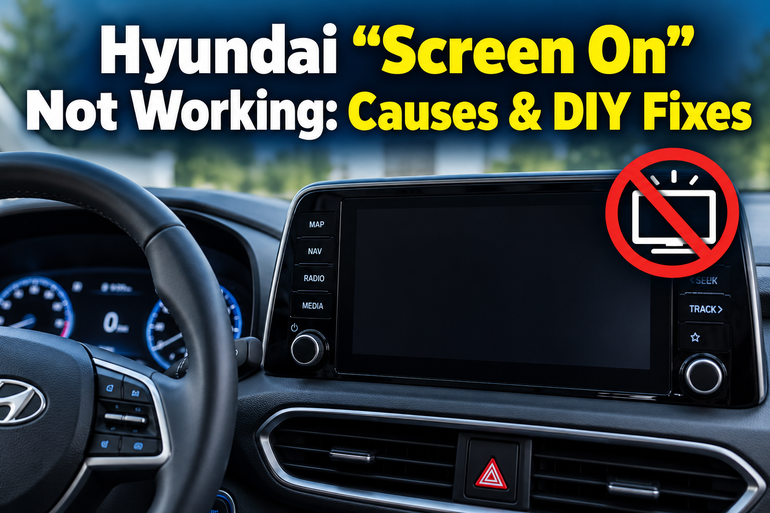
When your Hyundai’s infotainment screen refuses to turn on, the dashboard may still light up, music may keep playing, or the entire display may remain black. A dark screen can result from a simple setting, a frozen multimedia system, or an electrical fault, so the symptom alone doesn’t identify the cause.
Fortunately, several checks can help you narrow down the problem without removing dashboard panels or spending money on unnecessary repairs. The key is to identify what’s still working and start with the safest, simplest solutions.
What It Means When Your Hyundai Screen Won’t Turn On
Your Hyundai’s infotainment screen provides access to functions such as audio, navigation, Bluetooth, Apple CarPlay, Android Auto, and vehicle settings. Depending on your model and equipment, it may also display parking camera images and information about vehicle systems.
The screen and the multimedia unit work together, but a problem with one doesn’t always mean the other has failed. For example, if your speakers continue playing music while the display stays black, the head unit may still be operating even though the screen is off or its backlight has stopped working.
On the other hand, when both the screen and audio system remain inactive, the problem may involve the unit’s power supply, a fuse, the ignition state, or an internal fault. Hyundai’s official infotainment troubleshooting guidance identifies an inactive system and a fuse-related issue as possible explanations for a blank screen with no sound.
It’s also worth distinguishing a completely blank infotainment screen from a screen that goes black only after you connect your phone. If the Hyundai home screen works normally but Apple CarPlay or Android Auto doesn’t display correctly, the phone, USB cable, wireless connection, or projection software may be responsible. That problem calls for a different set of checks.
Hyundai “Screen On” Not Working: Likely Causes
Several faults can produce similar symptoms, so avoid replacing the screen before checking simpler possibilities. Pay attention to whether the display is completely black, faintly illuminated, intermittently working, or accompanied by normal audio.
1. The Screen Is Turned Off or the Brightness Is Too Low
Some Hyundai infotainment systems allow you to switch off the display while keeping audio playback active. This feature is useful when you want to listen to music without the distraction of a bright screen.
If the screen was turned off accidentally, the system may appear faulty even though it is functioning normally. Brightness settings can also make the display difficult to see, particularly at night or after someone changes the display configuration.
Look for a Screen Off option, a display control, or a screen-related button on your vehicle’s multimedia system. The exact arrangement depends on the model and infotainment version.
If audio works normally and the screen returns after you operate the appropriate control, a hardware repair probably isn’t necessary. However, if the display remains black despite normal settings, investigate other causes.
2. The Infotainment System Has Frozen
Like other electronic systems, a Hyundai head unit can occasionally stop responding. Its software may freeze during startup, while switching between audio sources, or when connecting a smartphone.
A frozen system can leave the display stuck on a black screen, an old menu, or the Hyundai logo. Sometimes the sound continues even though you can’t operate the touchscreen. In other cases, both the image and controls become unresponsive.
A temporary software fault doesn’t automatically mean the unit needs replacement. Hyundai’s official troubleshooting guidance recommends restarting an unresponsive multimedia system using its designated reset button where equipped. Software updates may also be appropriate when the problem continues.
If the display starts working after a proper reset but the issue keeps returning, the system may need a software update or a more detailed diagnostic check.
3. The Vehicle Isn’t Supplying Power Correctly
Your infotainment system depends on the vehicle’s electrical supply. If the ignition is in the wrong state, the system may remain switched off even when you expect it to operate.
A weak 12-volt battery can also cause unusual electrical behavior, particularly during startup. You might notice slow engine cranking, warning messages, flickering dashboard lights, or other electrical functions behaving inconsistently.
These symptoms don’t prove that the battery is responsible. A battery can be weak without producing every warning sign, and a screen fault can occur even when the engine starts normally.
The vehicle’s operating state matters, too. Depending on the model, the infotainment system may behave differently in accessory mode, with the ignition switched on, or while the engine or hybrid system is operating. Testing it in the appropriate state helps separate a normal power-management behavior from an actual fault.
4. A Blown Fuse or Electrical Connection Fault
An infotainment system typically receives power through one or more protected electrical circuits. If a fuse blows, the unit may stop working completely. A fault elsewhere in the circuit may produce similar symptoms.
A fuse can blow because of an electrical fault or excessive current. Replacing it without addressing an underlying problem may only provide a temporary solution, and a replacement fuse that blows again requires further investigation.
Loose connections, damaged wiring, or a poor electrical connection at the head unit can also interrupt its power supply. These faults are more difficult to diagnose because the system may work intermittently, especially if a connection changes with vibration.
If several electrical features stop working at the same time, that pattern can provide a useful clue. However, fuse locations and circuit arrangements vary by Hyundai model and year, so the correct vehicle manual is essential.
5. A Faulty Display, Backlight, or Head Unit
If you’ve confirmed that the system is powered on, its settings are correct, and a reset hasn’t restored the image, a hardware fault becomes more plausible.
The display panel or its backlight may fail while the rest of the infotainment system continues functioning. A damaged internal connection or a fault within the head unit can also prevent the image from appearing.
The symptoms can help distinguish these possibilities. For example, normal audio and responsive physical controls alongside a completely black display suggest that the entire multimedia unit may not be dead. A faint image visible under strong light can also point to a backlight problem, although this observation isn’t a definitive diagnosis.
Physical damage, liquid exposure, or previous dashboard repairs may increase suspicion of a hardware or connection fault. Because diagnosing these components can require specialist tools and dashboard disassembly, avoid attempting an internal repair without the proper training.
Hyundai “Screen On” Not Working: How to Fix
Start by checking the screen controls and vehicle power state before attempting a reset or investigating the fuse. These methods cover common causes while helping you avoid unnecessary electrical work.
1. Turn On the Infotainment System Correctly
Begin with the basic power controls. Hyundai systems vary, so the precise procedure depends on your model, but this check can resolve a screen that simply hasn’t been switched on.
Park the vehicle safely before troubleshooting. Apply the parking brake and follow the owner’s manual for the appropriate ignition or operating state. Some models allow infotainment operation in ACC mode, while others may require the ignition to be switched on or the vehicle to be in its normal operating state.
Next, press the infotainment power button or operate the power control integrated into the volume knob, if your vehicle has one. Give the system time to start before pressing other buttons.
Hyundai’s official troubleshooting instructions recommend confirming that the vehicle is in ACC or ON mode and pressing the control-panel power button when a blank screen appears without sound.
If the screen returns, check whether audio, touchscreen controls, and other multimedia functions respond normally. If nothing changes, continue to the next step.
2. Check the Screen Off and Brightness Settings
If you can hear music or radio audio while the display remains dark, check whether the screen has been switched off intentionally.
Look for a Screen Off command, a dedicated display button, or an equivalent function in the multimedia controls. Depending on your Hyundai, you may be able to restore the image by pressing a button, touching the display, or selecting the appropriate screen option.
If the interface becomes visible but remains unusually dim, open the display settings and increase the brightness. Check whether automatic brightness or day and night display settings are affecting visibility.
The menu names and button locations vary by model, so consult the infotainment section of your owner’s manual if the controls aren’t obvious. Avoid pressing unfamiliar combinations repeatedly because you could change other settings.
If the screen doesn’t respond to any controls, a frozen system or an electrical or hardware fault becomes more likely.
3. Restart the Infotainment System
A soft reset can resolve temporary software problems without requiring you to replace parts. The correct procedure depends on the head unit installed in your Hyundai, so use the method specified for your vehicle.
Some systems have a small reset pinhole near the multimedia controls. If your manual confirms its location and procedure, use a suitable blunt tool to press the reset button as directed. Don’t insert a tool into an unlabelled opening because it could be a microphone or another component.
Hyundai’s official reset instructions explain that supported systems may use a pinhole reset, while certain systems without one can be reset by holding the Map and Setup buttons together for 10 seconds. That button combination doesn’t apply to every Hyundai, so confirm compatibility before using it.
The screen may go dark temporarily and then restart. Allow the system time to complete the process rather than repeatedly interrupting it.
A reset can clear a temporary malfunction, but it won’t repair damaged wiring, a failed display, or a blown fuse. If the screen remains black, move on to the next checks.
4. Disconnect Your Phone if the Screen Goes Black During Projection
This step applies when the Hyundai screen works normally until you launch Apple CarPlay or Android Auto. It may not help if the native infotainment interface is completely unavailable from startup.
First, disconnect the phone from the vehicle. If you’re using a USB cable, unplug it at both ends where practical and inspect it for obvious damage. Avoid using a cable with exposed wires or damaged connectors.
Restart your smartphone, then reconnect it using a compatible cable and USB port. If you use wireless projection, disconnect the phone through the relevant device settings and reconnect it according to your vehicle’s instructions.
You can also check that phone projection is enabled in the Hyundai system and that the required permissions are active on your phone. If possible, test the infotainment home screen before launching projection again.
If the native display works but the screen goes black only during phone projection, concentrate on the phone, connection, and software rather than assuming the Hyundai display has failed.
5. Check the Relevant Fuse Safely
When the infotainment system has no display and no sound, a fuse related to the unit’s power supply may be worth investigating. However, you need to use the fuse diagram for your specific Hyundai rather than guessing which fuse controls the screen.
Switch the vehicle off and follow the owner’s manual before accessing a fuse panel. Find the circuit information for the infotainment or multimedia system, then check the specified fuse if you’re comfortable performing this basic inspection.
Never replace a fuse with one of a higher amperage rating. Use only the type and rating specified by the manufacturer, and don’t substitute unrelated fuses to see whether the screen starts working. If the replacement fuse blows again, stop testing and arrange professional diagnosis.
Hyundai’s troubleshooting guidance directs owners to a service facility for fuse-related system failures. If you’re unsure which fuse applies, cannot identify the correct rating, or encounter signs of overheating, leave the repair to a qualified technician.
Avoid disconnecting the vehicle’s battery as an initial troubleshooting step. That procedure can affect stored settings and may introduce other complications without resolving the underlying fault.
6. Contact a Qualified Automotive Technician
Professional diagnosis is the appropriate next step when the screen remains black after the safe checks, the system repeatedly freezes, or other electrical symptoms appear.
A technician can check the infotainment circuit, test the relevant power supply and ground connections, inspect diagnostic information where available, and determine whether the fault involves the screen, backlight, wiring, or head unit.
If the problem started after dashboard work, a collision, or liquid exposure, explain that history before repairs begin. It can help narrow the investigation and reduce unnecessary parts replacement.
Ask for a diagnosis before approving an expensive screen or head-unit replacement. Some faults can be corrected through a repair to the power supply, wiring, or software, while others require component replacement. The appropriate repair depends on what testing reveals.
If your display also carries safety-related images or warnings, treat their loss seriously. Don’t rely on a display that has failed when you need its information to operate the vehicle safely.
Wrap-Up
A Hyundai screen that won’t turn on can have several causes, including an inactive display setting, a software freeze, a power supply problem, a fuse fault, or damaged hardware. Identifying whether the audio system still works and whether the problem affects the native interface or only phone projection can help narrow the possibilities.
Start with the power controls and display settings, then follow the reset procedure specified for your vehicle. If these checks don’t restore the screen, arrange a proper diagnosis rather than replacing parts based on symptoms alone. A targeted repair is the best way to restore normal operation without creating additional electrical problems.