
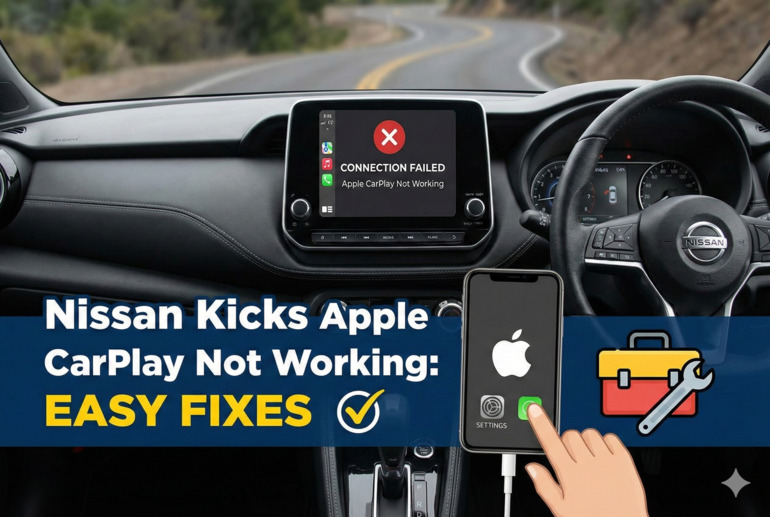
Your morning commute just got a whole lot quieter, and not in a good way. You hop into your Nissan Kicks, plug in your iPhone, and… nothing. Apple CarPlay refuses to show up on your screen. Maybe it worked perfectly yesterday, or maybe it’s been acting up for days.
This kind of tech hiccup can throw off your entire drive, especially if you rely on CarPlay for navigation, calls, or music. The good news is that most CarPlay issues stem from simple problems with quick fixes you can handle yourself. We’ll walk through why this happens and exactly what you can do to get your system back online.
What’s Really Happening With Your CarPlay
Apple CarPlay works like a bridge between your iPhone and your car’s infotainment system. Think of it as a conversation between two devices that need to speak the same language. Your Nissan Kicks has software running its screen, and your iPhone has its own operating system. These two need to connect through either a cable or wireless connection, then sync up properly to display your apps on the dashboard.
The connection seems straightforward enough, but there are several points where things can break down. Your cable might have internal damage you can’t see. The USB port in your car could be dirty or loose. Software on either device might be outdated. Sometimes the system just gets confused and needs a reset, kind of like how your computer occasionally freezes and needs a restart.
If CarPlay stops working, you might see different symptoms. Some people get a black screen where CarPlay should appear. Others see their phone charging but no CarPlay icon showing up. Your screen might freeze mid-drive or disconnect randomly. Each of these points to slightly different underlying issues, but they all leave you without the features you need.
Ignoring a CarPlay problem might seem harmless at first. You can still drive just fine, right? But here’s what happens over time. You start fiddling with your phone while driving, trying to change songs or check directions. That’s dangerous. Plus, if the issue is actually a failing USB port or corroded connection, it could get worse and stop charging your phone altogether. Better to fix it now while it’s still a minor annoyance.
Nissan Kicks Apple CarPlay Not Working: Common Causes
After fixing dozens of these CarPlay issues, I’ve noticed patterns in what usually goes wrong. Most problems fall into just a handful of categories, and knowing which one you’re dealing with makes the fix much easier.
1. Cable Connection Problems
Your Lightning cable takes a beating every single day. You coil it up, toss it in your bag, yank it out of the port at weird angles. Over time, the wires inside can break even though the outer coating looks perfect. I’ve seen cables that charge phones just fine but won’t transfer data for CarPlay because specific wires inside are damaged.
The connectors get dirty too. Lint from your pocket builds up inside the Lightning port on your phone. The USB end picks up dust and grime from your car. All that debris blocks the electrical connection your devices need to communicate. Sometimes the metal pins inside the connector bend slightly, which is enough to cause intermittent connections that drive you crazy.
2. Outdated Software on Either Device
Apple releases iOS updates pretty regularly, and each one can change how CarPlay interacts with car systems. Your Nissan Kicks also has software that occasionally needs updating. These updates fix bugs, patch security holes, and improve compatibility between devices.
Here’s what happens when versions don’t match up properly. Your iPhone might be running iOS 17, expecting certain responses from the car’s system. But if your Kicks is running older firmware, it might not understand those new commands. The connection fails or acts glitchy. This mismatch causes more problems than most people realize.
Software bugs can sneak in too. Maybe an iOS update introduced a glitch that affects CarPlay specifically. Apple usually fixes these quickly, but you need to actually install the patch. Same goes for your car’s system. Nissan might release an update addressing known CarPlay issues, but it won’t help unless you download and install it.
3. USB Port Issues in Your Vehicle
Not all USB ports in your Nissan Kicks support CarPlay. Some are designed only for charging or playing music files from a flash drive. You need to use the specific port that has the CarPlay icon next to it, usually located near the center console. Plugging into the wrong port means your phone charges but CarPlay never activates.
Even the right port can develop problems. Dirt and debris accumulate inside over months of use. The port’s internal connectors can wear out from thousands of insertions and removals. Sometimes the port becomes loose, creating an unstable connection that drops randomly while you’re driving.
4. iPhone Settings Blocking the Connection
Your iPhone has several settings that control how CarPlay behaves. If CarPlay is accidentally disabled in your restrictions, it won’t connect no matter what you do. Location services need to be enabled for many CarPlay features to work properly. Siri access is required since CarPlay relies heavily on voice commands.
Screen Time restrictions can interfere too, especially if you’ve set limits on app usage. CarPlay might be blocked during certain hours or after you’ve hit daily time limits. These settings exist for good reasons, but they can surprise you if you forget they’re active.
5. System Cache and Memory Glitches
Both your iPhone and your car’s infotainment system store temporary data to speed up operations. Sometimes this cached information gets corrupted. Your car might remember an old connection attempt that failed and keep trying to use those same broken parameters. Your iPhone could have outdated pairing data that conflicts with current connection attempts.
Memory issues crop up too. If your car’s system has been running for weeks without a restart, it can get bogged down. Background processes pile up, available memory decreases, and performance suffers. CarPlay might load slowly, freeze, or fail to connect at all simply because the system is overwhelmed.
Nissan Kicks Apple CarPlay Not Working: DIY Fixes
Let’s get your CarPlay working again. These fixes move from simplest to more involved, so start at the top and work your way down until something clicks.
1. Check Your Cable and Try a Different One
Grab your Lightning cable and look it over carefully. Bend it gently along its length, watching for kinks or spots that feel different. Check both connectors for bent pins, corrosion, or debris stuck inside. If you see anything suspicious, that cable needs replacing.
Even if the cable looks fine, swap it out with a different one. Use an Apple-certified cable if possible. Those cheap gas station cables often lack the proper data wires CarPlay needs. I keep a spare certified cable in my glovebox specifically for troubleshooting these issues.
While you’re at it, clean your iPhone’s Lightning port. Turn off your phone first, then use a wooden toothpick to gently scrape out any lint or debris. Don’t use metal objects that might damage the contacts. You’d be surprised how much stuff accumulates in there. After cleaning, try connecting again.
2. Restart Both Your iPhone and Your Car
This sounds too simple to work, but it fixes probably 30% of CarPlay issues I see. Start with your iPhone. Press and hold the side button and either volume button until the power-off slider appears. Slide to power off, wait 30 seconds, then turn it back on.
For your Nissan Kicks, turn off the engine completely. Open the door and let the car sit for about two minutes. This gives all the electronic systems time to fully power down and clear their memory. Start the car back up and try connecting CarPlay again. Often that’s all it takes.
3. Update Your iPhone Software
Head into your iPhone settings and check for updates. Tap Settings, then General, then Software Update. If an update is available, download and install it. Make sure your phone is connected to WiFi and has at least 50% battery, or plug it into a charger.
These updates take 15 to 30 minutes usually. Let it finish completely before trying CarPlay again. Apple often bundles CarPlay fixes into their regular iOS updates without making a big announcement about it. Installing the latest version can resolve compatibility issues you didn’t even know existed.
After updating, give your phone another restart before testing CarPlay. This ensures all the new software loads fresh without any remnants of the old version interfering.
4. Update Your Nissan Kicks Infotainment System
Nissan releases software updates for the infotainment system periodically. You can check for these at your dealership’s service department. Some newer models let you download updates onto a USB drive from Nissan’s website, then install them yourself through the car’s settings menu.
The process varies by model year, so check your owner’s manual for specific steps. Generally, you’ll visit the Nissan owner portal, enter your VIN, and see if updates are available. Download the file, copy it to a USB drive formatted as FAT32, then plug it into your car and follow the on-screen prompts.
Updates can take 30 minutes or more, and you need to keep your car running the entire time. Don’t turn off the ignition mid-update or you could brick your system. Park in a well-ventilated area if you’re doing this in a garage.
5. Forget and Re-Pair Your iPhone
Sometimes the connection data stored in both devices gets corrupted. Deleting it and starting fresh can clear up mysterious glitches. On your iPhone, go to Settings, then General, then CarPlay. Find your Nissan Kicks in the list and tap Forget This Car. Confirm the action.
Now plug your iPhone into the car’s USB port. Your car should prompt you to connect to CarPlay as if it’s the first time. Follow the setup steps on both screens. This creates a fresh connection profile without any corrupted data from previous attempts.
6. Check CarPlay Settings and Restrictions
Open your iPhone settings and scroll down to Screen Time. Tap Content & Privacy Restrictions, then Allowed Apps. Make sure CarPlay is toggled on. While you’re there, check that Location Services are enabled under Privacy settings. CarPlay needs location access for navigation and other features.
Also verify that Siri is enabled. CarPlay leans heavily on voice commands, so Siri needs to be active. Go to Settings, then Siri & Search, and make sure both “Listen for ‘Hey Siri'” and “Press Side Button for Siri” are turned on.
If you’ve set up any driving focus modes or Do Not Disturb settings, temporarily disable them to test if they’re interfering with CarPlay. Some focus mode configurations can block certain apps from appearing on CarPlay even though they’re allowed on your phone normally.
7. Contact a Professional Technician
If you’ve tried everything above and CarPlay still won’t cooperate, something deeper is going on. The USB port might be physically damaged and need replacement. There could be a wiring issue between the port and the infotainment system. Your car’s head unit might have a hardware failure that requires professional diagnosis.
Take your Nissan Kicks to a certified technician who has experience with infotainment systems. Bring your iPhone along so they can test with your actual device. Explain what you’ve already tried so they don’t waste time repeating steps. They have diagnostic tools that can pinpoint exactly where the connection is failing, whether it’s in the port, the wiring, or the head unit itself.
Wrapping Up
CarPlay problems in your Nissan Kicks usually boil down to cable issues, software mismatches, or settings that need adjusting. Most of the time, you can fix it yourself in under 15 minutes with a cable swap, a restart, or a quick settings check. These small fixes save you a trip to the dealer and get you back to enjoying hands-free calls and navigation.
Stay on top of software updates for both your phone and your car. Keep a quality certified cable handy. Clean those ports every few months. With a little regular maintenance, CarPlay should work smoothly for years. If all else fails, a technician can diagnose hardware issues that need professional attention. Either way, you’ll be back to streaming your playlists and following turn-by-turn directions before you know it.