
You’re driving your Nissan Kicks, ready to stream your favorite playlist or take that important call hands-free. But your phone won’t connect to your car’s Bluetooth system. Nothing happens when you try to pair, or maybe the connection drops randomly.
This frustrating issue affects many Kicks owners, and you’re probably wondering why your reliable car suddenly won’t cooperate with your phone. The good news is that most Bluetooth problems stem from simple glitches that you can fix yourself without visiting a dealership. This guide will walk you through everything you need to know about diagnosing and solving Bluetooth connectivity issues in your Nissan Kicks.
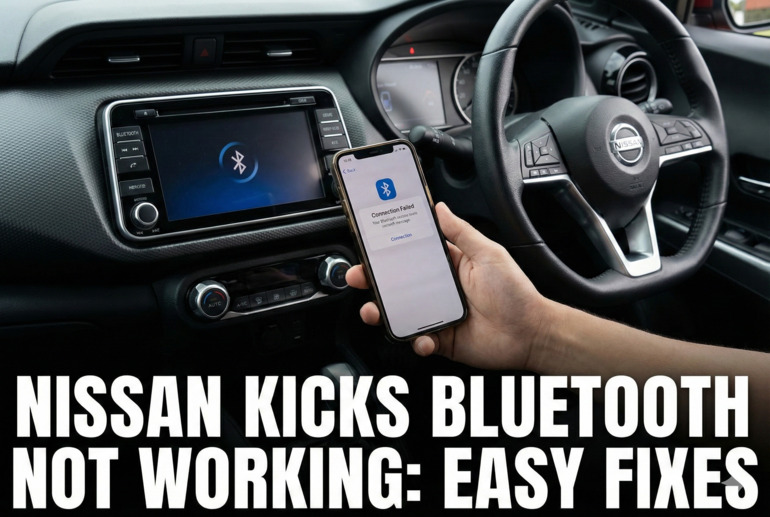
Understanding Your Nissan Kicks Bluetooth Connection
Your Nissan Kicks uses Bluetooth technology to create a wireless bridge between your phone and the car’s infotainment system. This connection lets you make calls, stream music, access navigation apps, and use voice commands without touching your phone. The system works through radio waves that communicate between your phone’s Bluetooth chip and the receiver built into your car’s head unit.
When everything works smoothly, pairing takes just a few seconds. Your phone appears on the car’s display, you confirm the connection, and you’re ready to go. But several things can interrupt this process. Sometimes the issue sits on your phone’s side, while other times the car’s system needs attention.
The connection relies on both devices being in discoverable mode and having compatible Bluetooth versions. Your Kicks needs to recognize your phone as a trusted device, storing that information in its memory. If something disrupts this stored data or if either device experiences a software hiccup, the connection fails.
Ignoring Bluetooth problems might seem minor, but they create real safety concerns. You’ll be tempted to handle your phone while driving, which increases accident risk significantly. Plus, you’ll miss out on convenient features you paid for when you bought your vehicle.
Nissan Kicks Bluetooth Not Working: Common Causes
Several factors can prevent your Nissan Kicks from connecting to your phone via Bluetooth. Let’s look at what typically goes wrong so you can pinpoint your specific issue.
1. Software Glitches in Either Device
Your phone and your car’s infotainment system both run complex software that occasionally develops temporary bugs. These glitches happen when the system gets confused about connection protocols or when background processes interfere with Bluetooth functionality.
Think of it like your computer freezing up occasionally. The hardware works fine, but the software needs a quick restart to clear its memory and start fresh. Your phone might have dozens of apps running simultaneously, and sometimes they conflict with Bluetooth operations.
Your Kicks’ system can also develop these temporary hiccups, especially if you’ve recently updated the infotainment software or if the system has been running for extended periods without a reset.
2. Outdated System Software
Car manufacturers regularly release software updates that fix bugs and improve compatibility with newer phone models. If your Nissan Kicks hasn’t received an update in a while, it might struggle to communicate with your recently updated smartphone.
Phone operating systems evolve quickly. Your iPhone or Android device gets frequent updates that change how Bluetooth functions operate behind the scenes. An older car system might not recognize these new protocols properly, leading to connection failures or unstable links.
3. Too Many Paired Devices
Your Nissan Kicks can remember multiple phones, but there’s a limit to how many devices it can store. When you reach that limit, the system gets confused about which device to prioritize. Some Kicks models store up to five devices, while others handle more.
Having too many saved devices creates another problem. The car tries to connect to previously paired phones that might be nearby, even if you want to use a different device. This creates interference and prevents your current phone from establishing a stable connection.
4. Corrupted Bluetooth Pairing Data
Sometimes the information your car stores about your phone gets corrupted. This corruption happens due to interrupted pairing attempts, system crashes during connection, or conflicts between different device profiles. When the stored data becomes scrambled, your Kicks can’t properly recognize your phone anymore.
Your phone might show that it’s connected, but no audio plays through the speakers. Or the car’s display might show your device name but refuses to complete the handshake process.
5. Physical Interference or Distance Issues
Bluetooth has a limited range of about 30 feet, but that range shrinks dramatically when obstacles block the signal. If you keep your phone in a bag, under a seat, or in a center console lined with metal, the signal weakens considerably.
Other electronic devices in your car can also create interference. Charging cables, dash cams, radar detectors, and even some phone cases with metal components can disrupt Bluetooth signals. The interference might not completely block the connection, but it creates instability that causes frequent dropouts.
Nissan Kicks Bluetooth Not Working: DIY Fixes
Now that you understand what causes these connectivity problems, let’s get your Bluetooth working again. These solutions work for most situations, and you can try them right from your driver’s seat.
1. Restart Both Your Phone and Car System
Turning both devices off and back on clears temporary software glitches that prevent proper communication. This simple step resolves more Bluetooth issues than any other fix.
For your phone, power it down completely using the proper shutdown procedure for your device. Wait about 30 seconds before turning it back on. This pause lets all components fully reset and clears the device’s working memory.
For your Nissan Kicks, turn off the engine and open the driver’s door. Wait two minutes, then close the door and restart the car. This complete power cycle resets the infotainment system. Some Kicks owners find success by pressing and holding the power button on the infotainment screen for ten seconds until it restarts.
2. Delete and Re-pair Your Device
Removing the old connection data and starting fresh often fixes corrupted pairing information. Go to your Kicks’ Bluetooth settings menu, find your phone in the list of paired devices, and select the option to delete or forget it.
Next, grab your phone and open its Bluetooth settings. Find your Nissan Kicks in the list of paired devices and tap the information icon next to it. Select “Forget This Device” or “Unpair.” This removes the connection from both ends, giving you a clean slate.
Now start the pairing process from scratch. Put your car’s system in pairing mode, make sure your phone’s Bluetooth is discoverable, and follow the on-screen prompts to create a new connection. Enter any PIN codes exactly as they appear on the screen.
3. Clear Out Old Paired Devices
Access your Nissan Kicks’ Bluetooth settings and look at the full list of connected devices. You might see phones that previous owners paired or devices you haven’t used in years. Delete all devices except the one or two you regularly use.
This cleanup helps your system focus on the devices that matter. It also frees up memory space that might be causing performance issues. After removing old devices, try connecting your phone again. The system should respond faster and establish a more stable connection.
4. Update Your Infotainment Software
Check if Nissan has released any software updates for your Kicks’ infotainment system. You can do this by visiting your nearest Nissan dealership, calling their service department, or checking the official Nissan owners portal online.
Some updates install automatically when you connect to Wi-Fi through your car’s system, but others require a service appointment. These updates often include critical Bluetooth improvements and compatibility patches for newer phone models. Dealerships typically install these updates for free or for a small service fee.
You should also ensure your phone’s operating system is current. Go to your phone’s settings, find the software update section, and install any available updates. These updates frequently include Bluetooth performance improvements.
5. Check for Physical Obstructions
Remove your phone from any thick case, especially ones with metal components or card holders. These accessories can significantly weaken Bluetooth signals. Try connecting without the case to see if that solves your problem.
Position your phone in a spot with clear line-of-sight to the dashboard. The center console cup holder or a phone mount attached to the windshield or vent works well. Keep your phone away from other electronic devices that might create interference.
6. Reset Your Infotainment System to Factory Settings
If nothing else works, a complete system reset might be necessary. This option erases all saved settings, paired devices, and customizations, returning your Kicks’ infotainment system to its original state.
Find the reset option in your system settings menu. The exact location varies depending on your model year, but it’s usually under “System Settings” or “Device Settings.” You’ll need to confirm this action since it can’t be undone.
After the reset completes, go through the initial setup process again and pair your phone as if connecting for the first time. This nuclear option fixes deep-seated software issues that other methods can’t touch.
7. Contact a Nissan Technician
When you’ve tried everything and your Bluetooth still won’t cooperate, professional help becomes necessary. A certified Nissan technician can run diagnostic tests that reveal hardware failures or software problems requiring specialized tools to fix.
The dealership can also check for technical service bulletins related to Bluetooth issues in your specific model year. Sometimes Nissan issues recalls or warranty extensions for known problems, which means your repair might be covered at no cost.
Wrapping Up
Bluetooth connectivity issues in your Nissan Kicks usually stem from simple software glitches or corrupted pairing data rather than serious hardware problems. Most fixes take just a few minutes and require no special tools or technical knowledge.
Start with the easiest solutions like restarting your devices and re-pairing your phone before moving to more involved steps. Keep your software updated on both your phone and car to prevent future problems. If you’ve worked through all these fixes without success, a dealership visit will get you back to enjoying hands-free convenience and keeping your focus where it belongs on the road.